It’s surprisingly easy to turn pictures into drawings for free, and you don’t need to be a professional artist to do it. The quickest way is to use an AI-powered web tool. You just upload a picture, choose a style like "pencil sketch," and let the AI do the heavy lifting. In moments, you’ll have a drawing ready to go.
The Best Ways to Turn a Photo Into a Drawing
So, you want to transform a favorite photo into a piece of art? Great idea. You've got several fantastic options, and none of them require you to buy expensive software. While AI tools are definitely the fastest route, there are other methods that offer more control and a personal touch. It all comes down to what you're trying to achieve—a quick new profile picture or a detailed piece you can call your own.
The rise of AI has completely changed the game. Since 2022, a staggering 15 billion images have been created using AI, and many people find the results just as compelling as human-made art. This boom has opened up a world of creative possibilities without the high price tag.
Comparing Free Photo to Drawing Methods
To figure out the best approach for you, let's break down the four main free methods we'll be exploring. Each one has its own strengths, whether you're prioritizing speed, simplicity, or total creative freedom.
| Method | Best For | Ease of Use | Customization | Speed |
|---|---|---|---|---|
| AI Web Tools | Quick results and stylistic variety | Very Easy | Low | Instant |
| Mobile Apps | On-the-go editing and social sharing | Easy | Medium | Fast |
| Desktop Software | Full creative control and learning | Difficult | High | Slow |
| Digital Tracing | A handmade, personal touch | Medium | Very High | Very Slow |
Think of it this way: the more control you want over the final drawing, the more time you’ll need to invest. If you're in a hurry, AI is your best friend. If you're a perfectionist, you’ll want to get your hands dirty with desktop software or tracing.
This little decision tree should make it even clearer.
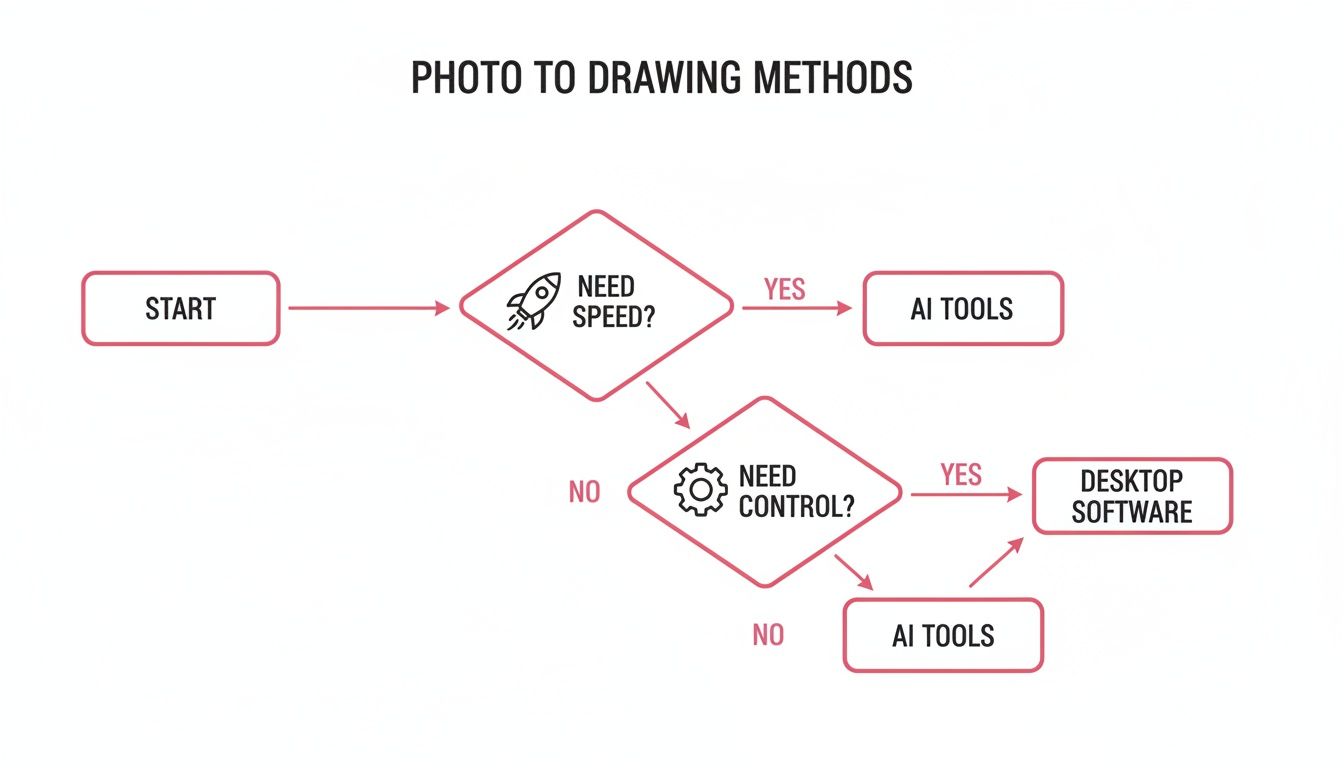
It really boils down to a simple trade-off. For instant gratification, nothing beats the AI web tools. For projects where every line and shadow matters, firing up your desktop software is the only way to go.
Once you have your new artwork, the fun is just beginning. You could learn how to transfer a photo to shirt and create some truly unique custom gear. And if you're aiming for a different aesthetic, you might want to check out our other guide on how to turn an image into a cartoon.
Using AI Web Tools for Instant Artistic Results
If you're looking for the absolute fastest way to turn pictures into drawings free of charge, AI web tools are your best bet. These platforms have exploded in popularity for a good reason—they deliver surprisingly artistic results with just a few clicks.
Forget about needing any artistic talent or technical know-how. The whole process is dead simple: you upload a photo, pick a style you like, and let the AI do the heavy lifting. It's a fantastic way to create a unique social media avatar, a personalized gift, or just to mess around and see what’s possible.
The AI essentially looks at your photo and reimagines it in a completely different artistic medium. Your selfie can become a classic pencil sketch, a moody charcoal drawing, or even a page from a comic book.
Choosing the Right Source Photo
Here’s a crucial piece of advice: the final drawing is only ever as good as the photo you start with. An AI can’t magically fix a bad picture; it can only work with the information you give it. Think of it like cooking—you need good ingredients to make a great meal.
To get the best results, keep these pointers in mind:
- Good Lighting is Key: Start with a photo where your subject is well-lit. Harsh shadows or blown-out highlights will just confuse the AI, leading to a drawing that looks flat or has weird dark splotches. Natural light from a window is almost always a winner.
- Focus on the Subject: Your main subject needs to be sharp and in focus. A blurry photo will only ever produce a blurry, muddy-looking drawing because the AI won't have any clear lines to follow.
- Simple Backgrounds Work Wonders: A cluttered background is distracting. The AI might struggle to separate your subject from the noise, blending them together. A plain wall or a soft, out-of-focus background works much better.
Guiding the AI with Styles and Prompts
Once you have your photo picked out, the fun begins. Most free AI tools will show you a gallery of preset styles. Don't be afraid to experiment! The same photo can be transformed into a dozen different pieces of art, from a delicate watercolor wash to a bold graphic novel panel.
Some of the more sophisticated tools even let you use text prompts to fine-tune the result. You could upload a portrait and add a prompt like, "pencil sketch, detailed lines, high contrast" to give the AI more specific instructions. This gives you a much finer degree of control over the final look and feel.
For instance, many popular image generators use a simple text box interface.
You just type in what you want, and the platform gets to work creating it from scratch or applying those ideas to an image you've uploaded. It’s incredibly intuitive.
A quick note on privacy: Before you upload personal photos, it’s always a good idea to glance at the tool's privacy policy. Most reputable sites are perfectly safe, but it's smart to know how your images are being handled.
Remember, working with AI is often a process of trial and error. If the first drawing isn't quite right, don't sweat it. Try a different style, play around with your prompts, or use another photo. The beauty of these free tools is that you can experiment endlessly.
For those wanting to dig deeper into creating standout images, you can learn more about AI Image Tools for Viral Visual Content Creation. And if you want to take your edited images to the next level, our guide on the best AI photo editors is the perfect next step.
Creating Art On The Go With Free Mobile Apps
Your smartphone is one of the most powerful creative tools you own. Instead of being tied to a computer, you can turn pictures into drawings free from practically anywhere—while you're waiting for a coffee, relaxing on the couch, or even during your commute. The app stores are absolutely packed with options that make this process incredibly simple and a lot of fun.
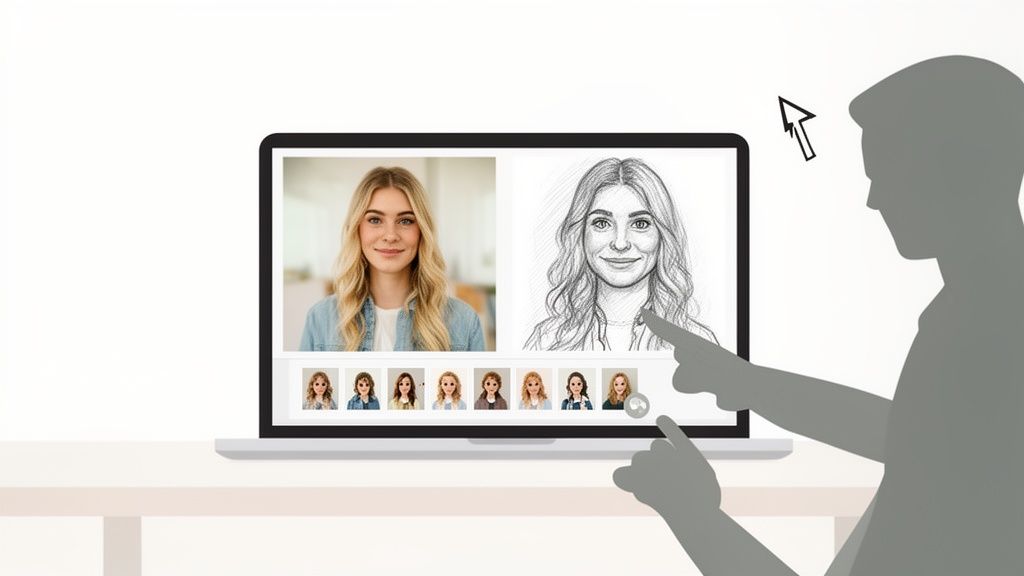
This sheer convenience is a huge reason mobile creativity has exploded. The market for AI image generators is projected to surge from $9.1 billion** in 2025 to over **$272.8 billion by 2035, and mobile apps are leading the charge, holding a dominant 40.6% market share. This growth points to a massive demand for quick, personalized visuals for social media, custom gifts, and unique content. You can dig deeper into these trends and find more on the rise of AI-powered image generation tools.
Finding the Right App for Your Style
Not all apps are created equal. I've found that some excel at producing realistic, fine-lined pencil sketches that genuinely look hand-drawn. Others are built to create bold, vibrant cartoon effects with thick outlines and punchy colors. The right app for you really just depends on the look you're going for.
Before you just download the first app you see, take a moment to think about what you want to create:
- For Realistic Sketches: Look for apps that specifically mention "pencil," "charcoal," or "graphite" filters. These often come with sliders to let you control line weight, texture, and shading intensity, giving you a much more authentic, artistic result.
- For Bold Cartoons: Search for apps with terms like "cartoonizer," "comic," or "toon" effects. These are perfect for creating eye-catching avatars and profile pictures that really pop.
- For Artistic Effects: Some apps offer more abstract styles, like "watercolor," "oil painting," or "ink wash." I love using these for transforming landscapes or pet photos into something more expressive and painterly.
Many free apps provide a solid set of basic effects. Often, they'll offer more advanced styles through a one-time purchase or a premium subscription. It's always a good idea to try the free version first to see if it delivers what you need.
A Quick Guide to Transforming Your Photo
Let’s walk through a typical workflow. Imagine you want to create a cool sketch of your dog to post on your Instagram story.
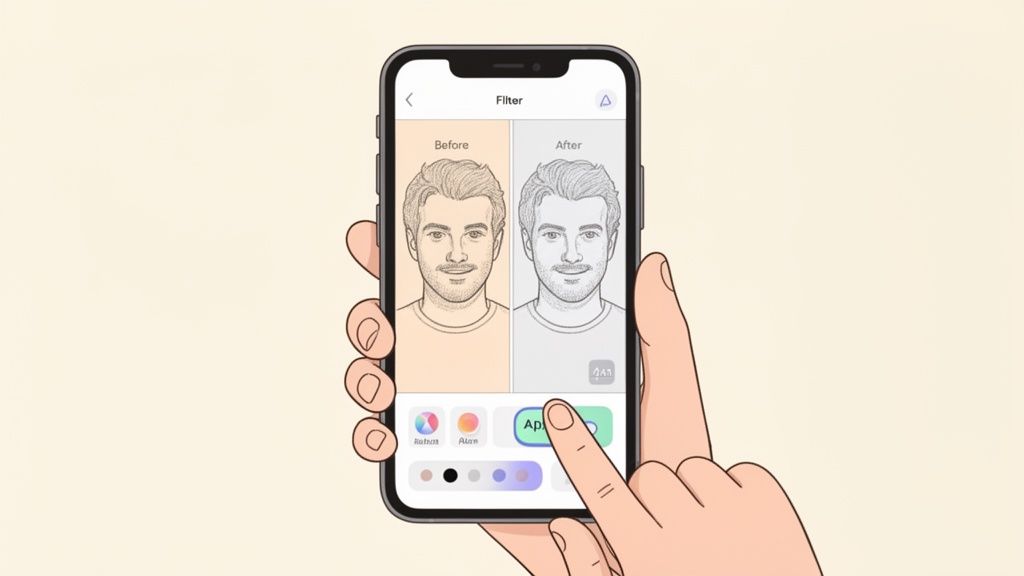
First, you'll open your chosen app and import the photo from your phone's gallery. I recommend picking a picture with good lighting and a clear view of your pet’s face. Once imported, you'll see a menu of filters or styles. Tap on a "pencil sketch" effect to apply the initial transformation.
Now for the fun part: tweaking it. Most apps will give you adjustment sliders. You might see options like "Detail," "Contrast," or "Stroke Weight." Dragging the "Detail" slider can bring out the fine lines in your dog's fur, while fiddling with "Contrast" can make the shadows deeper and more dramatic.
Pro Tip: Don't be afraid to layer effects. Some apps let you apply one filter, save the image, and then apply another one on top. You could start with a basic sketch and then add a subtle watercolor wash for a unique, mixed-media feel.
Once you’re happy with how it looks, find the export or save button. I always suggest choosing the highest resolution available to ensure your drawing looks sharp and clear, especially if you plan to share it online. Most apps also have a built-in sharing function, letting you post your new creation directly to social media in just a few taps.
Gaining Full Control With Free Desktop Software
If you're the type who likes to get your hands dirty and wants more than a one-click filter, desktop software is where the real fun begins. While AI tools and mobile apps are fantastic for quick results, a powerful free program like GIMP (GNU Image Manipulation Program) gives you a digital canvas to truly make the art your own. You get granular control over every line, shade, and texture.
This hands-on approach is less about instant gratification and more about embracing the creative process. It’s the difference between buying a cake and baking one yourself—the final piece just feels more personal because you guided it into existence.
Creating a Pencil Sketch Effect in GIMP
Let's walk through a classic, reliable technique for faking a convincing pencil sketch. This method hinges on a few core concepts in photo editing—layers and blending modes—so you'll be learning valuable skills along the way. I'll explain the "why" behind each move so it all makes sense.
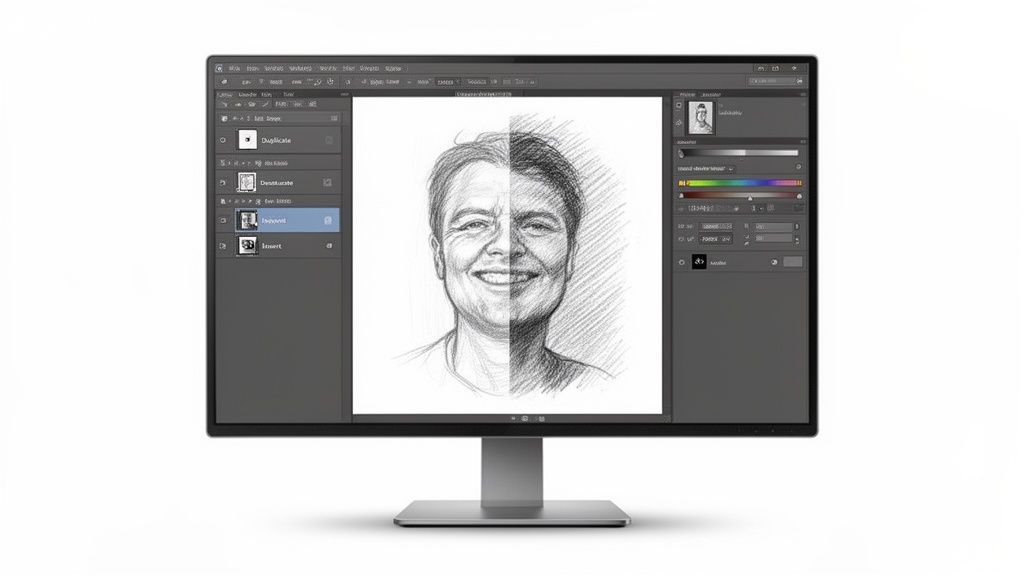
First up, open your photo in GIMP and find the Layers panel. You’ll want to immediately duplicate your main image layer. This is a golden rule of non-destructive editing. It ensures you always have a pristine copy of your original photo to fall back on if things go sideways or you just want to start over.
With that new top layer selected, let's strip out all the color. Navigate to Colors > Desaturate > Desaturate. When prompted, choose the "Luminosity" mode. This creates a grayscale version based purely on the image's brightness, which is the perfect foundation for our sketch.
Now for the clever part. We're going to invert the colors on this grayscale layer by going to Colors > Invert. Your image will suddenly look like an old-school photo negative, which is exactly what we need for the next step. This process is what turns the highlights of your photo into the eventual "pencil" lines.
Using Filters and Blending for the Final Look
Okay, here’s where the magic happens. In the Layers panel, change the blending mode of this inverted layer from "Normal" to "Dodge." Your canvas will likely turn almost completely white, maybe with a few dark specks here and there. Don't worry, you didn't break it! The Dodge mode is designed to brighten the layers below, and since our top layer is an inverted negative, it essentially cancels itself out for a moment.
The final artistic touch comes from a simple filter. Go to Filters > Blur > Gaussian Blur. As you start to nudge the blur radius slider up, you'll see your sketch magically appear right before your eyes.
The Gaussian Blur works by softening the hard edges of your inverted layer, allowing the dark areas to "bleed" through and form lines. A small radius creates fine, sharp lines, while a larger one produces a smudged, softer charcoal look. I usually start with a value around 15-20 pixels and then fine-tune it by eye.
This technique is a fantastic starting point. For those looking to take it even further, we cover more advanced tricks in our detailed guide on how to turn my photo into a sketch.
From here, you can get even more creative. Try adding a layer mask to selectively paint the sketch effect onto your original color photo for a cool mixed-media look. This process not only leaves you with a beautiful custom drawing but also teaches you powerful skills you can use in all sorts of other projects. It's the perfect path for anyone ready to graduate from automated filters.
When a Dedicated Service Is the Best Choice
Let's be honest, the free tools we've covered are fantastic for experimenting and casual fun. But there are moments when "good enough" just doesn't cut it. When you need a guaranteed, high-quality result, a very specific art style, or just want to skip the trial-and-error, investing in a dedicated service is the way to go. This is especially true when the project really matters—think a one-of-a-kind gift or a sharp, professional avatar.
The biggest difference you'll find with a specialized service is consistency. Instead of the mixed bag you can get from a general-purpose AI, these platforms are fine-tuned for a particular aesthetic. If you're aiming for that perfect anime or kawaii look, a tool like AnimePhoto.ai is trained exclusively on those art styles. That means every single output is on-brand and high-quality.
Trading a Small Fee for a Superior Outcome
Ultimately, it comes down to what your time and peace of mind are worth. A paid service brings a few critical advantages to the table that free options often can't match.
- Curated, Unique Styles: You’re not just getting a generic filter. You gain access to hand-tuned styles, often developed by artists, that produce a specific and much more desirable look.
- Enhanced Privacy: Reputable paid services usually have stronger privacy policies. You can upload personal photos with more confidence that they won’t end up in a public training dataset.
- Time-Saving Simplicity: The user experience is built for speed. You get the result you want in seconds, without having to fight with confusing settings or unpredictable outputs.
This kind of user-friendly, high-quality experience is a huge reason the AI art space is booming. The global AI Art Maker market is expected to reach $1 billion in 2025 and is projected to grow at a 35% compound annual growth rate through 2033. This growth is powered by platforms offering premium styles that give anyone professional-level results, no artistic skill required. You can dig into the numbers and see more market growth projections for AI art tools to understand the trend.
When your project demands a specific, polished look—like a cohesive set of avatars for your gaming team or a truly special illustrated portrait for an anniversary gift—a dedicated service is a small investment for a perfect final product. It’s the difference between a fun experiment and a flawless execution.
Got Questions? We've Got Answers
Jumping into the world of photo-to-drawing converters can definitely bring up a few questions. From what you're legally allowed to do with your new artwork to making sure it looks sharp, getting the right info helps you create with confidence. Let's tackle some of the most common things people ask.
The biggest gray area? Usage rights. When you use a free online tool to turn pictures into drawings, you're playing by that service's rules, and believe me, they can be all over the map.
Can I Use These Drawings for My Business?
That’s the million-dollar question, and the answer is a classic: it depends. The terms of service are what matter here. Many free AI generators and mobile apps are pretty clear that their output is for personal, non-commercial use only.
This means using a drawing from one of these tools for a company logo, t-shirts you plan to sell, or any marketing campaign could land you in hot water.
Before you get too attached to an image for a business project, do yourself a favor and hunt down the "Terms of Use" or "Licensing" page. A few minutes of reading can save you a massive headache later.
Pro Tip: If you're working on anything commercial, it's almost always smarter (and safer) to go with a paid service. They usually provide a clear commercial license, which gives you the green light to use the art for your brand without looking over your shoulder.
That peace of mind is one of the main reasons to graduate from free tools for serious work.
How Do I Make Sure My Drawing is High-Resolution?
Getting a crisp, high-quality drawing all comes down to your starting photo. You simply can't create a sharp, detailed sketch from a blurry, low-res image. It's a classic case of "garbage in, garbage out." The more data the software has to work with, the better your final piece will be.
Here’s how to get the best results:
- Start Strong: Use an original, high-resolution photo from your camera or smartphone. Avoid screenshots or images that have been compressed and sent through messaging apps.
- Check Your Export Settings: In desktop software or a mobile app, look for the "Export" or "Save As" option. Always crank the quality to the highest setting available—look for terms like "Maximum," "High," or a DPI of 300, which is the gold standard for printing.
- Know the Limits: A lot of free online tools cap the output resolution on purpose to nudge you toward their paid plans. If you need a big, print-quality drawing, this is often the moment you realize a dedicated service is worth it.
What’s the Best Free Way to Turn a Portrait Into a Drawing?
The "best" method really boils down to what you're trying to achieve. There's no single right answer, but this should help you pick the right tool for the job.
If you want speed and a bunch of different styles to play with, AI web tools are fantastic. You can cycle through a dozen looks—from anime to charcoal sketch—in minutes. They're perfect for experimenting or creating a unique social media avatar on the fly.
On the other hand, if you're a creative who wants to control every last detail, then free desktop software like GIMP is the way to go. It gives you the power to manually tweak every shadow and line for a result that’s truly your own.
But if you're after a very specific and polished aesthetic, like a professional-looking anime portrait, a specialized service is your best bet. Their AI is trained on that one style, so the results are far more consistent and high-quality.
Ready to skip the guesswork and create amazing anime art? AnimePhoto.ai is built to turn your photos into beautiful, share-ready anime portraits in seconds. You can pick from unique, hand-curated styles to get the perfect look for an avatar, a special gift, or just for fun.
Give it a try and see your photos in a whole new light at https://animephoto.ai.

See yourself in anime style in under a minute
Pick a style, upload a photo, and get a high-quality anime portrait ready for profiles, prints and gifts.
Create your anime photo