A good photo enhancer free of charge is so much more than just another filter app. Think of it as a smart assistant for your pictures, using AI to instantly clear up blur, make colors pop, and bring fuzzy details into sharp focus. These tools give everyone—from social media mavens to small business owners—the power to create professional-looking images without the steep learning curve or high cost of traditional software.
Why Free Photo Enhancers Are a Game-Changer
Let's face it, we live in a visual world. The quality of your images can make or break a first impression, whether it’s a LinkedIn profile picture, a product shot for your Etsy shop, or just a memory you're sharing on Instagram. A sharp, vibrant photo just hits differently. This is where free photo enhancers have become absolutely essential. They close the gap between a quick snapshot and a polished, professional photograph, often with just a single click.
This need for high-quality visuals is everywhere. A job seeker needs a professional headshot but might not have the budget to hire a photographer. A crafter trying to sell their creations online knows that blurry, poorly lit photos are a customer-repellent. A photo enhancer free of charge is the perfect fix for these all-too-common problems.
The Move Toward Simple, Powerful Editing
The days of wrestling with complex menus and layers in programs like Adobe Photoshop are over for most people. We expect speed, simplicity, and great results. This demand for easy-to-use tools is a huge reason why the AI photo editing market is booming, with free apps making up over 60% of all downloads in recent years. We'd rather let the AI do the heavy lifting.
One of the most valuable things these tools can do is help you improve photo resolution free, which is a fancy way of saying they make your pictures clearer and less pixelated. This is a lifesaver for restoring old family photos or making a grainy smartphone picture look good on a larger screen.
Quick Guide to Free Photo Enhancement Methods
To help you choose the right tool for the job, here's a quick breakdown of the different types of free enhancers available.
| Enhancer Type | Best For | Skill Level | Example Use Case |
|---|---|---|---|
| Built-in Device Editors | Quick, simple tweaks (brightness, contrast) | Beginner | Lightening a dark photo right after you take it on your phone. |
| Web-Based Enhancers | AI-powered upscaling and one-click fixes | Beginner | Sharpening a blurry product photo before uploading it to your website. |
| Mobile Apps | On-the-go editing with creative filters and effects | Beginner | Adding a cool filter to a selfie for your Instagram story. |
| Free Desktop Software | More control with manual adjustments | Intermediate | Correcting colors in a batch of vacation photos on your computer. |
Each option has its place, but the rise of web-based and mobile AI tools has made high-quality results more accessible than ever.

While basic, built-in tools give you manual control over things like brightness and contrast, the new wave of AI enhancers automates all of that—and then some—to deliver incredible results in a fraction of the time.
Niche Tools for Creative Fun
Beyond fixing everyday photos, specialized tools are popping up for more creative projects. For example, platforms like AnimePhoto.ai are designed specifically to turn your portraits into stylized anime art. It's a fun way for content creators to get a unique avatar or for anyone to create a one-of-a-kind profile picture.
The real magic of today's free photo enhancers is how they put powerful editing into everyone's hands. They've leveled the playing field, allowing anyone with a phone or a laptop to create amazing visuals without needing a lick of technical skill.
This newfound accessibility isn't just about fixing flaws; it's about unlocking creativity and helping us share our stories more beautifully. It's no wonder these tools have become a core part of how we live and work online.
Don't Overlook the Photo Editor Already on Your Device
Before you even think about downloading a new app or searching for a photo enhancer free online, pause for a second. You probably already have a surprisingly powerful set of editing tools right on your phone or computer. Whether you're on iOS, Android, Windows, or macOS, the native photo editor that comes with your device is more capable than you might think. People often skip over them, but they can deliver some seriously impressive results without costing a dime.
It’s always tempting to just hit the 'auto-enhance' button and call it a day. I get it. But the real magic happens when you take control and make small, manual adjustments yourself. Think of it this way: the auto button is like a microwave meal—fast and easy, but rarely amazing. Manual editing is like being a chef, adding your own spices to get the flavor just right. Once you learn to finesse these settings, you unlock complete creative control.
The Key Adjustments That Make the Biggest Difference
Seeing a bunch of sliders can be intimidating, but you don't need to master them all at once. In my experience, most of the heavy lifting comes down to just four key adjustments. Get these right, and you can rescue almost any mediocre photo.
- Exposure: This is simply the overall brightness. If your photo is too dark or looks completely washed out, this is the first slider you should touch. A tiny nudge can bring a poorly lit room back to life.
- Contrast: This slider plays with the difference between the dark and light parts of your image. Pushing the contrast up makes colors feel richer and adds a sense of depth, which keeps your photo from looking flat and uninspired.
- Shadows: Ever taken a picture of someone in front of a bright window and their face ends up in a silhouette? That's where this tool is a lifesaver. It lets you brighten just the dark spots without blowing out the highlights, revealing all those lost details.
- Saturation: This one controls the intensity of all the colors in your picture. Be careful, though—a little goes a very long way. A subtle bump can make a plate of food look mouth-watering or a landscape feel more alive.
Honestly, by just getting a feel for these four sliders, you can fix over 80% of common photo issues. The trick is to make small, deliberate tweaks. They all add up to create a huge impact.
Let's Walk Through a Real-World Example
Okay, let's put this into practice. Imagine you snapped a great picture of your dog at the park, but it was a cloudy day, so the whole thing looks a bit gray and boring. Don't just toss it.
Open it up in your phone’s default photo editor. First, I’d bump up the exposure just a bit to brighten everything up. Next, give the contrast a little push to make the green grass and your dog's fur pop. If your dog has dark fur that looks like a black blob, lift the shadows slightly to bring back the texture and detail in their coat.
To finish it off, add a whisper of saturation to make the park look lush and green again. In less than a minute, you’ve turned a throwaway shot into something you’d actually want to share. Nailing these fundamentals is the first step if you really want to learn how to make a photo look professional, and you can do it all with the tools you already have.
Comparing the Best Free Web and Mobile Photo Enhancers
The photo editor built into your phone or computer is great for a quick touch-up, but what happens when you need more firepower? That’s when you turn to a dedicated photo enhancer. The market is flooded with free tools, from one-click AI wizards to apps that can completely transform your pictures into art. It can be a lot to sift through.
The trick is to know what you're looking for. Some apps are like a Swiss Army knife—packed with tools for almost any job. Others are more like a scalpel, designed to do one thing exceptionally well, like sharpening a blurry photo. Figuring out your goal first will save you from getting lost in features you don't need.
All-In-One Editors for Versatility
Think of all-in-one editors as your digital darkroom. They give you a comprehensive toolkit, letting you handle everything from basic brightness and contrast tweaks to more complex tasks like removing blemishes or even erasing unwanted objects from the background. They’re fantastic when you want a single, reliable app that can tackle pretty much any photo problem.
For example, imagine you have a headshot for your LinkedIn profile that's just a little soft. With an all-in-one tool, you could sharpen the focus, add a little sparkle to your eyes, and maybe even smooth out some skin texture—all without leaving the app. The catch? The free versions often come with strings attached, like a watermark on your final image or a limit on how many photos you can edit per day. It’s a classic trade-off for getting so much functionality for free.
If you're focused on mobile editing, this list of Instagram editing apps is a great place to find powerful options that work right on your smartphone.
AI Upscalers for Crystal-Clear Results
Have an old, pixelated photo you love? Or a blurry shot you wish was clearer? This is where AI upscalers shine. Their one job is to rescue low-resolution or fuzzy images. They use smart algorithms to intelligently add detail and sharpness, making a photo look like it was shot on a much better camera. They are lifesavers for restoring old family pictures or blowing up a small image for printing without it turning into a blocky mess.
Below is a quick look at the foundational edits—exposure, contrast, and saturation—that most built-in tools offer. AI enhancers take these same concepts and automate them with incredible precision.
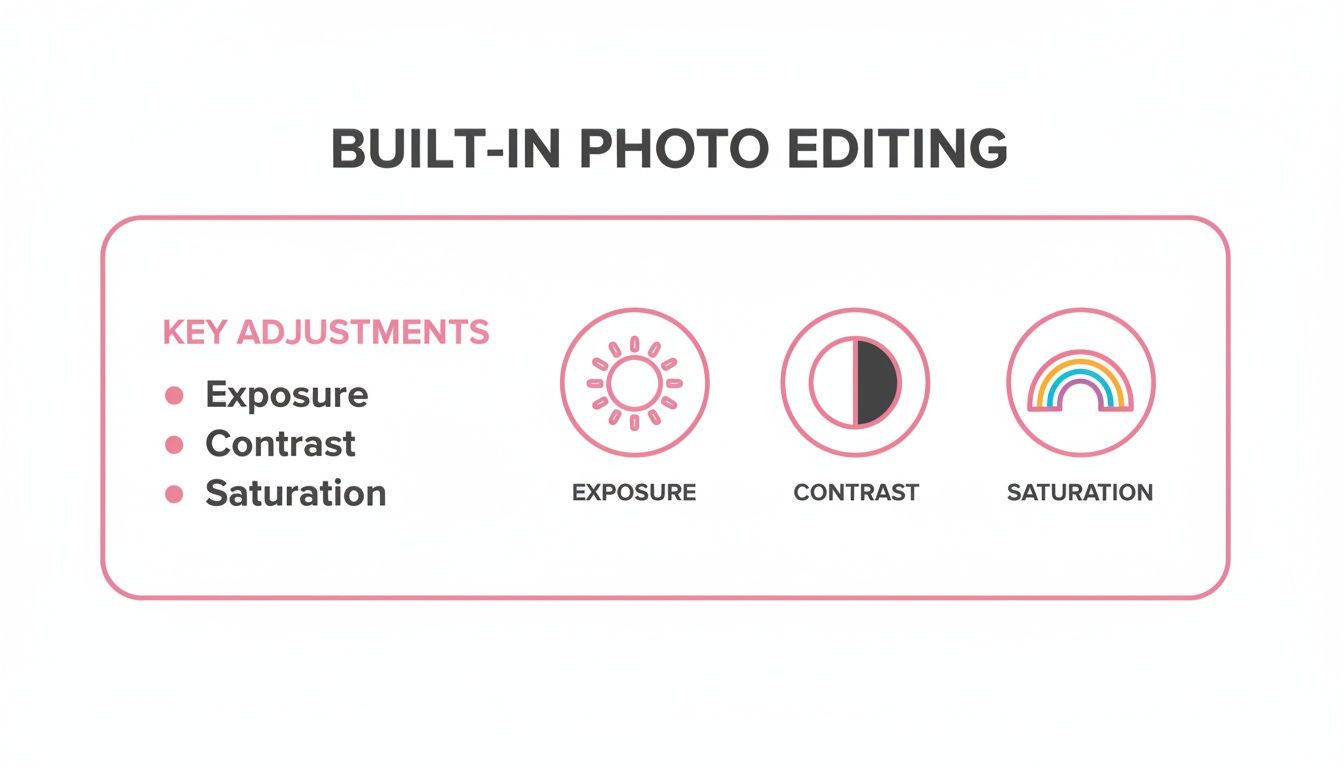
While you can get great results adjusting these manually, the real magic of specialized AI tools is getting that perfect balance with a single click.
Creative Transformers for Unique Styles
Now for the fun stuff. Some AI tools go beyond just fixing photos—they completely reimagine them. These creative transformers can turn a simple portrait into a stylized painting, a cartoon, or even a detailed anime character. This is your go-to for creating a profile picture that really stands out, making engaging social media posts, or designing a truly personal gift.
The demand for these tools is exploding. The AI Image Enhancement Software market was valued at $709 million in 2023 and is growing at a 14.2% rate. For creators, this is huge. Platforms like AnimePhoto.ai offer over a dozen free-trial styles—from chibi pets to cyberpunk couples—that can boost viewer retention on platforms like Twitch by up to 30% with visually engaging avatars. You can read more about the growth of AI image software.
Imagine taking a photo of your cat and turning it into a wide-eyed anime character for a custom sticker. That’s exactly what these tools are built for. They excel at creating something new and eye-catching from a simple source image. To see what's out there, check out our guide to the best AI photo editors.
To help you decide which tool might be right for your needs, here's a quick comparison of some popular free options.
Feature Comparison of Top Free Photo Enhancers
| Tool Name | Platform | Key Feature | Free Version Limitation |
|---|---|---|---|
| Canva | Web & Mobile | All-in-one design suite with AI photo editing | Limited access to advanced AI tools & assets |
| Fotor | Web & Mobile | AI enhancer, upscaler, and creative effects | Watermarks on some outputs, daily usage caps |
| Snapseed | Mobile | Professional-grade manual editing tools | No web version, learning curve for beginners |
| AnimePhoto.ai | Web | AI-powered anime and cartoon transformations | Credits for free trials, limited style access |
This table gives you a snapshot, but the best way to find your favorite is to try a few out. Since they're free, you have nothing to lose by experimenting to see which one feels most intuitive and gives you the results you're after.
Using AI Photo Enhancers Safely
Diving into AI photo enhancement can feel like a bit of magic, but it’s worth pulling back the curtain to see how the trick works. These tools rely on complex neural networks that have been trained on literally millions of images. They’ve learned what makes a photo "good," which is how they can sharpen a blurry face, brighten a dark scene, or even add in missing details with impressive accuracy.
When you use a photo enhancer free of charge, especially a web-based one, you're usually uploading your picture to a company's server. This is the moment where you need to think about safety and privacy. You definitely don’t want your personal photos stored indefinitely or used in ways you never agreed to.
What Happens to Your Photos? Privacy Matters
Before uploading a cherished family photo or even a quick selfie, take a minute to check the service's privacy policy. A good, trustworthy service will be upfront about how they handle your data.
You’re looking for clear answers to a few key questions:
- How long are my images kept? The best services typically delete your photos from their servers within a short window, often 24 to 48 hours.
- Will my images be used for training? Some companies use customer photos to improve their AI models. You should have the option to opt out of this.
- Who else can see my photos? Your uploads should always be private. It’s a good sign when services like AnimePhoto.ai explicitly state that your images are protected and not shared.
Good free AI photo enhancers put user privacy first. Always opt for a service with a straightforward privacy policy that respects your ownership and deletes your data quickly. That extra minute of checking is worth the peace of mind.
Getting Natural-Looking Results (Without the "AI Look")
AI is incredibly powerful, but it's not a miracle worker. The old saying "garbage in, garbage out" is especially true here. To get a fantastic result, you need to start with a decent source image. A photo that’s reasonably focused and well-lit will always enhance better than a dark, blurry shot.
Once the AI has done its thing, it's your turn to be the final judge. Zoom in and really look at the details. Does the skin look waxy or plastic? Are the eyes unnaturally sharp? AI can sometimes go a little overboard, creating that classic "over-edited" look. A truly great enhancement is subtle—it should look like you just took a perfect photo from the start, not like you ran it through a heavy filter.
There’s a clear reason people are flocking to free tools, and it's a mix of accessibility and caution. In fact, free enhancers are projected to make up 70% of all downloads by 2025. With 92% of users saying secure uploads are a top priority, it's no wonder people prefer to test the waters before committing. This trend shows that free trials and pay-as-you-go credits aren't just a marketing gimmick; they're how companies build trust. You can find more data on the AI software market on 360iResearch.
Ultimately, using AI safely comes down to being an informed user. If you choose trusted platforms and keep a critical eye on the results, you can get all the benefits of this amazing technology without risking your privacy or the natural look of your photos.
Expert Tips for Flawless Photo Results
Any free photo enhancer is a powerful tool, but the final result really hinges on the quality of the image you start with. It’s a classic “garbage in, garbage out” situation. You can’t expect incredible results from a hopelessly blurry or dark photo, no matter how good the software is.
Think of it this way: the AI’s job is to refine and polish what’s already there. It's brilliant at sharpening soft edges or brightening up shadows, but it can't just invent detail out of thin air. For the best outcome, always start with the highest-resolution, most in-focus photo you have.
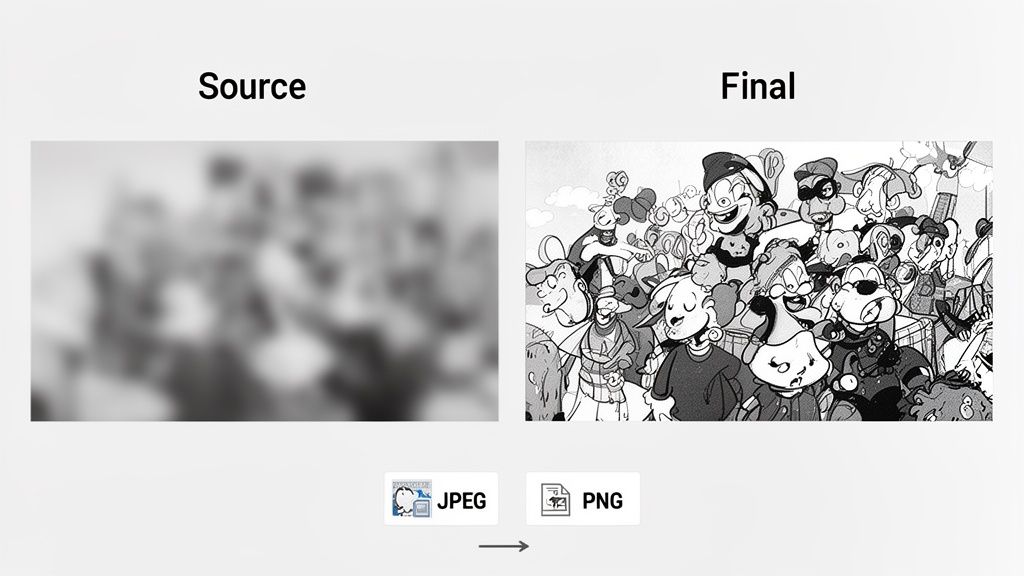
Starting with a clean shot also helps you avoid digital "noise"—that grainy, speckly look common in low-light pictures. AI algorithms can sometimes get confused by noise, mistaking it for actual detail and creating strange-looking artifacts. If your source image is particularly grainy, it’s worth trying to clean it up first. Our guide on how to reduce noise in your photos has some great pointers.
Nail Your Export Settings
So you've enhanced your image, and it looks fantastic on your screen. Great! But don't trip at the finish line. Saving your file with the wrong settings can instantly ruin all that hard work. The trick is to match your export settings to how you plan to use the photo.
Here’s a quick rundown for the most common uses:
- For Printing: Go for maximum quality. PNG is the ideal format because it uses lossless compression, meaning zero detail is lost. If you have to use a JPEG, crank the quality setting up to 100%. Also, make sure the resolution is at least 300 DPI (dots per inch) for a crisp print.
- For Websites & Blogs: Here, file size is king because you need your pages to load fast. A JPEG is your best bet. A quality setting between 75-90% usually hits the sweet spot between a clear image and a small, web-friendly file.
- For Social Media: Platforms like Instagram and Facebook are notorious for compressing images. To give your photo the best chance, export it as a high-quality JPEG or PNG at the platform’s ideal dimensions (for example, 1080px wide for an Instagram post). This gives their compression algorithm a better starting point, which usually leads to a sharper-looking post.
Your export settings are just as crucial as your edits. A high-quality enhancement saved with heavy compression will still look pixelated and unprofessional. Always tailor your export format and quality to where the photo will be displayed.
Choosing the right file format doesn't have to be complicated. Here's what you really need to know.
JPEG vs. PNG: What You Need to Know
| Feature | JPEG | PNG |
|---|---|---|
| Best For | Photos, web graphics, social media | Logos, graphics with text, printing |
| Compression | Lossy (loses some data) | Lossless (retains all data) |
| Transparency | No | Yes |
| File Size | Smaller | Larger |
When it comes down to it, being thoughtful about your source image and your final export is the real secret to getting consistently amazing results from any photo enhancer.
Got Questions About Free Photo Enhancers?
Even with the best tools, you’re bound to have some questions. Getting the right answers can save you a ton of frustration and help you get the most out of any photo enhancer free of charge. Let's tackle some of the most common ones I hear.
Are These "Free" Photo Enhancers Actually Free?
Yes, but there's almost always a catch. The vast majority of these tools run on a "freemium" model. This means the basic features are genuinely free, but the good stuff—like high-resolution exports, advanced editing tools, or getting rid of that pesky watermark—is often locked behind a paywall.
Before you invest time editing a photo, it pays to know the limitations. Here’s what you’ll commonly run into:
- A cap on how many photos you can process per day or week.
- A company watermark slapped onto your finished image.
- Lower output quality or resolution than what the paid users get.
- Access to only a small selection of filters, effects, or AI styles.
Can a Free Enhancer Really Fix a Super Blurry Photo?
It really depends on the level of blur. Modern AI enhancers are surprisingly good at rescuing photos that are just a little out of focus or have some minor motion blur. They work by intelligently guessing what the missing details should be, which can add a remarkable amount of sharpness and clarity.
But there's a hard limit. If a photo is so blurry that you can't make out the subject, the AI has nothing to work with. It can't magically invent details that were never captured in the first place. It might make the image look a bit sharper, but it can't perform miracles. My advice? Always start with the clearest possible version of your photo.
The real power of a photo enhancer free of charge is in refining and sharpening what's already there, not creating something out of thin air. Think of it as a restoration project, not a brand-new painting.
How Safe Is It to Upload My Personal Photos?
This is a big one, and the honest answer is: it depends entirely on the service you're using. Reputable companies take user privacy seriously, but you have to do your homework. Always take a minute to scan the privacy policy before you upload anything personal.
What should you look for? I always check for a clause that says they don't store my images long-term. Many of the good ones automatically delete user uploads within 24-48 hours. It's also smart to see if they use your photos to train their AI models and if you have the option to opt out. A trustworthy platform will be upfront about how they handle your data, giving you peace of mind that your photos will stay private.
Ready to turn your photos into unique anime art? AnimePhoto.ai makes it easy and fun. Upload your image, pick a style, and let our AI create a masterpiece for you. Try it now at AnimePhoto.ai and see your vision come to life.

See yourself in anime style in under a minute
Pick a style, upload a photo, and get a high-quality anime portrait ready for profiles, prints and gifts.
Create your anime photo