So, you want to turn your photo into a sketch? The quickest and easiest way is to use a one-click AI tool online or a dedicated mobile app. Both can give you a variety of cool sketch styles in just a few seconds. If you're someone who likes to have more creative control, diving into desktop software like Photoshop offers a manual, layer-based approach for a truly custom artistic effect.
Your Quick Guide to Photo to Sketch Conversion
Have you ever looked at a favorite photo and imagined it as a hand-drawn piece of art? The idea of turning a photo into a sketch is incredibly popular, whether you want a unique social media avatar, a thoughtful personalized gift, or are just looking to have some fun. It’s a fantastic way to give your images a timeless, artistic vibe without needing any actual drawing skills.
The best part? You don't need to be a professional artist to pull this off anymore. There are tons of tools out there, and each one strikes a different balance between speed, control, and complexity.
I'll walk you through the three main ways to get it done:
- Instant AI Converters: Perfect when you need impressive results fast and don't want to mess with technical settings.
- Mobile Apps: Super convenient for creating sketches right on your phone, wherever you are.
- Desktop Software: The go-to for anyone who wants total creative freedom over every single line and shadow.
This whole trend is part of a bigger shift making digital art accessible to everyone. The market for AI image generators was valued at USD 418.5 million in 2024 and is expected to explode to USD 2,633.2 million by 2035. That's a massive 18.2% compound annual growth rate, which just goes to show how much people love turning their everyday pictures into something special. You can explore more data on AI image market growth to see the full scope.
Just look at the different artistic styles you can achieve, from a classic pencil look to something more dramatic like charcoal or ink.
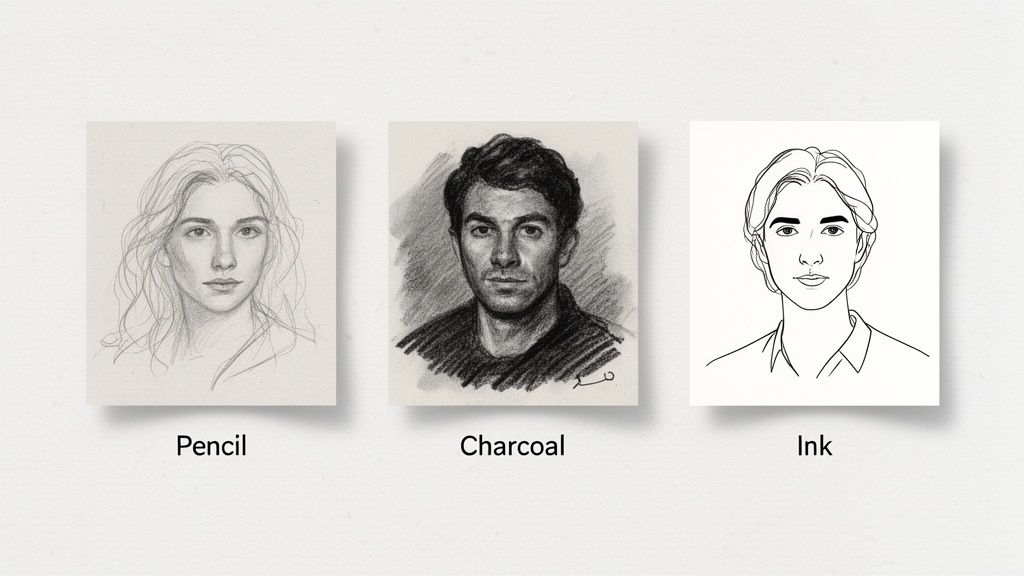
Each style creates a completely different mood, which is why having options is so important for getting the look you want. For a closer look at what's out there, check out our guide on the https://animephoto.ai/blog/best-ai-photo-editors.
Photo to Sketch Methods at a Glance
Before we jump into the step-by-step instructions, here’s a quick overview of the different methods. This table should help you figure out which path is the best fit for your needs right from the start.
| Method | Best For | Skill Level | Speed | Cost |
|---|---|---|---|---|
| AI Online Tools | Quick, hassle-free results and trying different styles. | Beginner | Seconds | Free & Paid |
| Mobile Apps | On-the-go editing and easy social media sharing. | Beginner | Minutes | Free & Paid |
| Desktop Software | Maximum creative control and professional-quality output. | Intermediate to Advanced | 10-30+ minutes | Paid (Subscription/One-time) |
As you can see, there's a solution for everyone, whether you have five minutes or an entire afternoon. Now, let’s get into the specifics of how to use each of these methods.
Using Instant AI Sketch Converters
If you're looking for fantastic results without spending hours learning complex software, AI-powered online tools are your best bet to turn my photo into a sketch. These platforms do all the heavy lifting, giving you an artistic image in just a few seconds.
Honestly, you don't need any technical skills at all. The entire process is incredibly straightforward—you just upload your picture, pick a style you like, and hit download. It's the fastest way to get from a regular photo to a beautiful illustration.
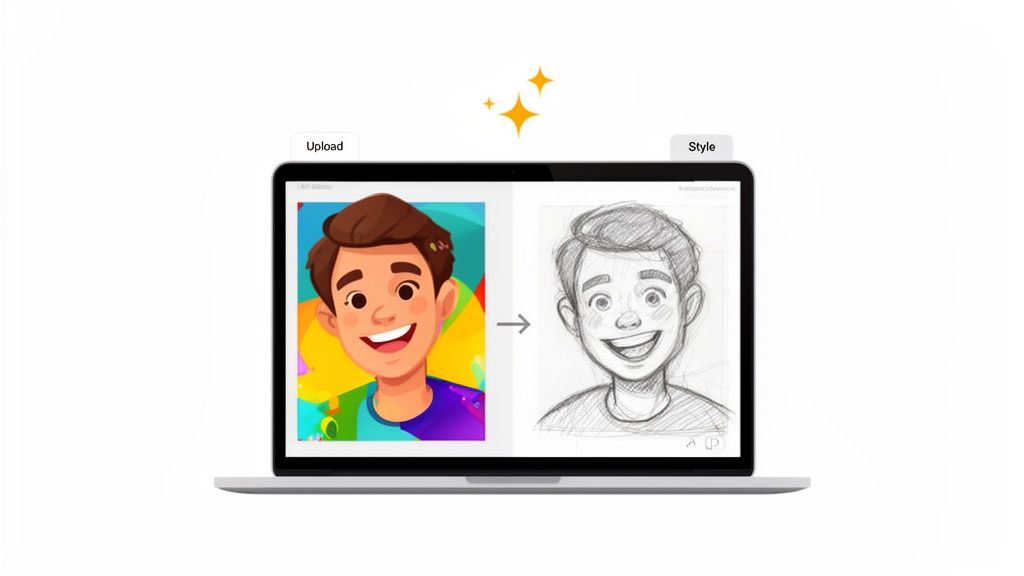
Selecting The Right Photo And Style
The quality of your starting photo makes a huge difference in the final sketch. For the AI to do its best work, pick an image that's well-lit, in focus, and has a clear subject. A strong contrast between the main subject and the background helps the AI pinpoint the essential lines and shadows, which leads to a much cleaner and more detailed sketch.
Once your photo is uploaded, the fun begins: choosing a style. AI converters like AnimePhoto.ai go way beyond a basic pencil effect, offering some really cool options.
- Manga Black-and-White: This is perfect for creating those dramatic, high-contrast portraits that look like they're straight out of a Japanese comic.
- Semi-Realistic Portrait: A great choice for a more subtle look that keeps the person recognizable but adds that hand-drawn, artistic flair.
- Chibi Sketch: I love this one for pet photos or fun group shots. It turns everyone into cute, exaggerated characters with a really playful feel.
Think about it: a standard family portrait could become a charming group illustration for a holiday card. Or, that photo of your dog could be transformed into an adorable chibi sketch for your social media profile. It’s all about matching the style to the vibe you're going for.
The growth of AI creative tools is just staggering. AI image editing has become the fastest-growing software category, showing 441% year-over-year growth in 2024. This isn't just a trend; it's a fundamental shift in how we're all tackling creative projects, including turning photos into sketches.
How To Use An AI Sketch Converter
The workflow couldn't be simpler. Just head to the website and find the "upload" button. Grab the photo you want from your computer or phone—most tools easily handle standard formats like JPG and PNG.
After the upload, you'll see the style gallery. This is where you can play around. Click on the different sketch effects to see a live preview of your photo. Most tools generate these previews almost instantly, so you can experiment without any waiting until you find one that looks just right.
When you're happy with what you see, just download your new sketch. Good, reputable services won't hang on to your original photos, which is great for privacy. The whole process is so seamless that anyone can create amazing, artistic sketches without needing any special skills.
Creating Sketches on the Go With Mobile Apps
Let's face it, your smartphone is probably glued to your hand. The good news is that this means you have a powerful little art studio right in your pocket. Mobile apps are by far the most convenient way to turn a photo into a sketch whenever inspiration hits—whether you're killing time on your commute or just bored on your lunch break.
The App Store and Google Play are flooded with options, and most are built for one thing: speed. You can take a standard selfie and turn it into a cool pencil portrait in less than a minute. This makes them perfect for creating a new avatar on the fly or just jazzing up your social media feed.
Choosing Your Ideal Sketch App
When you start browsing for an app, you'll quickly notice a split between free and paid options. The free ones are great for dipping your toes in the water, but they almost always come with a catch.
Here's what to watch out for with the "free" apps:
- Watermarks: Most will slap their logo on your finished sketch. It’s fine for fun, but it can look a bit cheap if you're using it for a professional profile.
- Resolution Limits: Free exports are often low-resolution. They look okay on a phone screen but will turn into a blurry mess if you try to print them.
- Ad Overload: Get ready for pop-up ads. They can really kill the creative vibe when you’re trying to focus.
- Limited Styles: The really good sketch filters? Yeah, those are usually locked behind the premium subscription.
Paying for an app (or upgrading to premium) usually gets rid of all that. You get high-resolution exports, no ads, and a much bigger playground of artistic styles to experiment with.
A Quick App Workflow Example
Getting started with most of these apps is dead simple. It really just boils down to a few taps.
First, you'll pick a photo from your phone's gallery. The app then throws a bunch of sketch effects at you. This is where you get to play—tap through different options like classic pencil, heavy ink, soft charcoal, or even colored pencils to see what clicks with your image.
Once you’ve found a style you like, don't just stop there. Look for the adjustment settings. This is where the magic really happens.
Pro Tip: Seriously, don't ignore the adjustment sliders. A little tweak to the contrast can make the lines feel sharper and more defined. Messing with the brightness can pull out details you didn't even see in the shadows. This is what takes a generic filter and turns it into something that feels uniquely yours.
After you've dialed in the line thickness and shading, just hit save. The sketch will land right in your camera roll, ready to share. The whole process is incredibly intuitive, letting you create something cool without needing any real artistic skill.
And if you want to branch out into other styles, you can even turn your photos into anime for free using similar tools.
Full Creative Control with Photoshop and GIMP

While one-click converters are great for quick results, sometimes you need to get your hands dirty and take full command. For that level of precision, you can't beat professional desktop software like Adobe Photoshop or its powerful, free alternative, GIMP. This manual approach lets you turn a photo into a sketch with a degree of customization that automated tools just can't touch.
Instead of just slapping on a pre-made filter, you're building the effect from the ground up with layers and blend modes. This gives you granular control over everything from the thickness of the lines to the texture of the "paper." It’s more involved, for sure, but the results are uniquely yours.
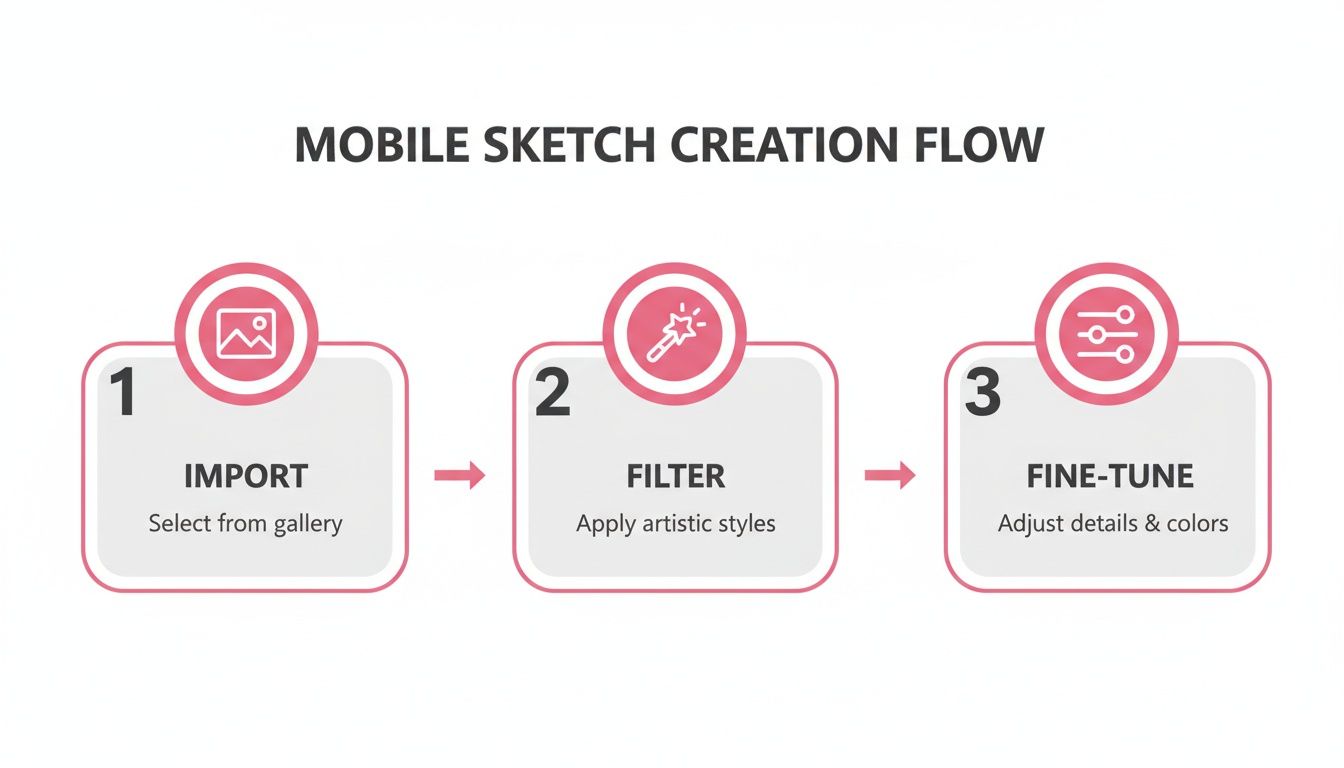
This visual—import, filter, and fine-tune—is a great summary of the basic idea. But when you do it manually, you unlock a ton of power at each stage.
The Foundational Layer Technique
The most popular and effective way to do this manually relies on a clever layering trick. The first thing you always do is duplicate your original photo layer. This is non-negotiable; it's your safety net, ensuring the original image is always there if you need to start over.
With your new duplicate layer, the transformation begins. First, desaturate it to turn it into a black-and-white image. Removing the color forces you to see the photo in terms of pure light and shadow—the very essence of a sketch. After that, duplicate this grayscale layer one more time.
At this point, you'll have three layers:
- Bottom Layer: Your original color photo, safe and untouched.
- Middle Layer: The desaturated grayscale copy.
- Top Layer: A second copy of the grayscale layer.
Select that top layer and invert its colors (Ctrl+I on Windows, Cmd+I on Mac). It will look like an old-school photographic negative. This is the critical setup for the magic that's about to happen.
Creating the Sketch Effect with Blend Modes
The real secret to this whole technique is a single setting: the blend mode. Change the blend mode of that inverted top layer to Color Dodge. Your image will probably turn completely or almost completely white. Don't worry, you didn't break it! That's exactly what's supposed to happen. Color Dodge brightens the layers below, and since you're pitting an inverted image against its identical positive, they effectively cancel each other out.
Now for the fun part. With that top layer still selected, apply a Gaussian Blur filter. As you slowly nudge the blur radius slider up, dark lines will start to emerge from the white background, forming your sketch.
This is where your artistic eye takes over. A small blur radius, maybe 1-3 pixels, creates fine, delicate lines that are perfect for a detailed pencil portrait. If you push it further to 10-20 pixels, you'll get thicker, softer lines that look more like a charcoal or graphite stick drawing.
You have total control here. Play with the blur setting until the line weight feels right for your image. Once you're happy, you can merge the top two layers to lock in the sketch effect.
Adding Depth and Realism
A purely digital sketch can sometimes feel a bit too perfect, a little sterile. To give it that authentic, hand-drawn vibe, you can add texture and subtle imperfections.
- Paper Texture: Find a high-resolution image of paper online and drop it in as a new top layer. Change its blend mode to Multiply and dial back the opacity to somewhere around 20-40%. This simple trick makes it look like your sketch was drawn on actual, textured paper.
- Refining with Layer Masks: Are some parts of the sketch too dark or distracting? Add a layer mask to your sketch layer. Using a soft black brush with a low opacity, you can gently "paint away" parts of the effect to clean up the background or soften harsh lines on a face.
This hands-on approach definitely requires more patience, but the payoff is a piece of art that’s truly one-of-a-kind. For those who enjoy having this level of creative input, learning how to design your own cross stitch patterns involves similar principles of translating images into a new medium. And if you're aiming for a polished, high-quality finish, our guide on how to make pictures look professional offers more tips that can complement this process.
Pro Tips for a Perfect Photo to Sketch Transformation
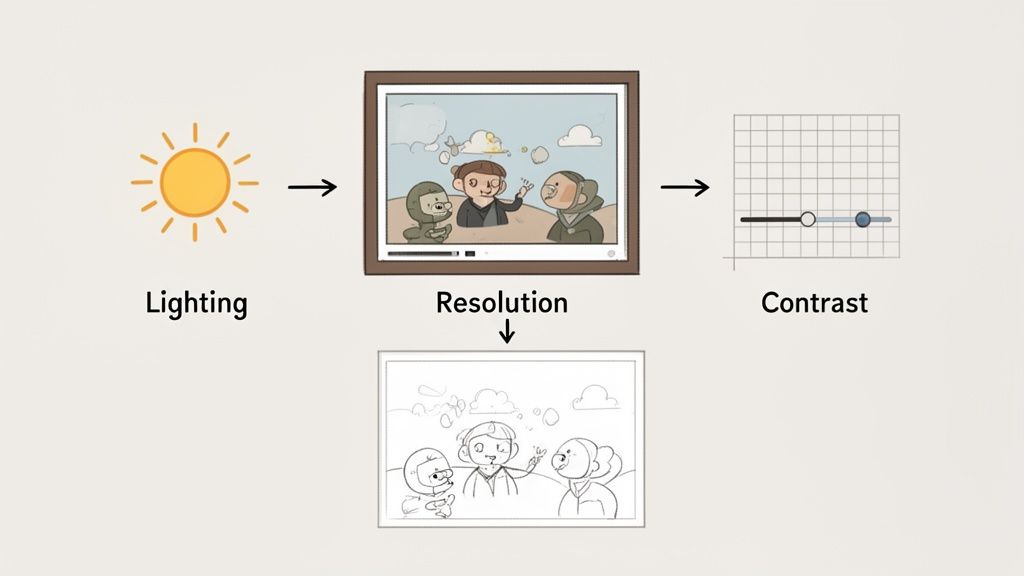
The real secret to getting a great sketch isn't just the tool you use; it's the prep work you do before you even upload the file. A little bit of thought upfront can mean the difference between a muddy, generic filter and a piece that truly looks hand-drawn.
Think of your original photo as the canvas. A weak canvas will always lead to a disappointing painting. That's why you should always start with the highest-resolution image you can get your hands on. A sharp, clear photo gives the software more detail to interpret, which translates directly into cleaner lines and more believable shading.
Just as crucial is the lighting. Look for photos with good contrast—clear highlights and defined shadows. These are the elements that sketch conversion algorithms love. Stay away from images that are too dark, blurry, or have busy, distracting backgrounds. They tend to confuse the process, leaving you with a messy, undefined result.
Choosing the Right Sketch Style
Not all sketches look the same, and picking the right style is all about matching the vibe of your photo. This is where your own artistic eye comes into play, elevating a simple conversion into something with personality.
Here are a few popular styles and my take on where they shine:
- Pencil Sketch: This is the go-to for portraits. Its fine lines and soft shading are perfect for capturing the subtle details of a person's face without being too harsh.
- Charcoal Sketch: Got a dramatic landscape or an old building with a lot of character? Charcoal is your friend. The bold, dark strokes create a powerful, high-contrast image that really makes a statement.
- Line Art: This minimalist style is fantastic for logos, avatars, or any design where you need clean, simple outlines. It strips everything down to the bare essentials. If you really want to get into the weeds, you can learn to convert image to line art like a pro with more advanced methods.
Trust your gut on this one. A soft pencil sketch probably won’t capture the power of a mountain range, and a heavy charcoal effect might completely overpower a sweet photo of a newborn. Match the style to the story you're trying to tell.
Fine-Tuning and Exporting Your Artwork
Once you’ve picked a style, don't stop there. Most tools have sliders and settings that let you play around with things like line thickness, shading intensity, and contrast. Don’t be afraid to experiment. A tiny adjustment can often take a sketch from "good" to "wow."
When you're happy with the result, think about where it's going to live. If it’s for a social media profile picture, a high-quality JPG will do the job perfectly. But if you're thinking of printing it out, you'll want to export it as a PNG at the highest resolution possible to keep every little detail crisp.
The growing popularity of these tools is no surprise. It's all part of a huge wave in digital creativity. The global digital art market is expected to surge from USD 5.8 billion in 2025 to a massive USD 13.17 billion by 2031, driven by our love for unique, personalized content.
Your Photo-to-Sketch Questions, Answered
Diving into digital art often sparks a few questions, especially when you’re looking to turn a photo into a sketch. It's a really cool process, but a little bit of know-how can make a huge difference in your final result. I've put together answers to some of the most common questions I hear to help you get the best results on your creative journey.
From choosing the right starting picture to making sure your files are safe, these answers should clear things up and get you started on the right foot.
What Is the Best Type of Photo to Use for a Sketch Conversion?
Hands down, the best photos are high-resolution with a clean, simple background. Think about what makes a good portrait: clear lighting and strong contrast between your subject and what's behind them. This is crucial because it helps the software or AI easily pick out the main lines and shadows that will make the sketch look detailed and believable.
On the flip side, try to avoid images that are blurry, too dark, or have a really busy background. These problems can confuse the conversion process, leaving you with a muddled, undefined image that just doesn't have the crisp feel of a real drawing.
A great tip is to think like an artist. You want a subject that’s well-defined and easy to focus on. A clear photo of someone against a plain wall will almost always convert into a better sketch than a shot of them in a crowded room.
Can I Turn a Color Photo Into a Black and White Sketch?
Absolutely! In fact, most conversion tools—from the one-click AI generators to manual software like Photoshop—are built to automatically handle the shift to monochrome. Starting with a color photo can actually give you a better sketch because the tool has more data to work with. It can analyze the different color values to interpret shading and tone much more accurately before it even thinks about grayscale.
Plus, many modern tools offer more than just black and white. You'll often find creative options for colored pencil or pastel effects if you want to hang on to some of the original color in your final piece.
Are Online Photo to Sketch Converters Safe to Use?
This really depends on the service you're using. Reputable online tools put your privacy first. A good starting point is to look for a secure connection (HTTPS in the URL) and a privacy policy that's easy to find and understand. It should tell you exactly what happens to your photos.
The best platforms process your images on the spot without storing them for a long time, and they definitely won't share your uploads. As a rule of thumb, stick with well-known, trusted websites. If a site is plastered with pop-up ads or is vague about how it protects your data, it's best to stay away.
How Can I Make My Digital Sketch Look More Realistic?
The secret to making a digital sketch feel more authentic and hand-drawn is to add texture and subtle imperfections. If you're working in a program like Photoshop or GIMP, you can overlay a paper texture image and set its blend mode to "Multiply." This one move instantly adds a layer of realism, making it look like the sketch was done on a real canvas.
Here’s another little trick I use: grab a soft eraser tool with a low opacity and gently dab away at some of the lines. This breaks them up just a tiny bit, mimicking the natural inconsistency of a real pencil stroke. It’s a small detail, but it can make a massive difference in how believable your final piece looks.
Ready to create your own masterpiece? With AnimePhoto.ai, you can transform your favorite photos into stunning anime-style art in just a few clicks. It's fast, fun, and perfect for creating unique avatars and gifts. Try it now!

See yourself in anime style in under a minute
Pick a style, upload a photo, and get a high-quality anime portrait ready for profiles, prints and gifts.
Create your anime photo