The best way to reduce noise in photos is a two-pronged attack: start with smart in-camera techniques, like keeping your ISO as low as possible, then clean up what's left with good post-processing software. This method gives you a clean foundation to build on, letting you remove any leftover grain without destroying precious detail.
Why Noisy Photos Ruin Your Creative Vision
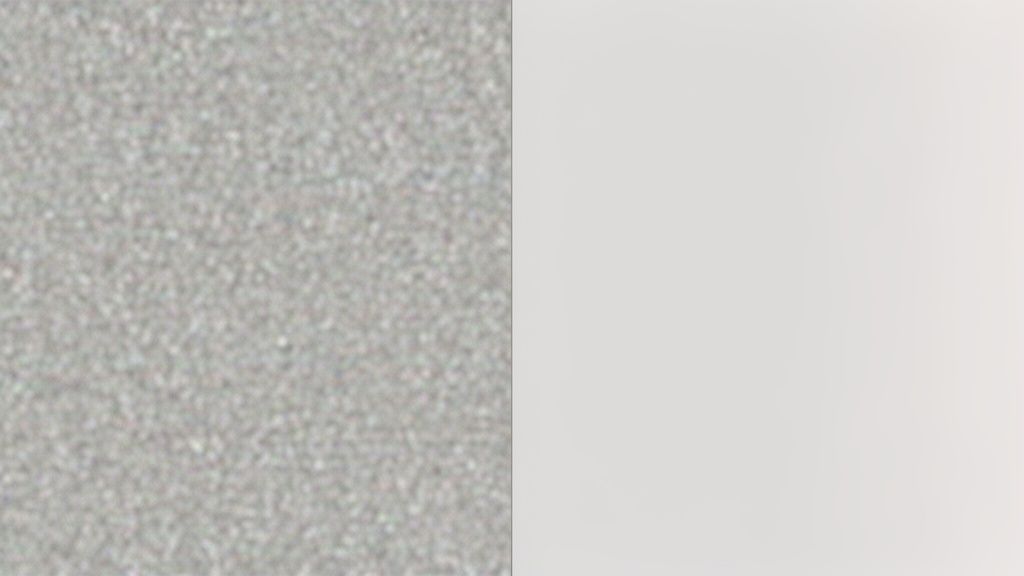
Before we jump into the "how," let's talk about the "why." That distracting, grainy texture you see in some photos is more than just a minor flaw. Digital noise actively works against you, degrading the quality of your shot and tying your hands when it comes time to edit.
Think of it like static on a radio—it’s interference that garbles the clean signal your camera sensor worked so hard to capture. This interference shows up in a few ways that can completely derail your artistic intent.
The Real Damage of Digital Noise
Noise doesn't just look messy; it literally corrupts the data in your image file. This creates a domino effect of problems when you get into your editing workflow.
- Loss of Fine Detail: Noise smudges over the tiny textures that make a photo feel real and sharp—things like the weave of a fabric or individual strands of hair.
- Inaccurate Colors: Ever see those ugly red, green, and blue specks lurking in the shadows? That's color noise, and it throws your entire color palette off.
- Reduced Dynamic Range: A noisy photo makes it incredibly difficult to pull detail out of the highlights and shadows. The result is often a flat, less dynamic image.
Picture this: you've captured a fantastic portrait in a moody, low-light setting. You had to crank up the ISO, and now the image is full of grain. When you try to sharpen your subject’s eyes, you end up sharpening the noise too, making it even more obvious. The shot looks gritty and unprofessional, no matter how perfect the composition was.
Key Takeaway: A noisy photo is a compromised photo. It forces you to edit defensively, cleaning up a mess instead of creatively enhancing a great shot. Starting with a clean image is everything.
Noise Is a Dealbreaker for AI Photo Editing
This issue becomes even more critical when you're using creative AI tools, like those that turn photos into anime art. These platforms need to analyze the clean lines, distinct shapes, and smooth color transitions in your source photo.
When an AI model sees a ton of noise, it gets confused. It often interprets that random grain as intentional detail or texture, which leads to a muddy, artifact-filled mess. A clean, noise-free photo acts as a perfect blueprint for the AI, ensuring your final image is crisp, vibrant, and looks professionally done.
Stop Noise Before It Starts with Smart Camera Settings
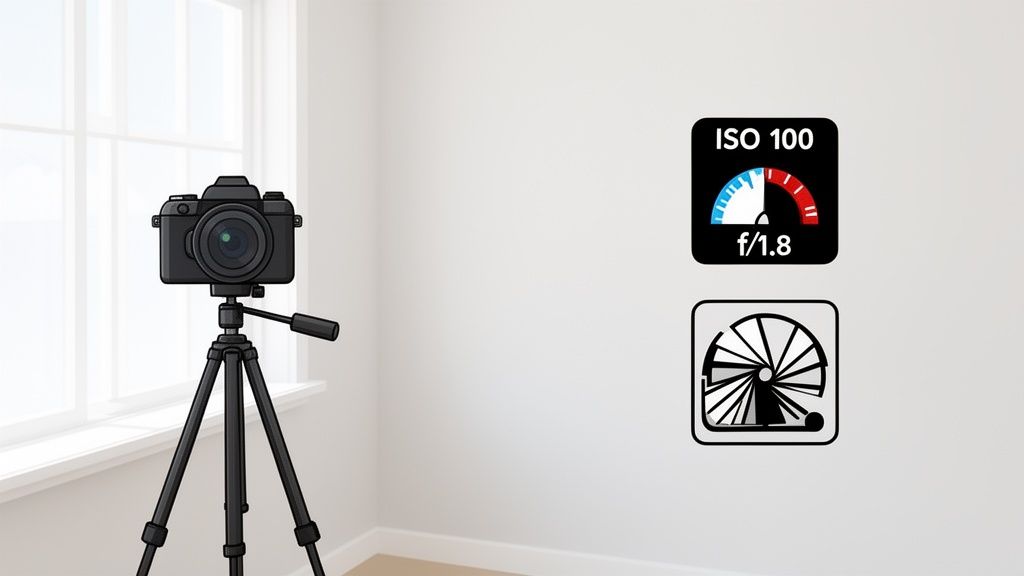
The single best way to reduce noise in photos is to make sure it never shows up in the first place. Post-processing software is incredible these days, but even the best tools can't magically restore detail that was swallowed up by heavy grain. Getting it right in-camera gives you a much cleaner, more flexible file to work with.
Think of it this way: your camera's sensor needs a healthy amount of light to "see" clearly and produce a clean image. When it's too dark, the camera has to electronically boost the signal it captures, and that amplification is what creates digital noise. This is all controlled by your ISO setting.
A low ISO, like 100 or 200, is the sensor's native state, producing the highest quality image it's capable of. Cranking the ISO up to 3200 or 6400 is like turning up the volume on a faint radio signal—you hear the broadcast, but you also get a lot of static. So, your number one goal should always be to keep your ISO as low as the light allows.
Master the Exposure Triangle for Cleaner Shots
So how do you avoid cranking up the ISO? You find other ways to feed more light to the sensor. This is where the other two pillars of photography come in: aperture and shutter speed. By creatively balancing these two, you can often get a beautiful exposure without touching that ISO dial.
- Widen Your Aperture: Your lens's aperture is simply the opening that lets light pass through, measured in f-stops (like f/1.8, f/4, etc.). A smaller f-number means a wider opening, which lets in a ton more light. Swapping from f/5.6 to f/1.8 could easily be the difference between a clean ISO 200 and a grainy ISO 3200.
- Slow Down Your Shutter Speed: This setting dictates how long the sensor is exposed to light. A slower speed, like 1/30s versus 1/250s, gathers significantly more light. The catch, of course, is that a slow shutter makes you vulnerable to motion blur from either your subject moving or your own hands shaking.
This constant negotiation is the art of manual photography. If your subject is stationary, like a landscape or a product shot, a tripod is your best friend. It lets you use a super-slow shutter speed to drink in all the available light while keeping your ISO at its absolute base for maximum clarity. You can learn more about finding and shaping light in our guide to the best lighting for portrait photography.
Practical Scenarios for Low-Noise Photos
Let’s put this into practice. Imagine you're shooting a portrait indoors on a gloomy day. Left to its own devices, your camera's "Auto" mode will likely jack up the ISO to maintain a fast shutter speed and prevent blur. The result? A technically sharp but noisy photo.
Instead of settling for that, take control. First, guide your subject toward a window to take advantage of that beautiful, soft, natural light. Next, open your lens to its widest aperture (the smallest f-number it has). If your subject can hold a pose for a moment, drop your shutter speed as low as you can before your own hand movements introduce blur.
Pro Tip: When shooting handheld, the classic rule of thumb is to use a shutter speed that's at least 1 / [your focal length]. So for a 50mm lens, you'd want to stay at or above 1/50s to avoid camera shake.
Making these small, intentional adjustments in the moment is a game-changer. It’s how you consistently capture images with minimal noise, rich color, and crisp detail—creating the perfect foundation for any editing you plan to do later, especially for something as detail-sensitive as an AI anime conversion.
Unlock Superior Quality with RAW Files and AI Denoising
While tweaking your camera settings is a great first defense, the real magic in getting clean photos often happens before you even take the shot. I'm talking about your file format. If you're not already, start shooting in RAW. It's an absolute game-changer.
Think of a RAW file as the digital equivalent of a film negative. It holds every last bit of unprocessed, uncompressed data your camera's sensor captured. A JPEG, by contrast, is a finished product. The camera has already made permanent decisions on things like brightness, contrast, and noise, and then it throws away most of the original data to keep the file size small.
That "extra" data in a RAW file is precisely what you need to fight noise effectively. It gives you the wiggle room to make incredibly precise adjustments, pull details out of deep shadows, and apply powerful noise reduction without creating those gross, blotchy artifacts you get with JPEGs.
The Magic of AI Denoising on RAW Files
Now, here’s where things get really interesting. When you combine a data-rich RAW file with modern AI-powered denoising software, you can achieve incredible results. These aren't your grandpa's noise reduction sliders. Today's AI tools are trained on millions of images, so they can actually tell the difference between ugly digital noise and fine details like the texture of a sweater or individual strands of hair.
Older noise reduction methods were more like a sledgehammer, smearing away detail along with the noise and leaving photos looking soft and plasticky. Modern AI works like a scalpel, surgically removing the grain while preserving—and sometimes even enhancing—the textures that give your photo life.
For instance, the AI Denoise feature in Adobe Lightroom can take a high-ISO RAW file and clean it up so well that it looks like it was shot at a much lower, cleaner ISO. This technology makes images that would have been unusable just a few years ago perfectly salvageable.
You can see just how powerful this is in practice. Take a look at how tools like Lightroom can rescue a noisy image.
The difference is night and day. On the right, the AI-processed image keeps all the fine feather detail on the bird but completely removes the distracting speckles you see on the left.
Pushing Your Gear to Its Limits
This whole AI-driven workflow fundamentally changes what’s possible, especially when shooting in low light. The tech is getting so good that it's now being built right into new cameras. Canon's latest models, for example, use deep learning AI to cut noise by up to two full stops. This means a photo shot at a wild ISO of 51,200 can look as clean as one from ISO 12,800, which is just incredible for preserving detail.
According to a recent industry report, this kind of tech can slash post-processing time by 50% for photographers who often work in challenging light. You can read more about how this is a huge win for photographers on Digital Camera World.
By pairing RAW capture with AI denoising, you're not just cleaning up photos—you're expanding your creative freedom. Suddenly, shooting at ISO 6400 or higher isn't a compromise; it's a viable option for capturing the moment without fear of ruinous noise.
This workflow is especially critical if you plan to use your photos for creative projects like anime-style transformations. The cleaner your starting image, the better the final result will be. You can learn more about this by checking out our guide to the best AI photo editors. And to give your RAW files the best possible start, running them through a dedicated AI Denoise tool ensures they are pristine before you begin any creative edits.
Your Practical Workflow for Software-Based Noise Reduction
Okay, so you’ve done everything right in the field—you’ve nailed your exposure, kept your ISO as low as possible, and you shot in RAW. Now what? This is where the magic happens on your computer.
Modern AI-powered software has completely changed the game for noise reduction. These aren't your old-school, clunky noise filters that just smeared details into a blurry mess. Today's tools are incredibly smart, but they all have their own quirks and strengths. Finding the one that clicks with your style can make all the difference, helping you reduce noise in photos without that dreaded plastic, over-processed look.
The goal here is a clean, non-destructive workflow. You want to build your edit on a pristine foundation, and that means tackling noise first.
This simple flowchart breaks down how these AI tools work their magic.
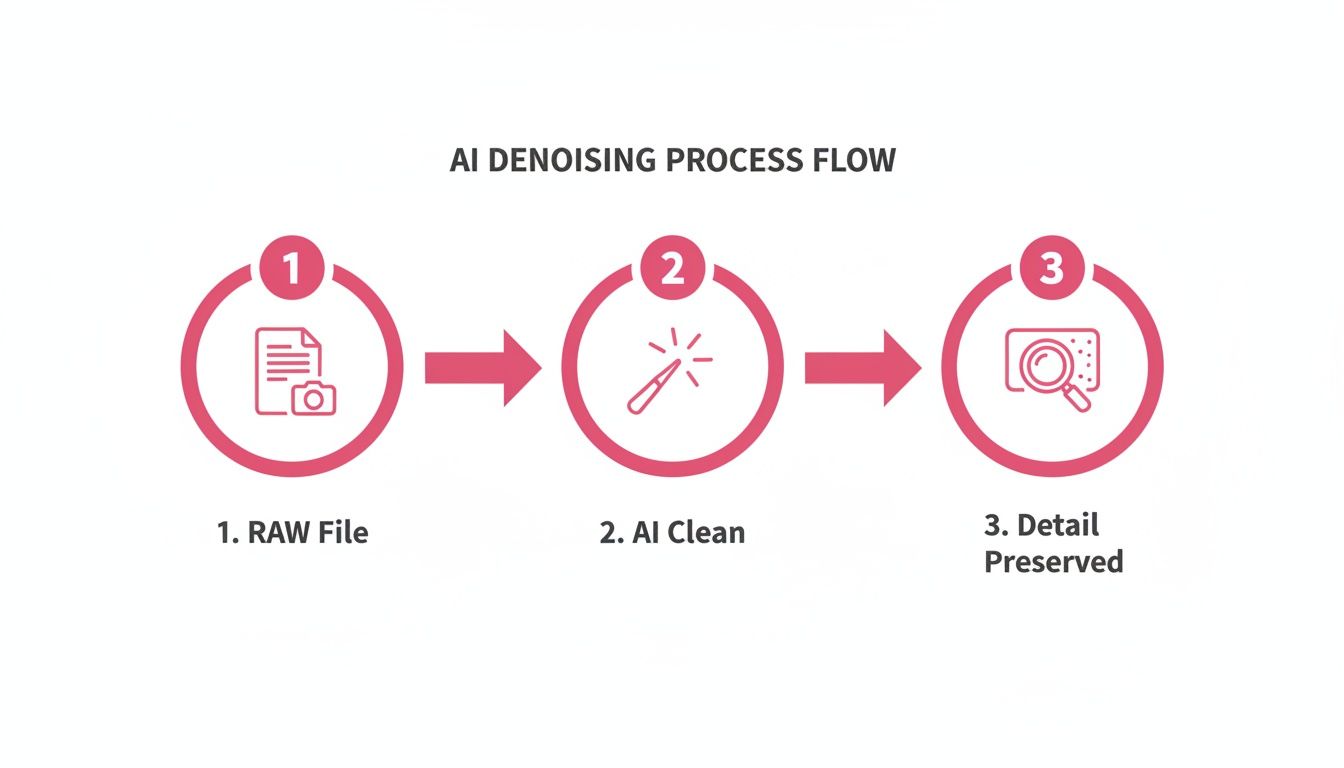
As you can see, the key is intelligence. AI is smart enough to differentiate between unwanted grain and the actual textures you want to keep, like the fabric of a shirt or the subtle details in a landscape. Older methods often obliterated both.
Choosing Your AI Denoising Tool
There are a ton of options out there, but a few names keep coming up again and again because they just work. The best one for you really depends on what you shoot and what your final goal is.
- Topaz Photo AI: This is my go-to for a fast, "does-it-all" solution. Its "Autopilot" feature is genuinely useful—it analyzes your image and suggests the right amount of denoising and sharpening. It's perfect when you have a batch of photos and don't want to spend ages fiddling with sliders for each one.
- DxO PureRAW: If you're a stickler for detail, this is your tool. DxO has a reputation for being the absolute best at cleaning up RAW files while preserving an incredible amount of micro-detail. For serious print work or large-scale displays where every pixel counts, it's tough to beat.
- ON1 NoNoise AI: This one is a versatile workhorse. It’s impressively fast and handles both RAW files and JPEGs exceptionally well. If you find yourself needing to clean up shots from a phone or an older point-and-shoot, ON1's flexibility is a huge plus.
Don't just take my word for it. A 2025 analysis highlighted just how far these tools have come. Features like Autopilot in Topaz Photo AI can help images retain up to 95% more fine detail compared to old-school noise reduction. The same report noted an 80% jump in perceived image quality in low-light RAW files processed with AI. You can dig deeper into these findings on AI's impact on photo editing at UMU.com.
A Non-Destructive Workflow in Action
Let’s put this into a real-world context. Imagine you’re at an indoor party and snap a great group photo. The lighting is dim, forcing you to crank up the ISO. The result? A photo that's a bit grainy and maybe a little soft. We've all been there.
This is exactly where a tool like Topaz Photo AI shines. Its Autopilot instantly gets to work analyzing the problem.
The software automatically detects both the noise and the softness, suggesting specific fixes for each. It’s a huge time-saver that lets you focus on the creative side of editing.
My personal process is pretty straightforward. Right after I import a shoot, the very first thing I do is run my selected RAW files through either DxO PureRAW or Topaz Photo AI. This generates a brand new, clean DNG file. That new file becomes my master copy for all further edits in Lightroom or Photoshop.
This "clean-first" approach is a game-changer. You’re no longer trying to adjust colors or contrast while fighting against a layer of digital grain. Instead, you're building your creative vision on the cleanest possible foundation, and trust me, it leads to a much better final image.
Use Image Stacking for Ultimate Image Clarity
Sometimes, no matter how good your software is, a single file just won’t cut it. For those who need the absolute cleanest images possible—think large prints or professional-grade work—there's an advanced technique called image stacking. It’s the secret weapon for photographers shooting static scenes.
So, how does it work? It’s based on a simple principle: digital noise is random. Those distracting grainy specks show up in different places from one shot to the next.
When you take several identical photos of a stationary subject and then layer them in post-production, you can average out that randomness. The software looks at each pixel across all the images, finds the consistent data (your subject), and effectively cancels out the random noise.
The result is one stunningly clean and detail-rich photograph. It’s a game-changer in genres where the subject stays put.
- Landscape Photography: This is perfect for capturing every last bit of texture in a distant mountain or smoothing out a misty lake.
- Architectural Shots: Get perfectly clean lines and flawless textures on building interiors and exteriors.
- Still-Life and Product Photos: When every tiny detail matters for commercial work, stacking delivers pristine, professional-level results.
Your Mini-Tutorial for Photoshop Stacking
Diving into image stacking with Adobe Photoshop is easier than it sounds. The most critical part is locking your camera down on a sturdy tripod. Once it’s set, take a burst of identical shots—somewhere between 5 and 15 photos is a great starting point.
Here’s the step-by-step workflow:
- In Photoshop, head to File > Scripts > Load Files into Stack.
- Click Browse and select all the images from your sequence. Make sure you check the box for Attempt to Automatically Align Source Images—this corrects any tiny shifts.
- After Photoshop loads your files into individual layers, select all of them in the Layers panel.
- Right-click the selected layers and hit Convert to Smart Object. This bundles them into a single, editable layer.
- With that new Smart Object layer selected, go up to Layer > Smart Objects > Stack Mode and choose Mean or Median.
Photoshop will then do the heavy lifting, averaging out the pixel data from all your shots. This process literally erases the noise, leaving you with a final image that’s cleaner than what’s possible from a single frame, even with powerful AI. It’s also a fantastic way to deal with scenes where you might otherwise have pixelation issues to fix.
While stacking is a powerful mechanical process, standalone AI tools are still the champions for cleaning up a single RAW file. Recent benchmarks show tools like DxO PureRAW can reduce noise by up to 2.5 stops while retaining 90% of the fine details. For the 75 million creators struggling with noisy photos, these tools have boosted usable low-light image rates from 60% to 92%.
Got Questions About Noise Reduction?
As you start getting serious about cleaning up your images, you'll inevitably run into a few common questions. I see them pop up all the time. Getting these sorted out will help you build a much smarter workflow and give you the confidence to shoot in less-than-ideal lighting.
Let's tackle some of the big ones.
Can I Really Get Rid of Noise in My Smartphone Photos?
You absolutely can. Honestly, the line between dedicated cameras and high-end smartphones gets blurrier every year. A lot of new phones let you shoot in a RAW format—just look for a "Pro" or "Expert" mode in your camera app. That RAW file is gold because it holds all the original sensor data.
That uncompressed data is exactly what AI denoising software loves to work with. But even if you're just shooting JPEGs, tools like ON1 NoNoise AI or Topaz Photo AI can work wonders. My best advice? Use your phone’s night mode whenever possible, or just physically move closer to a light source. Keeping that ISO low from the get-go is half the battle.
Won't Noise Reduction Make My Photo Look Fake or Plastic?
That’s the old-school problem, for sure. Older software was notorious for this, applying a heavy-handed blur that would just smear away all the important details. It’s why so many of us used to avoid noise reduction like the plague.
These days, the AI tools are so much smarter. They've been trained on millions of images and have learned to tell the difference between random, ugly noise and crucial details like skin texture, the weave of a jacket, or leaves on a tree.
They can surgically remove the grain while keeping—and sometimes even enhancing—the textures that make your photo feel real. The trick is to trust the AI’s initial recommendation and then dial it back just a tiny bit if anything looks overdone.
What’s the Difference Between Luminance and Color Noise?
Knowing the enemy helps you defeat it. There are really two types of noise you’ll encounter.
- Luminance Noise: This is the one you see most often. It looks like a fine, gritty, black-and-white texture, almost like classic film grain. It messes with the brightness values of your pixels.
- Color (Chroma) Noise: This stuff is just plain ugly. It shows up as random splotches of red, green, and blue, usually lurking in the dark, underexposed parts of your photo. It’s a dead giveaway of a low-quality image.
The good news is that you don't really have to worry about treating them separately anymore. The best modern software identifies and corrects both types of noise at the same time, in a single pass.
Why Is a Clean, Low-Noise Photo So Crucial for AI Editing?
This is a big one, especially for anyone interested in stylistic transformations. AI image editors need a clean canvas to work from. They analyze the core lines, shapes, and colors in your photo to build their artistic interpretation.
If your photo is full of noise, the AI gets confused. It might mistake all that random grain for intentional detail, which leads to a muddy, artifact-riddled mess. When you give the AI a sharp, clean, noise-free image, you’re handing it a perfect blueprint. It can then generate the smooth gradients and crisp lines you're actually aiming for.
Ready to see what your clean photos can become? At AnimePhoto.ai, we transform your favorite portraits into beautiful, share-ready anime art. Try it today and bring your creative vision to life! Find out more at https://animephoto.ai.

See yourself in anime style in under a minute
Pick a style, upload a photo, and get a high-quality anime portrait ready for profiles, prints and gifts.
Create your anime photo