
Let's be honest: the best way to deal with noisy photos is to avoid creating them in the first place. Getting your in-camera settings right from the start is infinitely better than trying to salvage a grainy shot later. By focusing on fundamentals like ISO, proper exposure, and shooting in RAW, you capture the cleanest, richest data your camera possibly can.
Why Prevention Beats a Cure
Modern editing software is amazing, there's no doubt about it. But even the best tools have their limits. Think of it this way: noise reduction software is trying to separate the good signal (your photo's detail) from the bad signal (the noise). When it removes the noise, it often takes some of the fine detail along with it, leaving you with a soft, slightly plastic-looking image.
Starting with a clean shot in-camera means you preserve every last bit of sharpness and texture. It's the difference between a quick, subtle touch-up and a major rescue operation in post-production.
The Building Blocks of a Clean Shot
Getting a clean image in the field really boils down to one thing: giving your camera's sensor as much light as possible. Noise is essentially what happens when the sensor is starved for light and has to electronically boost the signal, introducing that ugly grain.
Feed the sensor plenty of good, clean light, and the signal-to-noise ratio skyrockets. The result? A pristine file right out of the gate.
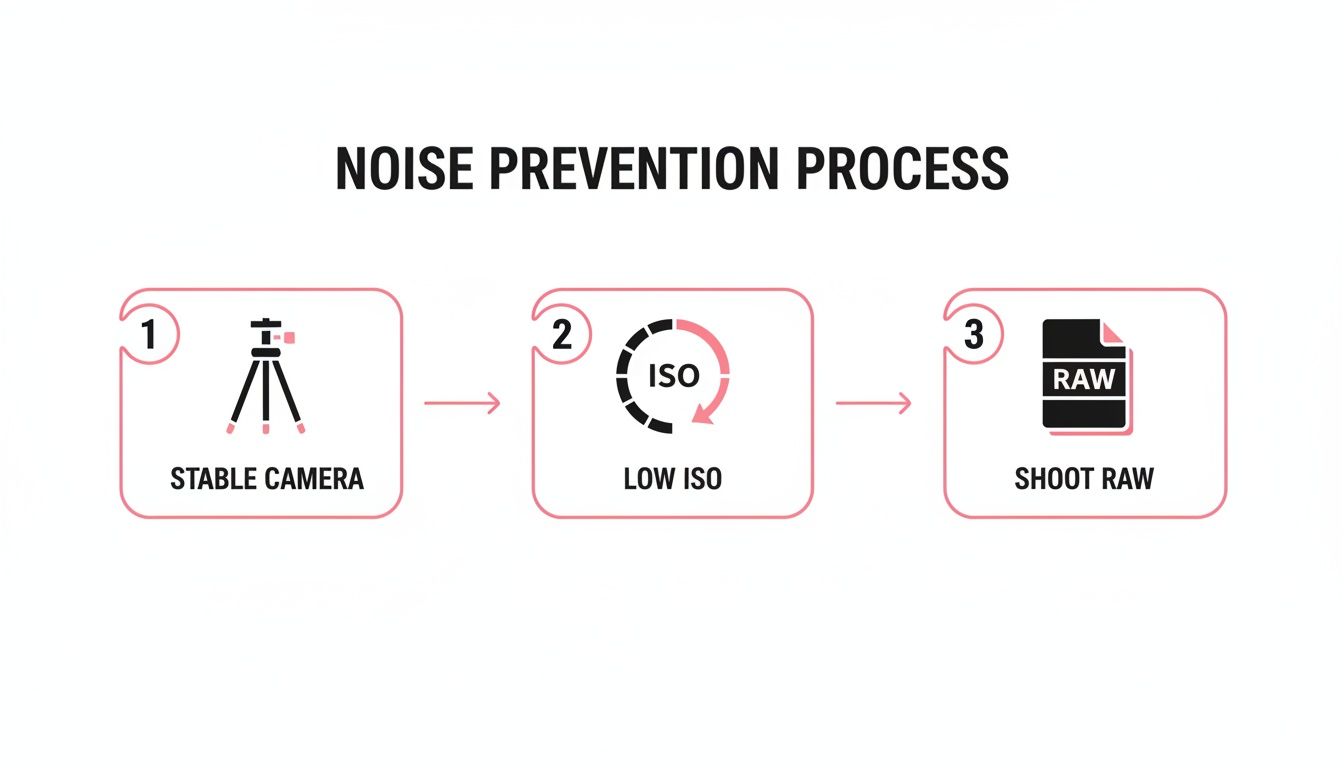
This simple breakdown highlights the three pillars of good practice: a steady camera, a low ISO, and always, always shooting in RAW.
Here’s a quick-reference table summarizing the core techniques you can use right in your camera to keep noise at bay.
Key In-Camera Noise Prevention Techniques
| Technique | How It Helps | Ideal Scenario |
|---|---|---|
| Use Low ISO | The lower the ISO, the less sensitive the sensor is to light, drastically reducing digital noise. | Brightly lit environments, studio photography, or when using a tripod for long exposures. |
| Expose to the Right | Overexposing slightly (without clipping highlights) captures more light data in the shadows, where noise thrives. | High-contrast scenes where you can safely brighten the image without blowing out the highlights. |
| Shoot in RAW Format | Captures all unprocessed sensor data, giving you maximum flexibility for noise reduction in post-processing. | Literally every situation. This is a non-negotiable for serious work. |
| Stabilize Your Camera | Using a tripod or image stabilization lets you use a slower shutter speed, allowing more light in without raising ISO. | Low-light situations, landscape photography, and any time you need maximum sharpness. |
Mastering these four techniques will dramatically improve the baseline quality of your images before you even open an editor.
RAW: Your Most Powerful Weapon Against Noise
Shooting in JPEG is like ordering a pre-made meal—the chef (your camera) has already made all the decisions about seasoning and cooking. It compresses the file, throws away tons of data, and bakes in noise reduction and sharpening that you can never undo.
Shooting in RAW is non-negotiable for anyone serious about quality. A RAW file is your digital negative. It holds every bit of unprocessed data the sensor captured, giving you total control to apply noise reduction with surgical precision during your edit.
When you start with a RAW file, you're working with the original, uncompromised information. This gives you the latitude to push and pull the image, rescue shadows, and apply sophisticated noise reduction without the image falling apart. It is, without a doubt, the single biggest change you can make to get better, cleaner photos.
Mastering Camera Settings for Cleaner Images
Getting your hands dirty with your camera settings is the single most effective way to stop noise before it even starts. Sure, post-processing software is powerful, but nothing beats capturing a clean, light-rich image straight from the sensor. It all comes down to how you manage the exposure triangle.
The goal is simple: feed your camera’s sensor as much light as possible. Think of noise as your camera's way of complaining when it's starved for light. When the signal is weak, the camera electronically boosts it, which introduces that distracting grainy texture. By maximizing the light, you create a much stronger signal-to-noise ratio, leaving you with a pristine file to work with.
Know Your ISO Sweet Spot
Every camera has a native ISO—usually 100 or 200—where it delivers the absolute cleanest images and the best dynamic range. But let's be real, sticking to base ISO isn't always an option out in the wild. The real trick is to figure out your camera's usable high-ISO range.
Spend some time taking test shots in a dim room. Crank the ISO up through its range: 800, 1600, 3200, 6400, and even higher. Then, pull them up on your computer and zoom in to 100%. This is where you'll see exactly where the noise becomes too much for you. Knowing your camera is solid up to ISO 3200 but gets messy at 12800 gives you a practical ceiling to work with on a shoot.
A classic mistake is to underexpose a shot at a low ISO just to avoid noise, then crank the exposure slider in post. This actually creates more noise than if you had just used a higher ISO to get a proper exposure in the first place.
Making Smart Decisions in the Moment
Picture this: you're shooting an indoor event with moody lighting. To freeze any movement, you need a fast shutter speed. You can either open up your aperture or raise your ISO. If your lens is already wide open at f/1.8, your only move is to bump up the ISO. Don't hesitate! A sharp photo with a little grain is infinitely better than a blurry, noise-free mess.
For more on how to use light to your advantage, have a look at these essential tips for mastering photography lighting.
Here’s a quick cheat sheet for your thought process:
- Shooting moving subjects? Shutter speed is your priority. Raise the ISO as much as you need to get a tack-sharp image.
- Shooting a static scene? Grab a tripod. This lets you lock your ISO at its base level and use a much slower shutter speed to soak up all the light you need.
It’s always a balancing act. Thankfully, modern cameras have made incredible leaps in high-ISO performance. With some models like the 2021 Sony A1 pushing usable ISOs up to 102,400, the game has changed completely.
Using In-Camera Noise Reduction Wisely
Most cameras have a couple of built-in noise reduction settings. Knowing what they do will help you decide if they're right for your workflow.
- Long Exposure Noise Reduction (LENR): When you turn this on, after your main shot, the camera takes a second "dark frame" exposure for the same duration with the shutter closed. It then analyzes this black frame to identify and subtract hot pixels and thermal noise from your actual photo. It’s very effective but literally doubles your shooting time, so it's only practical for static scenes like landscapes or astrophotography.
- High ISO Noise Reduction: This is basically a software filter that smooths out noise in your JPEGs. If you shoot in RAW (and you absolutely should for the best quality!), this setting doesn't matter because it isn't baked into the file. My advice? Turn it off. You'll get far more control by handling noise reduction yourself in your editing software.
Selectively reducing noise can also work hand-in-hand with other creative edits. For instance, you might want to smooth out the background noise while keeping your main subject perfectly sharp—a concept closely related to achieving a beautiful, blurred background. If you're curious about that, our guide on how to blur a background for professional results is a great place to start.
Your Post-Processing Workflow for Noise Reduction
Bringing your photos from the camera to your computer is where the real magic happens. Even if you nail your in-camera technique, some noise is just unavoidable, especially in tricky lighting. This is where a smart post-processing workflow using tools like Adobe Lightroom and Photoshop becomes your secret weapon for getting those pristine, high-quality images.
The whole game is about balance. You want to kill the distracting grain without sacrificing the fine details that make your photo feel sharp and real. Go too hard, and you’ll end up with that soft, artificial, "plastic" look. But a more measured approach gets you clean results that actually enhance the photo’s natural beauty.
Starting in Lightroom’s Detail Panel
For most of us, Lightroom is ground zero for any edit, and its Detail panel is your first line of defense against noise. The moment you open a RAW file, you’ll find sliders made specifically to handle both luminance (that classic grayscale grain) and color (the ugly, colorful blotches) noise. Knowing how to use them together is what separates a good edit from a great one.
- Color Slider: I almost always tackle this one first. Color noise shows up as random splotches of magenta, green, and blue, usually hiding out in the shadows. A tiny nudge of the Color slider—often just a value of 25-30—can neutralize these artifacts without touching your image detail. It’s like magic.
- Luminance Slider: This is the one that targets the grainy texture itself. The trick is to zoom into 100% and move it slowly to the right. Watch as the grain starts to melt away. But be careful—this is the slider that, if pushed too far, creates that fake, overly-smooth look.
- Detail and Contrast Sliders: Think of these as your claw-back tools. After you've applied some luminance reduction, you might notice things got a little soft. Play with the Detail slider to bring back the crispness on edges and textures that you might have lost.

Lightroom’s clean interface is designed for exactly this kind of efficient workflow, letting you move smoothly from basic tweaks to fine-tuned noise reduction. If you're looking to expand your editing toolkit even further, our guide on various photo editing techniques is a great next step.
Graduating to Selective Adjustments in Photoshop
Sometimes, a one-size-fits-all approach just doesn't cut it. Imagine a portrait where you want the out-of-focus background to be silky smooth, but you need the subject’s face, hair, and clothes to stay tack-sharp. This is exactly where Photoshop's layers and masks come into play.
Pro Tip: Always, always do your noise reduction before you sharpen. Sharpening amplifies everything in the image, including the noise. If you sharpen first, you’re just making the grain more obvious and way harder to remove cleanly.
A good habit is to open your image from Lightroom into Photoshop as a Smart Object. It's a non-destructive workflow, meaning you can always double-click and go back to tweak the original RAW settings if you need to.
Once in Photoshop, here's a simple but powerful technique:
- Duplicate Your Layer: First thing, hit Ctrl+J (or Cmd+J on Mac) to create a copy of your image layer. This keeps your original safe and sound underneath.
- Apply Noise Reduction: On this new layer, run your noise reduction filter. You can use Photoshop's built-in tool (Filter > Noise > Reduce Noise) or a more advanced plugin. For this technique, don't be afraid to apply it a bit more heavily to really smooth things out.
- Create a Layer Mask: With the smoothed-out layer selected, add a layer mask. By default, it will be white, showing the full effect of your noise reduction.
- Paint to Reveal Detail: Now, grab the Brush tool, select black as your color, and use a soft-edged brush. Simply paint over the areas where you want to bring the original detail back—the eyes, the texture of a jacket, the strands of hair. Painting with black on the mask hides the noise reduction on that layer, revealing the sharp, original layer below.
This selective process gives you the absolute best of both worlds: a clean, buttery-smooth background and a perfectly detailed subject. It’s a huge step toward a more professional, polished final image. For specialized work like e-commerce, mastering Product Photo Retouching often involves this level of meticulous noise removal to ensure products look flawless. By getting comfortable with both global and selective adjustments, you'll be ready to tackle noise in any photo that comes your way.
Using AI for Smarter Noise Reduction

While the manual sliders in Lightroom give you a solid degree of control, let's be honest: AI-powered tools have completely changed the game when you need to reduce noise in photos. These aren't just fancy smoothing filters. They’re built on machine learning models that have analyzed millions of images, teaching them to tell the difference between distracting noise and critical image detail.
The result is a kind of clean-up that was pretty much impossible just a few years ago. Old-school noise reduction often left you with a soft, almost plastic-looking image. Modern AI denoisers, on the other hand, can wipe out grain while keeping—and sometimes even sharpening—the fine textures you want to preserve, like the weave of fabric or individual strands of hair. This makes them an absolute must-have in any serious editing workflow, especially if you’re often pushing your ISO into the stratosphere.
The Top AI Contenders
The AI noise reduction space has gotten crowded, but a few key players have really set themselves apart. Each one has its own philosophy and fits a slightly different workflow.
- Adobe AI Denoise (in Lightroom/Camera Raw): If you're already living in the Adobe ecosystem, this is a no-brainer. It's built right into Lightroom and Camera Raw, analyzing your RAW file and giving you a simple slider to dial in the effect. It then spits out a new DNG, and the results are consistently natural and impressive.
- Topaz DeNoise AI: This has long been a favorite for photographers who want more fine-tuned control. As a standalone app or a plugin, Topaz DeNoise AI offers different AI models tailored to specific noise problems. I often turn to it when I have a really challenging, high-ISO shot that needs serious detail recovery.
- DxO PureRAW: This one takes a totally different approach. You run your RAW files through DxO PureRAW before you even touch them in Lightroom or Photoshop. It strips out the noise and applies world-class lens corrections, giving you a pristine DNG file as a starting point. It's for the purists who want the absolute cleanest canvas to begin their edit.
These tools are at the heart of a major industry shift. The market for photo noise reduction software has exploded since 2018, and it’s projected to grow from USD 1.8 billion in 2023 to a staggering USD 3.4 billion by 2032. This growth is fueled by machine learning that can outperform older methods by up to 50% in cleaning up noise without sacrificing detail. You can read more about this trend on The Insight Partners.
Comparing Top AI Noise Reduction Tools
Choosing the right tool can feel overwhelming, so here’s a head-to-head look at the leading options to help you decide which one fits your workflow best.
| Tool | Best For | Standout Feature | How It Integrates |
|---|---|---|---|
| Adobe AI Denoise | Seamless workflow for Lightroom/Photoshop users. | Perfect integration; one-click DNG creation. | Built directly into Lightroom and Camera Raw. |
| Topaz DeNoise AI | Maximum control and recovering extreme detail. | Multiple AI models for different noise types. | Standalone application and plugin. |
| DxO PureRAW | Getting the cleanest possible RAW file to edit. | Pre-processes files with noise and lens corrections. | Standalone; creates a new DNG for other editors. |
Ultimately, the "best" tool depends entirely on your needs. For convenience, Adobe is king. For power, Topaz is a beast. For the ultimate clean start, DxO is hard to beat.
Integrating AI Into Your Workflow
Knowing when to use these tools is just as important as which one you choose. For the best results, you need to run the AI denoiser at the very beginning of your editing process.
Always apply AI noise reduction to your original RAW file, right after basic lens corrections. The algorithm needs as much clean data as possible to work its magic. If you apply it after sharpening or creative edits, you risk confusing the AI and getting weird, smeary artifacts.
A solid workflow looks like this: import your photo into Lightroom, check the box for lens profile corrections, and immediately run Adobe's AI Denoise. The new, cleaner DNG file that Lightroom creates becomes your new "original." From there, you can start your creative edits—color grading, local adjustments, you name it.
By starting with the cleanest possible foundation, you can transform a noisy, throwaway shot into a professional image that’s ready for any platform, including AnimePhoto.ai.
Quick Noise Fixes on Your Mobile Device
You don't always have to be tethered to a desktop to clean up a noisy photo. In fact, some surprisingly powerful tools are probably already in your pocket. If you're editing on the go, your phone can be your best friend for quickly fixing grainy images.
A lot of the pro-grade tools we use on our computers have fantastic mobile counterparts. Take Adobe Lightroom Mobile, for instance. It brings over the essential noise reduction sliders from the desktop version, letting you tackle Luminance and Color noise separately. This gives you a ton of control right from your phone, and it's a no-brainer if you're already in the Adobe ecosystem.
Accessible Tools Like Snapseed
If you're not looking to spend money, Snapseed by Google is a powerhouse, and it's completely free. Head into its "Details" tool, and you'll find a "Denoise" function that does a great job of smoothing out grain without completely mushing the important details. It’s my go-to for a quick touch-up before posting to social media.
The interface is dead simple—just swipe left or right to dial the effect up or down.
This kind of intuitive control is perfect for making sure you don't go overboard. It's easy to get that plastic, over-processed look, but Snapseed makes it simple to apply just the right amount of correction.
The Power of One-Tap AI Fixes
Sometimes you just need a fast, automatic fix, and that's where AI-driven apps shine. Tools like Remini have made salvaging a noisy photo as easy as tapping a button. These apps often bundle noise removal with sharpening and upscaling, analyzing your image and cleaning it up in one shot.
This approach is a lifesaver for those blurry, low-light phone pictures you thought were a lost cause. The impact of these mobile tools is huge; a 2023 study found that 85% of smartphone users saw a noticeable jump in photo quality after using noise reduction, which in turn helped boost their social media engagement by up to 40%. You can dig into the specifics of these market findings on Cognitive Market Research.
Quick Tip: Always zoom in to 100% when using a denoiser on your phone. It's incredibly easy to overdo it on a small screen and accidentally wipe out key textures in hair, faces, or clothing. A little bit of grain left behind often looks far more natural than an image that’s been smoothed into oblivion.
Common Noise Reduction Mistakes to Avoid
Knowing what not to do when cleaning up a noisy photo is just as important as mastering the right techniques. I’ve seen it time and time again: photographers, aiming for a perfectly clean image, fall into a few common traps that actually make the final shot look worse than the noise did.
Let's start with the most common one: going overboard. Pushing those noise reduction sliders to the max is tempting, but it creates that dreaded "plastic skin" effect. It completely obliterates natural texture, leaving your subjects looking more like wax figures than people. Honestly, it's much better to leave a little bit of fine, film-like grain than to end up with an artificially smooth, lifeless image.
Get Your Editing Order Right
Another rookie mistake is applying noise reduction at the wrong point in your editing workflow. The golden rule here is simple: reduce noise before you sharpen. Think about it—sharpening tools amplify contrast on a pixel level, which means they enhance everything, including the noise you're trying to get rid of. Sharpen first, and you’re just making the grain more noticeable and that much harder to remove cleanly.
Applying a single, heavy-handed noise reduction setting across the entire image is another classic error. Not every part of your photo needs the same level of treatment.
For example, in a portrait, the noisy, out-of-focus background can probably handle some aggressive smoothing. But if you apply that same heavy-handed effect to your subject's face, you'll destroy all the critical detail in their eyes, hair, and skin texture. Always use masking tools to be selective.
This targeted approach lets you preserve sharpness precisely where it counts. It’s a bit like exposing your image correctly in the first place—underexposing just to keep your ISO low, then cranking the exposure in post-processing, will almost always introduce more noise than just using a slightly higher ISO to begin with. Getting this right is just as crucial as recovering details from blown-out highlights, which you can learn more about in our guide on how to fix overexposed photos.
Here’s a quick rundown of the pitfalls to sidestep:
- The Over-Smoothed Look: Cranking the noise reduction sliders to 100% and wiping out all the good, natural texture.
- Sharpening Too Soon: Applying sharpening before you’ve dealt with the noise, which just makes the grain more pronounced.
- One-Size-Fits-All Edits: Using a single noise setting across the entire frame instead of applying it selectively with masks.
- Forgetting Color Noise: Only tackling the grainy luminance noise while ignoring the distracting colorful splotches lurking in the shadows.
Steer clear of these common blunders, and your photos will come out looking cleaner, sharper, and far more professional.
A Few Common Questions About Photo Noise
Let's tackle some of the questions that pop up all the time about digital noise. Getting these fundamentals straight will make a huge difference in how you shoot and edit.
So, What's Really Causing Noise in My Pictures?
At its most basic level, digital noise is just a symptom of missing information. Think of it this way: when your camera's sensor is starved for light, it has to guess what's there. It takes the little bit of signal it did get and cranks up the volume, electronically.
That amplification process is messy. It creates random specks of incorrect brightness and color, which our eyes see as that awful grainy texture. This is why it’s most obvious when you're shooting in the dark and have to push your ISO way up.
The big lesson here is that noise isn't just an ISO problem. A badly underexposed shot at a low ISO can end up looking far noisier after you rescue it in post-production than a photo you exposed correctly from the start, even if it was at a higher ISO.
What's the Difference Between Luminance and Chroma Noise?
Knowing the two main types of noise is key because you'll deal with them differently. They look and behave in distinct ways.
- Luminance Noise: This is that classic, gritty texture that looks a bit like old-school film grain. It messes with the brightness of individual pixels but doesn't throw off the color, giving your photo a sandy look.
- Chroma (Color) Noise: This is the uglier of the two. It shows up as random, blotchy patches of color—usually weird green, purple, and blue specks—and it absolutely loves to hang out in the darkest parts of your image. Chroma noise is almost always a dead giveaway that a shot was severely underexposed.
In-Camera vs. Software Noise Reduction: Which Is Better?
If you're shooting in RAW (and you really should be), the answer is simple: always use post-processing software.
Your camera’s built-in "High ISO Noise Reduction" feature only works on JPEGs. When you turn that feature off and handle noise reduction yourself in a program like Lightroom or with a powerful AI denoiser, you have infinitely more control. You get to decide exactly where and how much noise reduction to apply, which lets you save the fine details that in-camera processing often smudges into oblivion.
Once you've cleaned up your photos and made them crystal clear, why not take them in a completely new direction? You can transform them into stunning, anime-style artwork with AnimePhoto.ai. It's a fantastic tool for giving your favorite shots a unique and creative twist.
Give it a try and see what you can create at https://animephoto.ai.

See yourself in anime style in under a minute
Pick a style, upload a photo, and get a high-quality anime portrait ready for profiles, prints and gifts.
Create your anime photo