Every great photo has a secret: powerful editing. While a good shot is the starting point, the magic truly happens in post-production. But with countless sliders, filters, and tools available, knowing where to begin can feel overwhelming. This guide demystifies the process, breaking down the 10 most impactful photo editing techniques used by professionals to transform good images into great ones. We're moving beyond generic advice to provide actionable mini-workflows, before-and-after examples, and tool-specific tips for each method.
You'll learn not just the 'what' but the 'how' and 'why' behind each crucial adjustment, from correcting exposure and mastering color to sharpening details and retouching portraits. Understanding these fundamental skills is key to unlocking your creative vision, whether you're aiming for subtle enhancements or dramatic artistic effects. As you learn to master these techniques, understanding the nuances of how images are analyzed also extends to detecting photoshopped images, giving you a more comprehensive view of digital image manipulation.
Furthermore, we'll share exclusive insights on how to apply these fundamentals to prepare your photos for a perfect transformation with AI tools like AnimePhoto.ai. By optimizing your source image before uploading, you ensure it is perfectly primed for a stunning, high-quality anime-style result. Get ready to elevate your images from simple snapshots to captivating works of art, gaining the confidence to edit any photo with precision and purpose.
1. Exposure and Levels Adjustment
Exposure and levels adjustment is one of the most fundamental photo editing techniques, serving as the cornerstone for a well-balanced image. This process involves modifying an image's brightness, contrast, and overall tonal range to ensure that details are clear in the darkest shadows and the brightest highlights. By manipulating the histogram, which is a graphical representation of an image's tones, you can correct issues like overexposure (too bright) or underexposure (too dark).
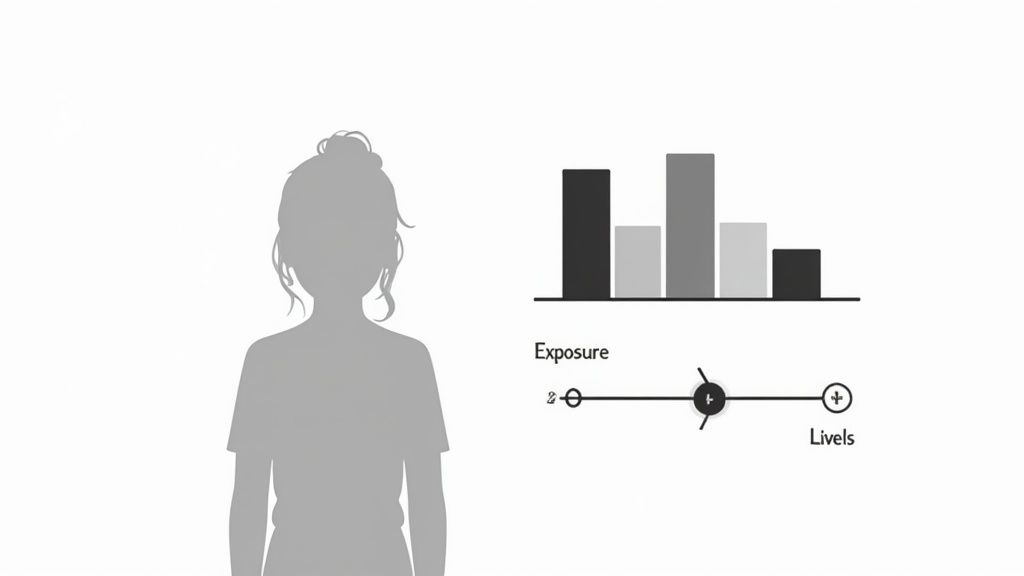
This technique is essential for rescuing photos that would otherwise be unusable. For instance, you can recover the lost facial details in a backlit portrait where the subject appears as a silhouette. Similarly, it can bring out the vibrant colors and textures of a landscape photo that looks dull or washed out. Mastering this skill is a crucial first step toward achieving professional-quality results.
When to Use This Technique
- Correcting Backlit Portraits: When your subject is in shadow against a bright background, adjusting exposure and shadows can illuminate their features without blowing out the highlights.
- Recovering Landscape Details: If a landscape shot appears flat, adjusting levels can deepen the shadows and brighten the highlights, adding depth and dimension.
- Fixing Low-Light Indoor Shots: Indoor photos often suffer from underexposure and digital noise. A careful exposure boost can make the image usable and vibrant.
Actionable Tips for Success
Before you begin, always work on a copy of your original photo to avoid permanent changes. For more advanced control, shooting in RAW format provides the most flexibility for exposure adjustments.
- Check the Histogram: This tool is your best friend. A well-exposed image typically has a histogram that spans the entire tonal range without "clipping" (spikes at the far left or right).
- Make Small, Incremental Changes: Avoid drastic shifts. Nudge the sliders for exposure, shadows, highlights, whites, and blacks gradually to maintain a natural look.
- Use Clipping Indicators: Most software like Adobe Lightroom or Capture One has indicators that show you which areas of your photo are losing detail by becoming pure black or pure white.
- Adjust Shadows Before Highlights: Lifting the shadows first often provides better control and helps you see how much you need to adjust the highlights to balance the scene.
Properly adjusting your photo’s exposure ensures that any further edits, including stylized conversions like those from AnimePhoto.ai, will have a solid foundation to work from. To dive deeper into achieving a polished look, you can explore more tips on how to make photos look professional.
2. Color Grading and White Balance
Color grading and white balance are powerful photo editing techniques used to manipulate the emotional and atmospheric quality of an image. White balance correction is the technical foundation, ensuring that colors appear natural and as the human eye would perceive them under different lighting conditions. Color grading, on the other hand, is the creative process of applying a specific color palette to evoke a mood, style, or narrative.
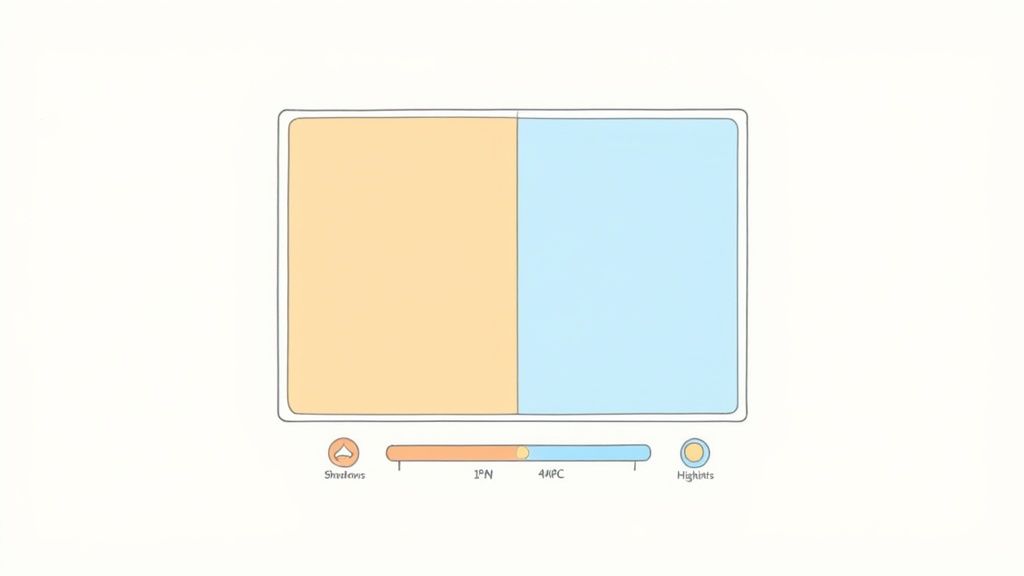
This technique is essential for developing a unique visual signature and telling a more compelling story. For instance, a travel photo can be infused with warm, golden tones to convey a sense of adventure and nostalgia. Conversely, a fashion portrait might use cool, desaturated blues to create a modern and cinematic feel. Mastering color is key to transforming a simple snapshot into an artistic statement.
When to Use This Technique
- Establishing a Mood: Use warm tones (yellows, oranges) for happy, nostalgic feelings or cool tones (blues, greens) for calm, somber, or futuristic moods.
- Creating a Consistent Aesthetic: When editing a series of photos for a blog, social media feed, or portfolio, consistent color grading creates a cohesive and professional look.
- Correcting Unnatural Color Casts: If your photo has a yellow, blue, or green tint from artificial lighting, white balance adjustment is necessary to restore natural colors.
Actionable Tips for Success
Always correct your white balance before you start creative color grading. This ensures you are building your artistic look on a foundation of accurate colors.
- Use the White Balance Tool: Most editing software has an eyedropper tool. Click on a neutral gray or white area in your photo to automatically correct the color temperature.
- Utilize Split Toning: This advanced feature allows you to add different colors to the shadows and highlights separately. A common combination is adding teal to shadows and orange to highlights for a popular cinematic look.
- Reference Mood Boards: Before you start, gather images with a color palette you admire. Use them as a reference to guide your adjustments and maintain a clear creative direction.
- Create and Use Presets: Once you achieve a look you love, save the settings as a preset. This allows you to apply the same style to other photos quickly, ensuring brand consistency.
A well-executed color grade ensures that your photo's mood is intentional and impactful. This step is particularly important when preparing images for stylization, as the base colors will influence the final outcome in tools like AnimePhoto.ai.
3. Contrast and Clarity Enhancement
Contrast and clarity enhancement is a powerful photo editing technique used to add "punch" and dimension to an image. Contrast adjusts the difference between the darkest and brightest parts of a photo, while clarity sharpens the mid-tones, making textures and details more pronounced. Together, they create a sense of depth and visual impact that makes the subject stand out.
This technique is a favorite among landscape and commercial photographers for its ability to transform a flat, lifeless photo into a dynamic and engaging one. By increasing local contrast, the clarity tool, popularized by Adobe Lightroom, gives photos a crisp, three-dimensional feel without over-sharpening the entire image. This makes it essential for defining subjects and guiding the viewer's eye.
When to Use This Technique
- Landscape Photography: To make dramatic skies, rugged mountains, or textured foliage pop with detail and depth.
- Product Photography: Increasing contrast and clarity helps define product edges and textures, making them more appealing for e-commerce.
- Action and Sports Photography: This technique can enhance the grit and motion in a scene, emphasizing the intensity of the moment.
- Black and White Photography: Contrast is the soul of black and white imagery, and enhancing it creates powerful, timeless compositions.
Actionable Tips for Success
Always start with subtle adjustments, as over-applying contrast or clarity can lead to an unnatural, "crunchy" look. These tools are most effective when used with precision and restraint.
- Use an S-Curve for Classic Contrast: In the Tone Curve tool, creating a gentle "S" shape is a classic method to increase contrast. This darkens the shadows and brightens the highlights for a natural, balanced effect.
- Apply Clarity in Moderation for Portraits: Be very careful with the clarity slider on skin. Excessive clarity will accentuate every pore and wrinkle. It's best for enhancing features like eyes or clothing textures.
- Use an Adjustment Brush for Selective Clarity: Instead of applying clarity globally, use a brush tool to paint it onto specific areas you want to emphasize, like a car's grille or the texture in a brick wall.
- Combine with Saturation for Maximum Impact: After boosting contrast and clarity, a slight increase in saturation or vibrance can make colors richer and more compelling, completing the dynamic look.
4. Selective Editing and Masking
Selective editing and masking are powerful photo editing techniques that grant you precise control over your image adjustments. Instead of applying an effect like brightening or sharpening globally to the entire photo, this method allows you to isolate and modify specific areas. Using tools like brushes, gradients, and selection tools, you can "paint" an adjustment onto just the parts you want to change, from a subject's eyes to the sky in a landscape.
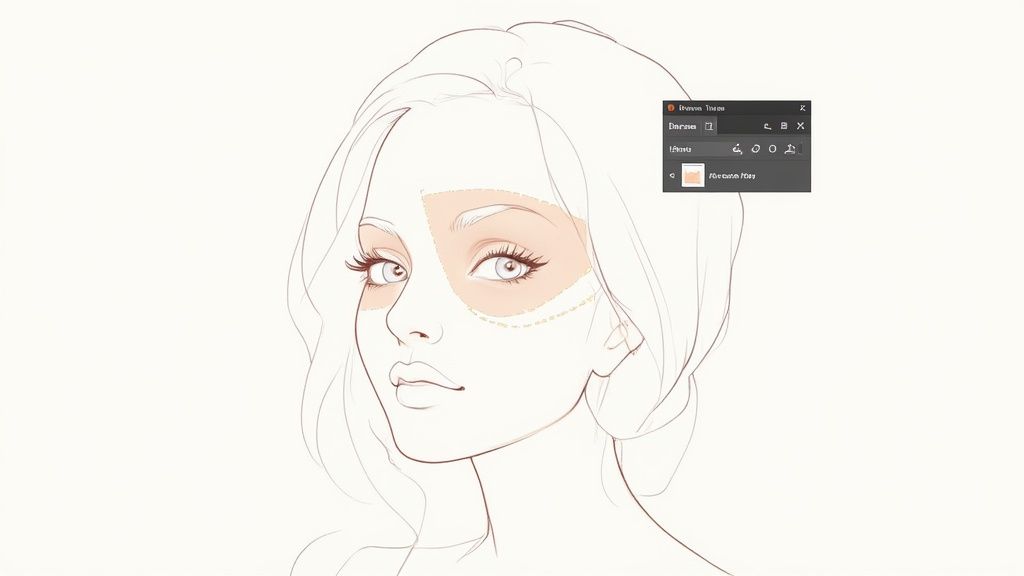
This level of precision is what separates a good edit from a great one. For instance, you can brighten a subject's face without overexposing the already bright background, or enhance the blue of the sky without making the green trees look unnatural. Mastering masking allows for sophisticated and professional-looking results that appear seamless and intentional, forming the foundation of advanced techniques like dodging and burning used by professional retouchers.
When to Use This Technique
- Brightening Eyes in Portraits: Make a subject's eyes pop by selectively increasing their exposure, clarity, and saturation without affecting the rest of the face.
- Enhancing a Landscape: You can darken a sky for dramatic effect, brighten foreground shadows, or boost the vibrancy of a specific patch of flowers.
- Performing Dodge and Burn: This classic technique involves selectively lightening (dodging) and darkening (burning) parts of an image to add depth, dimension, and focus.
- Targeted Color Adjustments: Change or enhance the color of a specific object, like making a red car more vibrant, without altering other reds in the scene.
Actionable Tips for Success
Always start by creating a new layer for your adjustments so you can easily modify or delete them without altering the original image. This non-destructive workflow is key for professional editing.
- Feather for Smooth Transitions: Use a soft-edged brush or apply "feathering" to your selection. This creates a gradual blend between the edited and unedited areas, avoiding harsh, obvious lines.
- Combine Multiple Masks: For complex subjects, don't be afraid to use multiple masks. You can combine a radial filter for a person's face with a brush mask for their eyes to create a highly detailed edit.
- Adjust Mask Opacity: Your edit doesn't have to be at full strength. Lowering the opacity of your mask layer allows you to apply subtle adjustments that look more natural and refined.
- Visualize Your Mask: Most editing software lets you view the mask itself (often as a red overlay). Use this feature to check for any spots you may have missed or areas you've accidentally included.

5. Sharpening and Detail Enhancement
Sharpening and detail enhancement is a critical final step in the photo editing workflow, designed to increase the perceived clarity and definition of an image. This technique works by creating contrast along the edges of details, making them appear more crisp and focused. Methods range from simple slider adjustments to more advanced processes like unsharp mask and high-pass sharpening, which offer precise control over how and where sharpness is applied.
This process is essential for making your images pop, whether they are destined for print or digital display. For example, enhancing the fine textures in an architectural shot or the intricate details in a macro photo can dramatically elevate the final result. Mastering this technique ensures your photos are not just well-exposed and colored but also tack-sharp and visually engaging.
When to Use This Technique
- Enhancing Wildlife and Nature Photography: Bring out the fine details in an animal's fur, a bird's feathers, or the texture of a leaf.
- Defining Architecture and Products: Make the clean lines and intricate details of buildings or products stand out with precision.
- Refining Macro Photography: Emphasize the minuscule details in close-up shots of insects, flowers, or other small subjects.
- Optimizing for Web and Print: Apply final output sharpening to ensure images look their best on different media, compensating for softness introduced by resizing or printing.
Actionable Tips for Success
Sharpening should almost always be the last step in your editing process, applied after all other adjustments are complete. Working on a separate layer gives you the flexibility to adjust the intensity or mask out areas later.
- View at 100% Zoom: Always check the effects of sharpening at a 100% view. This shows you the actual pixels and helps you avoid over-sharpening, which can create ugly halos and artifacts.
- Sharpen Selectively: Use layer masks to apply sharpening only where it’s needed. For portraits, you typically want to sharpen eyes, eyelashes, and hair while keeping skin soft and natural.
- Use High-Pass Sharpening for Control: For more advanced control, create a duplicate layer, apply a high-pass filter, and change the layer's blend mode to Overlay or Soft Light. This method targets only the edges for a clean result.
- Adjust Radius and Amount Carefully: Start with a small radius (0.5 to 1.5 pixels) and gradually increase the amount. The right settings depend on the image resolution and subject matter.
A properly sharpened image provides a clean and detailed base, ensuring that stylized transformations from services like AnimePhoto.ai can better interpret and render key features. For more on preparing your images, check out our guide on how to take a good picture for a profile picture.
6. Saturation, Vibrance, and Color Intensity
Adjusting saturation, vibrance, and color intensity are powerful photo editing techniques used to control the richness and impact of colors within an image. Saturation uniformly boosts or mutes every color, which can sometimes lead to an unnatural, oversaturated look. Vibrance, in contrast, is a more intelligent tool that primarily enhances less-saturated colors while protecting already vibrant tones, especially skin tones, from becoming overwhelming.
This technique is essential for setting the mood of a photograph. You can use it to create a punchy, eye-catching image for social media by boosting color intensity, or you can desaturate a photo to evoke a vintage, moody, or nostalgic feel. Mastering the balance between these two tools is key to achieving a polished, professional color grade that looks intentional and aesthetically pleasing.
When to Use This Technique
- Enhancing Travel and Landscape Photography: Boosting vibrance can make skies bluer, foliage greener, and sunsets more dramatic, bringing the scene to life.
- Creating Vibrant Social Media Content: Bright, saturated images tend to perform better on platforms like Instagram. A slight increase in color intensity can make your photos stand out.
- Achieving a Moody or Vintage Aesthetic: Lowering saturation can create a subdued, film-like quality, perfect for artistic portraits or atmospheric shots.
- Selective Color Emphasis in Commercial Work: Targeted saturation adjustments on specific colors can draw a viewer's eye to a product or key feature in an advertisement.
Actionable Tips for Success
Always start with subtle adjustments, as it's easy to overdo color enhancements. Working on a properly color-calibrated monitor will ensure the changes you make are accurate and translate well to other devices.
- Prioritize Vibrance Over Saturation: For most images, especially those with people, start with the vibrance slider. It offers a more natural-looking enhancement and helps avoid unrealistic skin tones.
- Make Small, Incremental Increases: When using the saturation slider, increase it in small increments of 5-15%. A little goes a long way, and extreme changes can introduce digital artifacts and banding.
- Adjust Colors Individually: Use the HSL (Hue, Saturation, Luminance) panel in your editing software to target specific colors. This gives you precise control to, for instance, deepen the blue of the sky without affecting the rest of the image.
- Consider the Image Context: The right amount of saturation depends on the photo’s subject and intended platform. A product shot may benefit from high saturation, while a fine art portrait might require a more muted palette.
Controlling color intensity is also crucial when preparing an image for stylistic conversion, as it impacts the final look. For instance, a well-balanced photo can be transformed into a unique character with a free anime avatar maker.
7. Dodge and Burn
Dodge and Burn is a classic photo editing technique that originated in the traditional darkroom and has been flawlessly translated into digital software. It involves selectively lightening (dodging) and darkening (burning) specific areas of an image to enhance contrast, create depth, and guide the viewer's eye. By strategically manipulating tones, you can sculpt the light, add three-dimensionality to flat subjects, and dramatically improve an image's overall impact.
This technique is a favorite among portrait and fashion photographers for its ability to subtly contour faces, make eyes pop, and accentuate features without looking unnatural. In landscape photography, it can be used to add drama to skies or draw attention to key elements in the foreground. Mastering Dodge and Burn elevates your editing from simple correction to artistic enhancement.
When to Use This Technique
- Enhancing Portraits: Use it to brighten the eyes, contour cheekbones and the jawline, and add a subtle glow to the skin for a polished, professional look.
- Creating Dramatic Landscapes: Burn the edges of the frame (vignetting) to draw focus to the center, or dodge highlights on water and clouds to add texture and drama.
- Adding Depth to Products: In product photography, dodging highlights and burning shadows can make an object look more three-dimensional and tactile.
Actionable Tips for Success
The key to successful dodging and burning is subtlety. The best application is one that the viewer feels rather than sees. Always work non-destructively to maintain full control.
- Work on a Separate Grey Layer: Create a new layer, fill it with 50% grey, and set its blend mode to "Overlay." You can then paint with white (dodge) or black (burn) on this layer without altering the original image.
- Use a Low-Flow Brush: Set your brush opacity or flow to a very low value, typically between 5-15%. This allows you to build up the effect gradually for a more natural and blended result.
- Use a Soft-Edged Brush: A feathered or soft-edged brush helps the adjustments blend seamlessly into the surrounding areas, avoiding harsh lines or obvious spots.
- Focus on Natural Contours: Enhance the existing highlights and shadows in your image rather than creating new ones. This will maintain a realistic and believable look.
8. Black and White Conversion and Tone Mapping
Converting a color photo to black and white is a powerful artistic choice that can transform an image's mood and focus. This photo editing technique goes far beyond simple desaturation, involving deliberate tone mapping to control how different colors translate into shades of gray. By adjusting individual color channels, you can dramatically alter the contrast and emotional impact, emphasizing texture, form, and light over color.
This process allows you to remove the distraction of color and direct the viewer's attention to the core elements of the composition: shape, shadow, and emotion. For instance, a portrait can become more profound and timeless, while an architectural shot can gain a sense of stark, graphic power. Mastering black and white conversion is key to creating images with lasting impact and artistic depth.
When to Use This Technique
- Creating Timeless Portraits: Use this for portraits where you want to emphasize expression and character over the color of clothing or surroundings.
- Enhancing Architectural Photography: Black and white can highlight the geometric lines, textures, and contrast of buildings without the distraction of varied colors.
- Adding Drama to Landscapes: When a landscape has strong compositional elements like dramatic clouds or textures, a monochrome conversion can intensify the mood.
Actionable Tips for Success
Always start with a high-quality color image, as this gives you the most tonal information to work with during the conversion process.
- Use the Channel Mixer: Instead of just desaturating, use the black and white adjustment layer or channel mixer in your software. This lets you control how bright or dark each original color becomes, giving you full creative control.
- Increase Contrast for Impact: Black and white images often benefit from higher contrast than their color counterparts. Don't be afraid to push the blacks deeper and the whites brighter to make the image pop.
- Apply Split Toning: Add subtle color tints to the shadows and highlights (like sepia in the shadows and a cool blue in the highlights) to give your monochrome image a unique mood and character.
- Consider Adding Grain: A touch of film grain can add texture and a nostalgic, classic feel to your final image, preventing it from looking overly sterile or digital.
A well-executed black and white conversion emphasizes the fundamental structure of an image, which is a great way to prepare a photo for stylized edits. For example, the strong contrast and defined lines from a monochrome edit can provide a fantastic base for an AI tool like AnimePhoto.ai to interpret and transform into a striking anime-style illustration.
9. Skin Retouching and Beauty Enhancement
Skin retouching and beauty enhancement is a specialized photo editing technique focused on refining portraits to achieve a polished, professional look. This process involves meticulously smoothing skin, removing temporary blemishes like acne or spots, correcting skin tone inconsistencies, and making subtle adjustments to facial features. The goal is to enhance the subject's natural beauty while preserving realistic skin texture, avoiding the "plastic" or overly airbrushed effect.
This technique is a staple in professional headshots, fashion editorials, and wedding photography, where a flawless but authentic appearance is paramount. By carefully balancing blemish removal with texture preservation, photographers can deliver stunning portraits that feel both aspirational and genuine. Mastering this skill elevates portrait work from simple snapshots to high-quality, impactful images.
When to Use This Technique
- Professional Headshots: To ensure the subject looks their absolute best, creating a clean, confident, and polished image for professional use.
- Wedding and Engagement Photos: For creating timeless, romantic portraits by softening skin and removing any distracting, temporary imperfections.
- Fashion and Beauty Editorials: When the focus is on showcasing makeup, hairstyles, or products, requiring a flawless canvas to highlight the details.
Actionable Tips for Success
Always work on a duplicate layer in your editing software to protect your original image. This non-destructive workflow allows you to easily undo changes or adjust the intensity of your edits.
- Use Frequency Separation: This advanced Photoshop technique separates the texture of the skin from its color and tone, allowing you to smooth colors without blurring essential skin pores and details.
- Maintain Skin Texture: Avoid over-smoothing. The key to a natural look is retaining texture. Use tools like the Healing Brush and Clone Stamp to target small blemishes individually rather than applying a global blur.
- Balance Enhancement with Authenticity: Focus on removing temporary issues like pimples or stray hairs. Avoid altering permanent features like scars or moles unless specifically requested, as these are part of the person's unique identity.
- Make Subtle Adjustments: When performing enhancements like teeth whitening or eye brightening, use low-opacity brushes and make gradual changes. A little goes a long way in maintaining a believable result.
Effective skin retouching is crucial for creating standout portraits, especially when learning how to take your own headshot. A clean, well-retouched photo also provides an ideal base for creative stylizations, ensuring the final anime conversion is sharp and appealing.
10. Perspective Correction and Lens Distortion Fix
Perspective correction and lens distortion fix are technical photo editing techniques used to correct optical imperfections and skew caused by the camera's lens and position. This process addresses issues like barrel distortion (where straight lines bow outward), pincushion distortion (lines curve inward), and perspective skew (vertical lines converging), which are common in architectural and wide-angle shots. Correcting these distortions ensures that lines are straight and proportions appear natural and accurate.
This technique is crucial for professional fields like real estate and architectural photography, where accurate representation is paramount. For example, it can make a building appear upright and powerful instead of leaning backward, a common effect when shooting from a low angle. By ensuring geometric accuracy, you present a more polished and professional image, which is a foundational step before applying creative or stylistic edits.
When to Use This Technique
- Architectural Photography: To ensure buildings have straight vertical and horizontal lines, presenting them accurately and professionally.
- Real Estate and Interior Shots: To make rooms look spacious and prevent walls or furniture from appearing warped or distorted.
- Wide-Angle Landscapes: To straighten a bowed horizon line or correct distorted elements at the edges of the frame.
- Product Photography: To correct the proportions of products that may appear skewed due to lens choice or camera angle.
Actionable Tips for Success
Always perform these corrections early in your workflow, as they can alter the composition and affect subsequent edits like cropping or cloning.
- Use Built-In Lens Profiles: Most modern editing software, like Adobe Lightroom, has automatic lens correction profiles. Simply select your camera and lens model to instantly fix common distortions.
- Combine Perspective and Distortion Tools: Often, you need to use both. First, apply the lens profile correction, then use manual perspective tools (like vertical, horizontal, or guided upright tools) to fine-tune the alignment.
- Check for Edge Artifacts: Aggressive corrections can sometimes stretch or warp pixels at the edges of your photo. Always zoom in and inspect the corners, cropping slightly if necessary to remove any artifacts.
- Use a Grid Overlay: Enable the grid overlay in your editing software to serve as a visual guide. This makes it much easier to align key elements in your photo with true vertical and horizontal lines.
Top 10 Photo Editing Techniques Comparison
| Technique | 🔄 Implementation complexity | ⚡ Resource requirements & speed | 📊 Expected outcomes (⭐) | 💡 Ideal use cases & key advantages |
|---|---|---|---|---|
| Exposure and Levels Adjustment | Low — basic sliders, histogram literacy | Low resources; fast to apply | ⭐⭐⭐⭐ — restores tonal range, recovers midtones | Correct under/overexposure; foundation for further edits; tip: check histogram |
| Color Grading and White Balance | Medium — requires color theory knowledge | Medium resources; can be time-consuming for batches | ⭐⭐⭐⭐ — sets mood and consistent palette | Travel, fashion, branding; corrects color casts; tip: set white balance first |
| Contrast and Clarity Enhancement | Low–Medium — curve and midtone controls | Low resources; quick impact but needs moderation | ⭐⭐⭐⭐ — adds punch and perceived sharpness | Landscapes, product shots; improves separation; tip: use S-curve sparingly |
| Selective Editing and Masking | High — precise masks and layer control | High resources (time & skill); slow for complex masks | ⭐⭐⭐⭐⭐ — highly targeted, natural-looking edits | Professional retouching, portraits, composites; tip: feather masks and organize layers |
| Sharpening and Detail Enhancement | Low–Medium — algorithm choice matters | Low resources; fast but best at end of workflow | ⭐⭐⭐⭐ — improves crispness, rescues slight softness | Wildlife, architecture, web/print prep; tip: view at 100% and sharpen selectively |
| Saturation, Vibrance, and Color Intensity | Low — simple sliders and per-channel controls | Low resources; quick to apply but needs restraint | ⭐⭐⭐⭐ — enhances color impact while preserving skin tones | Travel and social media; selective color emphasis; tip: prefer vibrance over heavy saturation |
| Dodge and Burn | High — brushwork and tonal subtlety required | Medium–High resources; time-intensive | ⭐⭐⭐⭐ — sculpts light and attention, adds depth | Portraits, fine art, dramatic landscapes; tip: use low opacity and build gradually |
| Black and White Conversion and Tone Mapping | Medium — channel mixing and toning skills | Medium resources; moderate speed | ⭐⭐⭐⭐ — creates timeless, composition-focused images | Portraits, fine art, documentary; tip: use channel mixer and add subtle grain |
| Skin Retouching and Beauty Enhancement | High — advanced techniques (frequency sep.) | High resources; very time-consuming per subject | ⭐⭐⭐⭐ — professional, natural results when subtle | Headshots, fashion, weddings; tip: preserve texture and work non-destructively |
| Perspective Correction and Lens Distortion Fix | Medium — transform tools and profiles | Medium resources; often automated but may require cropping | ⭐⭐⭐⭐ — corrects geometry for professional presentation | Architecture, real estate, interiors; tip: use lens profiles and check edge artifacts |
Your Editing Journey Starts Now
You've just navigated a comprehensive tour of ten foundational photo editing techniques, each a powerful instrument in your creative arsenal. From the essential bedrock of Exposure and Levels Adjustment to the nuanced artistry of Dodge and Burn, the skills we've covered represent more than just technical steps; they are the vocabulary of visual storytelling. Mastering them is the key to transforming a simple snapshot into a compelling, professional-quality image that captures attention and conveys emotion.
This journey from a raw, unedited file to a polished final product is where your unique artistic voice begins to emerge. Think of each technique not as a rigid rule, but as a flexible tool. The true magic happens when you start combining them. A subtle skin retouch, for instance, becomes far more impactful when paired with precise selective editing and a thoughtful color grade that complements the subject's features. A dramatic black and white conversion gains depth and character through meticulous tone mapping and a final sharpening pass.
From Technical Skill to Creative Signature
The most significant takeaway is that these photo editing techniques are interconnected. A change in contrast affects color saturation. An adjustment to white balance can alter the entire mood. This interplay is where you, the creator, come in. Your decisions about which tools to use, and how much to apply them, are what define your personal style.
Consider these key principles as you move forward:
- Subtlety is Strength: Often, the most effective edits are the ones that go unnoticed. The goal is to enhance the subject and story, not to showcase your editing software's capabilities. A light touch often yields the most natural and believable results.
- Practice with Purpose: Don't just apply filters randomly. Choose an image and set a goal. Do you want to make it feel warmer and more inviting? Sharper and more dramatic? By editing with a clear intention, you'll learn faster and develop a more consistent style.
- Develop Your "Eye": The more you edit, the better you'll become at seeing what an image could be. You'll start to recognize imbalanced lighting, distracting elements, and opportunities for creative color grading right from the start.
This skillset is not just for professional photographers. For content creators, mastering these photo editing techniques means your social media feed will look more cohesive and professional. For anime fans and cosplayers, it allows you to perfect your photos before transforming them into stunning stylized portraits. Even for those creating personalized gifts, a well-edited photo provides a much stronger foundation for a memorable final product.
The Bridge Between Editing and AI Creation
As you become more proficient, you'll discover how manual editing and automated tools can work in harmony. Preparing your images with these fundamental techniques is the single best way to achieve superior results from advanced AI platforms. AI models thrive on clean, high-quality data. A photo that is properly exposed, color-balanced, and free of major distractions provides the ideal input for an AI to interpret and transform.
This is especially true when a high-quality source image is not available and you need to create or supplement your visuals. As you embark on your editing journey, integrating the best AI tools for stock images can significantly streamline your workflow and expand your creative options for visual content. Think of your editing skills as the quality control that ensures every creative project, whether manual or AI-assisted, starts on the right foot.
The path to mastering photo editing is a continuous loop of learning, experimenting, and refining. Don't be afraid to push the sliders too far just to see what happens, or to save multiple versions of an edit to compare later. Every click is a step forward. Now, the theory is over. It's time to open your chosen software, select a photo that inspires you, and begin the exciting process of bringing your creative vision to life.
Ready to take your perfectly edited photos to the next level? Apply the techniques you've learned to prepare your best portraits, then let AnimePhoto.ai transform them into beautiful, personalized anime-style art. Visit AnimePhoto.ai to see how a great edit provides the perfect foundation for a stunning AI transformation.

See yourself in anime style in under a minute
Pick a style, upload a photo, and get a high-quality anime portrait ready for profiles, prints and gifts.
Create your anime photo