You have a few ways to get that beautifully blurred background in your photos.The classic approach is to do it in-camera with a DSLR or mirrorless by adjusting your aperture settings. If you're shooting on a smartphone, Portrait Mode is your best friend. And, of course, you can always create the effect later using editing software like Photoshop.
Deciding which route to take really just depends on the gear you have and how much control you want over the final look.
Why a Blurred Background Makes Your Photos Look So Good
Mastering the background blur is one of the fastest ways to make your images look more intentional and professional. The technique, known in photography circles as creating a shallow depth of field, isn't just for show—it's a powerful tool for storytelling.
That soft, creamy background (often called bokeh) immediately draws the eye where you want it to go.
- It puts your subject in the spotlight. By softening distracting elements in the background, the main subject—whether it's a person, a pet, or even a product—becomes the undeniable hero of the shot.
- It adds a professional, polished feel. A shallow depth of field is a signature of high-end portrait photography. It signals that the photo was taken with purpose. For more tips like this, check out our guide on how to make photos look professional.
- It creates a sense of depth and dimension. The contrast between a tack-sharp subject and a dreamy, out-of-focus background gives an almost three-dimensional feel, pulling the viewer into the scene.
This chart breaks down the best path forward based on the camera you're using.
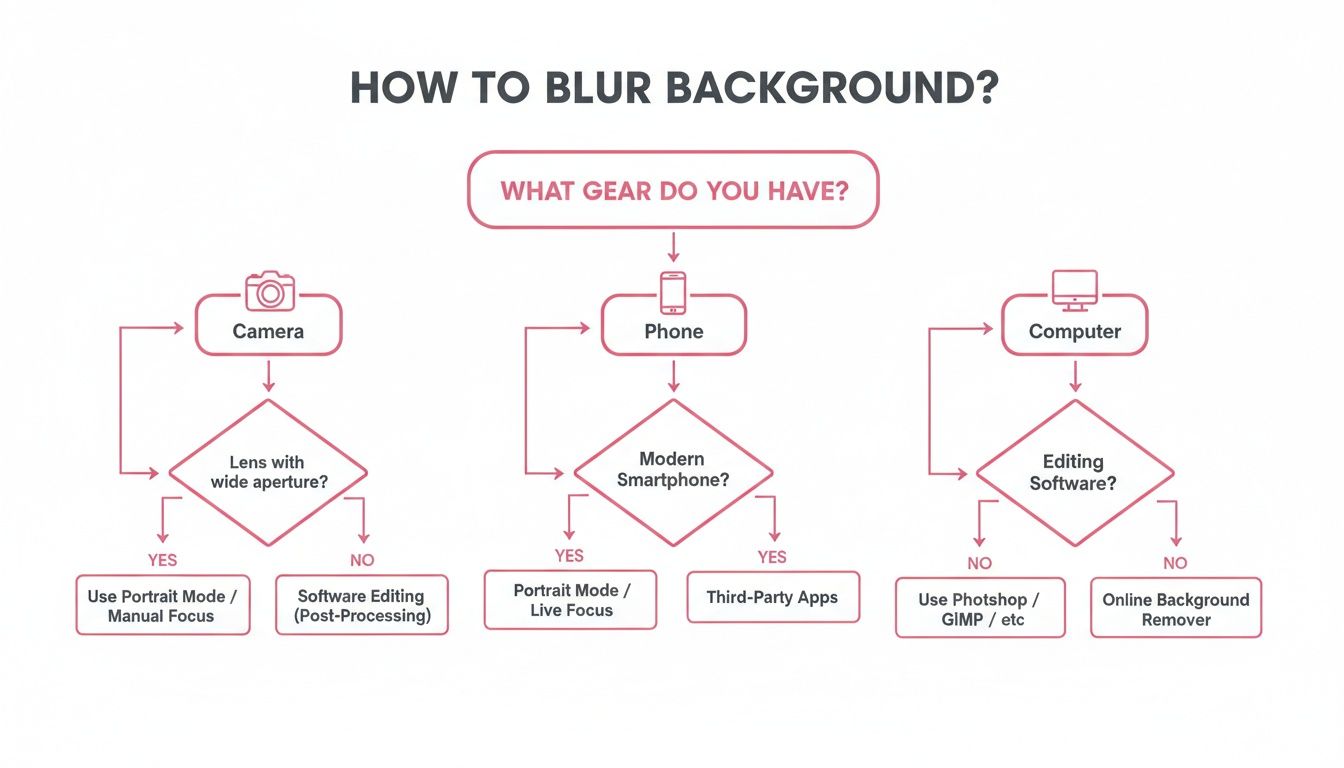
As you can see, no matter what you're shooting with, a great-looking blur is totally achievable.
A Quick Guide to Your Blurring Options
To make it even simpler, here’s a quick rundown of the most common methods, what they require, and when to use them.
Quick Guide to Background Blurring Methods
| Method | Tools Required | Difficulty | Best For |
|---|---|---|---|
| In-Camera (Aperture) | DSLR, Mirrorless, or advanced camera with manual controls | Medium | Achieving the most natural, authentic-looking blur (bokeh) straight from the camera. |
| Phone Portrait Mode | Most modern smartphones (iOS/Android) | Easy | Quick, convenient portraits on the go when you want a "good enough" blur with zero effort. |
| Mobile/Web Apps | Smartphone or computer with apps like Snapseed or web tools | Easy | Adding a quick blur to existing photos without needing complex software. |
| Desktop Software | Computer with Photoshop, GIMP, or similar editors | Hard | Maximum precision and control, especially for complex subjects with tricky edges. |
Each path has its place. The best one is simply the one that fits your current needs and skill level.
A Classic Technique, Modernized
While a single tap on a smartphone makes this effect seem new, the concept is anything but. Photographers have been chasing shallow depth of field since the 19th century.
Back in 1893, Harold Dennis Taylor’s Cooke triplet lens design was a game-changer, allowing for sharper subjects against beautifully soft backgrounds. By 2010, an estimated 62% of images on major stock photography sites featured some kind of background blur, cementing its place as a commercial and artistic staple.
The goal has always been the same: separate the subject from the background to tell a clearer, more impactful story. Today’s digital tools just make that classic technique accessible to everyone.
Whether you're dialing in settings on a hefty DSLR or just sliding a finger across your phone screen, learning to control background blur is a fundamental skill that will instantly elevate your photography.
Getting That Natural Blur Straight from Your Camera
Sure, you can always fake a blur in post-production, but nothing really compares to the authentic, creamy quality you get when you nail it in-camera. The whole trick comes down to controlling what we photographers call depth of field—that's the slice of your image that's perfectly sharp.
Mastering three key elements gives you the power to create that gorgeous separation between your subject and everything behind them.
The most powerful tool in your arsenal is your lens's aperture. You’ll see this measured in f-stops (like f/1.8, f/4, or f/11). Here’s the simple secret: a lower f-stop number means the aperture is wider, which lets in more light and creates a much shallower depth of field. This is how you get that dreamy, out-of-focus background.
To get started, switch your camera to Aperture Priority mode. It's usually labeled 'A' or 'Av' on the main dial. This mode is fantastic because it lets you pick the f-stop you want, and the camera automatically figures out the right shutter speed to get a perfect exposure. Just set your aperture to the lowest number your lens can handle—something like f/1.8 or f/2.8—and you'll see a massive difference right away.
Manipulate Distance Like a Pro
Your camera settings are just one piece of the puzzle. The physics of light and distance play an enormous role, too. Honestly, where you place yourself and your subject is just as critical as your f-stop. Two simple adjustments can amplify your background blur like crazy.
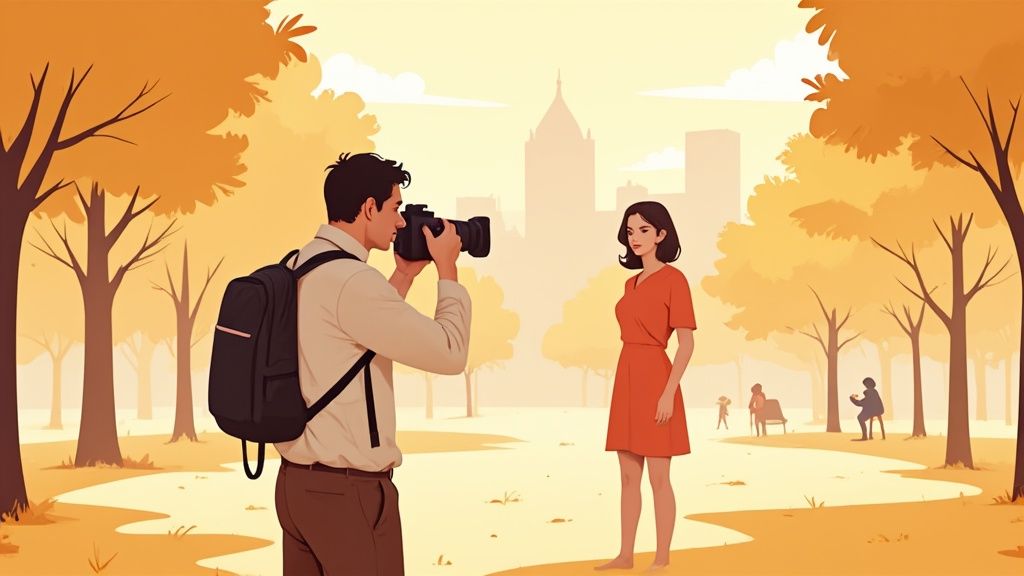
First, put more space between your subject and the background. If you're shooting a portrait in a park, don't just have them lean against a tree. Instead, ask them to take ten big steps away from that tree line. That physical separation is what pushes the background out of the focal plane, turning it from a distraction into a soft, lovely wash of color.
Next, get closer to your subject. The nearer you are with your camera, the shallower your depth of field becomes, naturally. Just stepping in a few feet can dramatically enhance the blur and make your subject pop.
Pro Tip: The real magic happens when you combine these two ideas. Position your subject far from whatever is behind them, then move yourself closer to frame them up. This one-two punch maximizes the blur effect, even if you’re just working with a standard kit lens.
Choose the Right Focal Length
The lens you have mounted on your camera also has a huge say in how much blur you can create. Longer focal lengths—think 85mm or 100mm—are portrait photography staples for a reason. They have a wonderful ability to compress the background, which makes the depth of field appear even shallower.
This compression effect makes the background feel closer and more intensely blurred than it would if you used a wider lens (like a 24mm or 35mm) from the same shooting position. While wide lenses are brilliant for landscapes where you want everything sharp from front to back, a longer lens is your best friend for isolating a subject.
Here’s a quick breakdown:
- Wide Lenses (16-35mm): These tend to keep much more of the scene in focus, giving you a deep depth of field.
- Prime Lenses (50mm, 85mm): Often built with very wide apertures (like f/1.8), they are practically designed for beautiful portrait blur.
- Telephoto Lenses (70-200mm): These are champs at compressing the background for maximum blur, even when you’re standing far away.
To really get the hang of it, you need to balance these three things: aperture, distance, and focal length. Getting these fundamentals right is the foundation of great photography. For a deeper dive, these tips on how to make a photo look professional are a fantastic resource for elevating your work.
Grab Your Smartphone for Effortless Portrait Shots
Let's be real—the best camera you have is the one in your pocket. Modern smartphones are absolute powerhouses when it comes to creating that professional-looking background blur, and you don't need to know a thing about f-stops to do it.
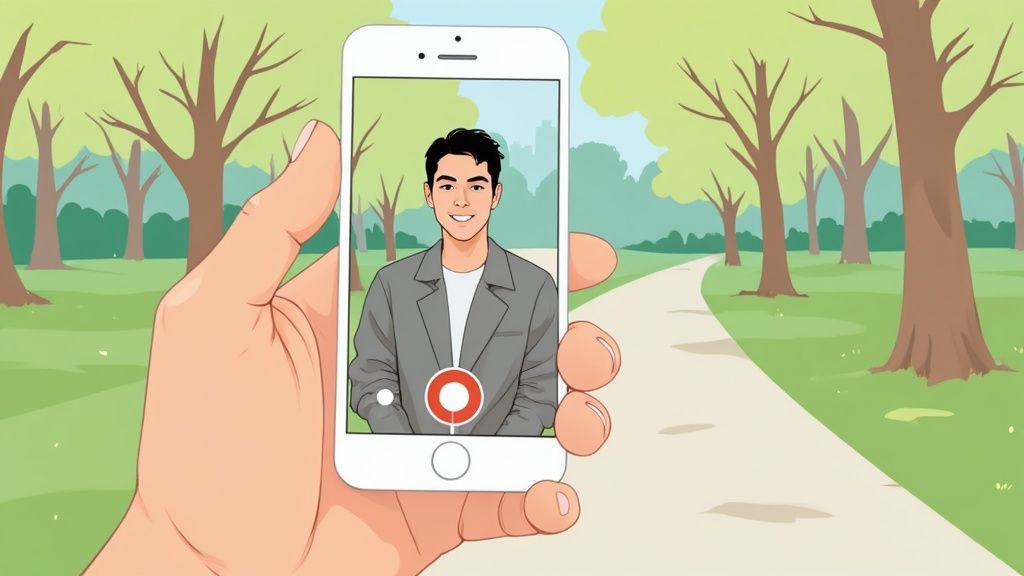
The secret sauce is Portrait Mode. Whether you're on an iPhone or an Android, this feature uses some seriously clever software to find your subject, separate them from the background, and then apply that soft, beautiful blur you're after. Just open your camera app, swipe over to "Portrait," and you're ready to go.
Fine-Tuning Your Portrait Mode Shots
Portrait Mode might seem like magic, but you can give it a little help to make the results look truly incredible. The software is smart, but it's not foolproof, and a few small tweaks can make all the difference.
Good lighting is your best friend. When your subject is well-lit, the phone's AI can easily see the edges, which is crucial for tricky spots like hair or the arms of glasses. Bright, even light prevents that weird, artificial-looking "halo" effect where the blur bleeds onto your subject.
Next, think about your background.
- Create Some Space: The principle is the same as with a pro camera. The more distance you put between your subject and what's behind them, the easier it is for the phone to tell what to blur.
- Simplify the Scene: A busy, cluttered background can confuse the software. Try to find a backdrop that isn't too chaotic.
Don't forget you can often edit the effect after you take the picture. Most phones let you go back into the photo and adjust the intensity of the blur. You can dial it down for a more subtle, natural feel or crank it up for maximum impact. This is a game-changer for getting clean, professional images. For more tips on this, check out this guide on how to take your own headshot.
Smartphone blur has come a long way since the iPhone 7 Plus first introduced Portrait Mode in 2016. Today, top phones boast bokeh scores over 150 from DxOMark, achieving a perceived naturalness of 92% when compared to pro-level cameras. You can dive deeper into the history of computational photography on flashofdarkness.com.
By simply paying attention to your lighting and composition, you can turn a quick snapshot into a stunning portrait that looks like it came from a much more expensive camera.
Adding Background Blur With Editing Software
Let’s be honest—sometimes you just don't nail that perfect, creamy background blur in the moment. And that's okay. If you've got a great shot ruined by a distracting background, you don't have to toss it. With the right editing software, you can rescue almost any image and add a convincing, beautiful blur after the fact.
This whole idea of faking it in post-production really took off with digital tools. When Adobe Photoshop hit the scene back in 1990 and introduced filters like Gaussian Blur, it was a game-changer. By 1995, it was already part of the workflow for 75% of professional photo retouches. That trend exploded when mobile apps like Snapseed put serious editing power right in our pockets, hitting 500 million downloads by 2018. In fact, a 2022 study found that 68% of Android users were applying some kind of background blur in apps each year, proving just how much we've shifted from relying solely on in-camera tricks to post-processing magic.
I'll walk you through two of my favorite ways to do this: one for when you need absolute precision on a desktop, and another for when you need a quick fix on your phone.
Precision Blurring With Adobe Photoshop
When you need total control and a result so good it looks like it was shot with an expensive lens, Photoshop is still the king. Its selection tools have gotten incredibly smart, letting you perfectly isolate your subject before applying a blur that mimics real-world depth of field. This is the method I use for my most important photos.
Here's a simple, effective workflow to get a professional-looking blur:
- Select Your Subject: First, open your image in Photoshop. The Object Selection Tool is your best friend here. Just draw a rough box around your subject, and Photoshop’s AI does a surprisingly good job of figuring out the edges.
- Refine the Selection: Now, zoom in. No AI is perfect. Use the Quick Selection Tool or the good old Lasso Tool to clean things up. Pay special attention to tricky areas like hair or the gaps between arms and the body.
- Invert the Selection: Once your subject is perfectly outlined, just head up to the top menu and click
Select > Inverse. This clever trick flips your selection from the subject to everything but the subject—the background. - Apply a Realistic Blur: This is where the magic happens. Go to
Filter > Blur Gallery > Lens Blur. Don't use Gaussian Blur—it looks flat and fake. Lens Blur is designed to simulate the bokeh of a real camera lens. You can even control things like blade curvature and how bright spots look, giving you a far more authentic effect. Play with the sliders until it looks just right.
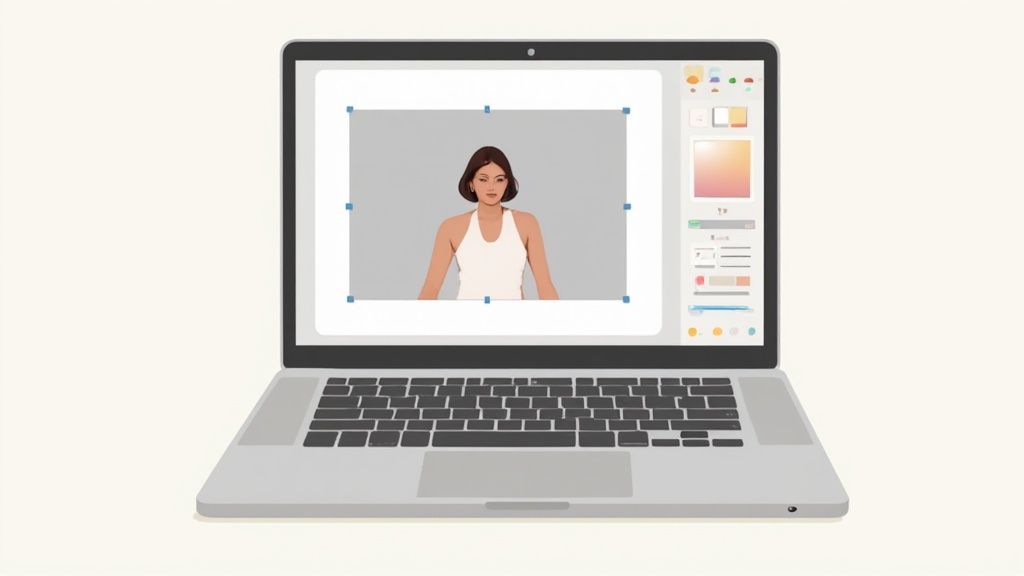
This screenshot captures that all-important first step: getting a clean selection of your subject. Nailing this mask is what separates a natural-looking blur from one that screams "edited." It creates the foundation for a believable effect. For a deeper dive into these kinds of advanced adjustments, you can find a ton of other photo editing techniques on our blog.
Quick and Easy Blur on Your Phone
You definitely don't need a beast of a computer to get a nice background blur. Mobile apps like Snapseed (for both iOS and Android) pack some seriously impressive tools that can get the job done in seconds. It’s my go-to for editing on the move.
With mobile editing, the name of the game is speed and convenience. It might not give you the pixel-perfect control of Photoshop, but for sharing on social media or sending to friends, the results are often more than good enough.
Here’s how I do it in Snapseed:
- Open your photo in the app and tap Tools.
- Choose the Lens Blur tool. You can pick a classic circular (radial) blur or a straight-line (linear) one.
- Use a two-finger pinch to resize the blur area, and drag the center point right over your subject. Anything outside this focused zone will get blurred.
- Fine-tune it by adjusting the Blur Strength and Transition sliders to control how strong the effect is and how soft the edge looks.
This method is incredibly fast and intuitive. If you want to explore more advanced methods for both photos and videos, this comprehensive guide on blurring backgrounds is a fantastic resource. Whether you fire up a desktop powerhouse or just tap a few buttons on your phone, adding blur after the fact is a skill every photographer should have in their back pocket.
Pro Tips for a Flawless, Convincing Blur

Getting a basic blur is easy. But making that blur look real? That takes a bit more finesse. Moving beyond the default settings is what separates a decent shot from a truly professional one. It’s all about the little details that trick the eye into seeing an authentic, in-camera effect instead of a quick digital edit.
One of the first things I learned to pay attention to is the quality of the bokeh. Bokeh is just a fancy word for the aesthetic quality of the blur, especially the way out-of-focus points of light look. You know those gorgeous, soft, circular highlights in professional portraits? That’s good bokeh. You’ll see this most often when shooting with a prime lens (like an 85mm f/1.8) wide open, especially if you have small, bright lights like fairy lights or distant street lamps in the background.
Refining Blurs You Add in Software
When you're adding a blur after the fact, you'll inevitably run into the dreaded halo effect. This is that faint, glowing outline that appears around your subject, and it's especially noticeable around tricky edges like hair. It’s a dead giveaway that the blur was faked.
Fixing this is all about perfecting your selection mask. Once you've made your initial selection in a program like Adobe Photoshop, don't just jump to applying the blur. Spend a couple of extra minutes refining that mask.
- Soften the Edges: Look for a "Feather" or "Refine Edge" tool. Softening the border of your selection by just 1-2 pixels helps the transition from your sharp subject to the soft background look way more natural.
- Contract the Selection: Sometimes, selection tools grab a tiny sliver of the background. Use the "Contract" or "Choke" function to pull your selection inward by a single pixel, making sure it hugs your subject tightly.
This one small step makes a world of difference in creating a believable result that looks like a true optical blur.
Adding Realistic Depth With Gradients
A rookie mistake is applying the same amount of blur across the entire background. This instantly flattens the image. Think about it: in a real photo, the depth of field isn't uniform. Objects closer to your subject are less blurry than things way off in the distance. You can mimic this with a blur gradient.
By creating a gradient, you simulate how a real camera lens sees the world. This advanced technique introduces a level of realism that a simple, one-click blur filter can't match, making the final image far more convincing and visually appealing.
Here’s how to do it: create a few different layers from your background selection. On the layer with the farthest elements, apply a heavy blur. Then, on the layers with mid-ground elements, use a progressively lighter blur. Finally, use soft layer masks to blend them all together. This adds a subtle but powerful sense of three-dimensional space and will completely elevate your photo editing game.
Got Questions About Blurring Backgrounds? We've Got Answers
Once you start playing around with background blur, you'll inevitably run into a few common head-scratchers. Maybe your phone’s Portrait Mode is acting up, or you're just not sure which camera settings to dial in. Let's clear up some of the most frequent issues.
"Why Does My Phone's Portrait Mode Look So Fake?"
This is probably the most common complaint I hear. You take a shot, and instead of a smooth, dreamy blur, you get a weird "cutout" look with a halo around your subject’s hair. It’s a dead giveaway that it was done with software.
The problem is almost always edge detection. Your phone's AI is trying its best to separate the person from the background, but it gets confused, especially with complex edges like hair or fur.
Here’s how you can give your phone's AI a little help:
- Light it up: Good lighting is key. A subject with clear, crisp edges is way easier for the software to "see" and isolate.
- Create separation: Physically move your subject further away from the background. The more distance you create, the less work the AI has to do.
- Tone it down: Don't crank the blur effect to the max. After taking the picture, open it in your phone’s editor and dial back the blur intensity. A little subtlety goes a long way and almost always looks more believable.
"Can You Blur the Background in a Video?"
Absolutely! And the tech for doing it has gotten seriously good. Most newer smartphones have a built-in feature for this. On an iPhone, it's called "Cinematic Mode," and it adds a beautiful, adjustable blur in real-time while you're recording. It’s a game-changer for making your videos look more professional right out of the camera.
If the video is already shot, you'll need to jump on a computer. Video editing software like Adobe Premiere Pro or DaVinci Resolve have sophisticated tools for tracking a moving subject and blurring everything else. It’s a process known as rotoscoping or masking, and it’s a bit more hands-on because you’re dealing with thousands of individual frames, not just one static image.
The Bottom Line: Blurring video backgrounds is definitely doable. For instant results, use your phone’s built-in cinematic modes. For total creative control over existing footage, desktop software is the way to go.
"What's the Best F-Stop for a Blurry Background?"
If you're after that maximum, super-creamy blur, you'll want to use the widest aperture your lens can handle. That means dialing in the lowest f-stop number possible, like f/1.8 or even f/2.8. Lenses that can open this wide are often called "fast" lenses, and they're famous for producing that gorgeous bokeh effect.
But the lowest number isn't always the "best." When you shoot wide open at something like f/1.4, your plane of focus is razor-thin. It’s so shallow that in a portrait, you might get the tip of someone's nose tack-sharp while their eyes are already soft and out of focus. That's usually not the look you're going for.
For most portraits, I find the sweet spot is somewhere between f/2.8 and f/4.0. This range gives you a beautifully soft, blurred background but keeps your entire subject—from nose to ears—pleasantly sharp and in focus.
Ready to turn your photos into something truly unique? With AnimePhoto.ai, you can transform your favorite pictures into stunning anime-style art in seconds. Just upload your photo, pick a style, and let our AI create a masterpiece perfect for your next profile picture or a special gift. Give your photos a magical anime makeover today at https://animephoto.ai.

See yourself in anime style in under a minute
Pick a style, upload a photo, and get a high-quality anime portrait ready for profiles, prints and gifts.
Create your anime photo