To rescue an overexposed photo, you have to play detective before you start editing. The real fix begins with diagnosing the problem by reading the histogram and pinpointing clipped highlights. From there, you can strategically dial back the exposure, highlights, and whites in your editing software. The trick is to start with broad, global adjustments and then move in for detailed work with local tools like brushes or gradients. This helps you bring back lost detail without crushing the photo into a flat, gray mess.
Understanding Why Your Photos Are Overexposed
Before you even think about touching a single slider, you need to get what "overexposed" really means. It's not just a photo that’s a little "too bright." Overexposure is a technical issue. It happens when your camera's sensor gets blasted with too much light, causing the brightest parts of your image—think skies, a white wedding dress, or sunlit water—to lose all detail and turn into a block of pure, flat white.
This loss of information has a name: "clipping," or what photographers call "blown-out highlights." Once that data is gone, especially if you shot in JPEG, it’s usually gone for good. That's why the first step in fixing an overexposed photo is always diagnosis, not correction. You have to figure out if the details are just hiding or if they've been completely erased.
The Role of the Histogram
Your camera’s histogram is your best friend for spotting overexposure. It’s simply a graph showing the tonal range of your photo, with pure black on the far left and pure white on the far right.
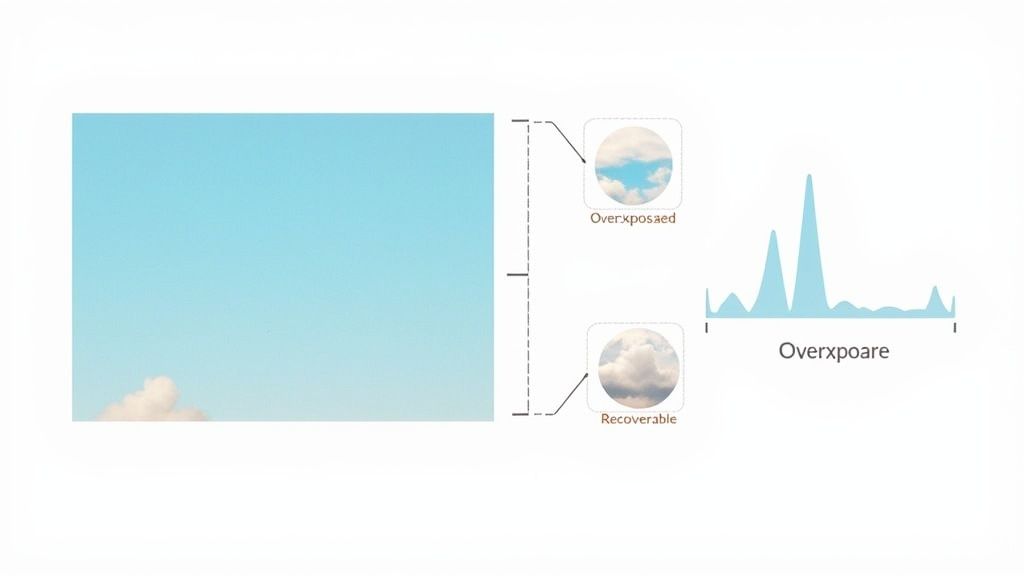
If you see a big spike slammed up against the right-hand wall of that graph, that's the tell-tale sign of clipped highlights. It means a chunk of pixels in your image registered as pure white, with zero detail left to recover.
A bright, airy photo is a stylistic choice. An overexposed photo is a technical problem where valuable image data has been permanently lost. Learning to read your histogram helps you instantly tell the difference.
This visual guide breaks down how to spot the issue using both your eyes and your tools.
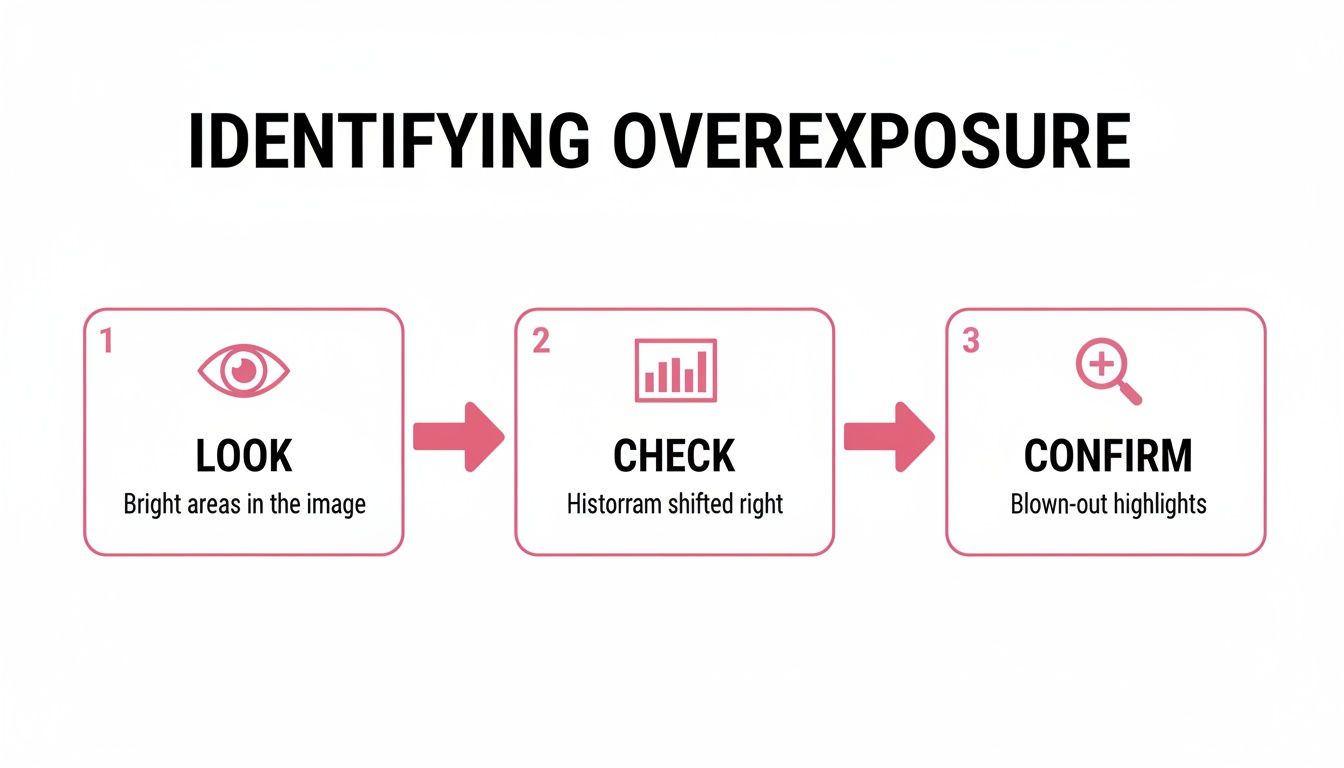
The takeaway here is simple: trust your eyes, but always verify with your histogram. It's the only way to know for sure what you're dealing with.
A Common Challenge for Photographers
Don't feel bad if you've got a batch of overexposed shots. It happens to everyone, from first-timers to seasoned pros. In fact, many event and wedding photographers find that anywhere from 10% to 30% of their images from a shoot need some degree of highlight recovery in post-processing.
While modern mirrorless cameras have fantastic dynamic range, the reality is that most photos are taken on smartphones. Their smaller sensors are much more likely to clip highlights in tricky lighting. This is a huge reason why the photo-editing software market is booming—tools for fixing overexposure are essential for pretty much everyone. If you're curious, you can read more about the latest photography statistics and trends to see how the industry is shaped by these demands.
Mastering Global Adjustments for Initial Recovery
When you're first tackling an overexposed photo, your first line of defense is the set of global adjustment sliders. These are the big guns—the tools that affect the entire image at once. Think of this as the broad-strokes phase, where the goal is to claw back as much of that lost detail as you can before moving on to the finer, more precise work.
The three sliders you'll live by here are Exposure, Highlights, and Whites. It’s so tempting to just grab that Exposure slider and crank it all the way down, but that's a rookie mistake. A much more nuanced approach will give you far better, more natural-looking results. The trick is knowing that each of these sliders targets a very specific part of your photo's brightness range.
A Strategic Slider Workflow
Over the years, I've found a specific order of operations that works wonders. Instead of making a mess by adjusting sliders randomly, try this methodical approach:
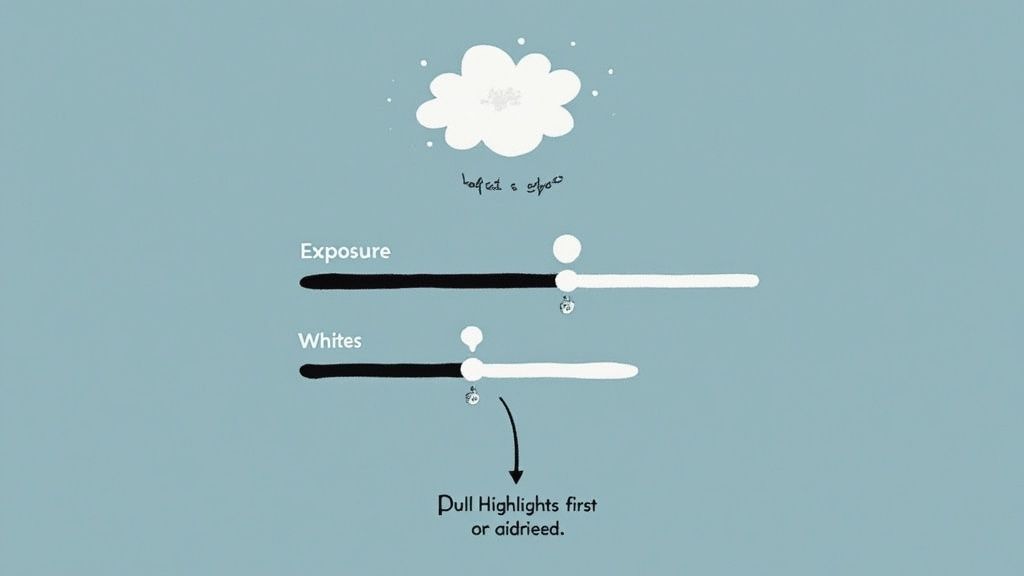
- Tackle the Highlights first. This is your magic wand for overexposure. Pulling down the Highlights slider specifically targets the brightest parts of your image—like a blown-out sky or sun hitting a white shirt—without making your mid-tones look dull and lifeless.
- Next, dial back the Whites. This slider controls the absolute brightest point in your photo. After you've tamed the highlights, gently pulling down the Whites can bring back that last bit of definition in areas that are still clipped to pure white. A little goes a long way here; pull it too far and the image starts to look flat and gray.
- Finish with the Exposure slider. Only after you've recovered the brightest areas should you touch the Exposure slider. Use it for a final, subtle tweak to the overall brightness of the image. Small, careful adjustments are key.
This process is surgical. You're focusing on the most damaged parts of the photo first, which prevents you from accidentally creating a dark, muddy image.
The secret to good exposure recovery isn't just lowering the brightness. It's about a delicate balance—reclaiming lost highlight detail without sacrificing the mid-tone luminosity that gives your photo life and dimension.
The Reality of RAW vs. JPEG Recovery
Now for a dose of reality: the type of file you're editing makes a world of difference. Your ability to recover a blown-out photo hinges almost entirely on whether you shot in RAW or JPEG.
A RAW file is like a digital negative, holding all the unprocessed data straight from your camera's sensor. This gives you an incredible amount of information to work with. JPEGs, on the other hand, are compressed files where the camera has already made a bunch of decisions and thrown away data it deemed "unnecessary."
Just how much of a difference does it make? Let’s break it down.
RAW vs JPEG Recovery Potential
| Attribute | RAW File | JPEG File |
|---|---|---|
| Data | Contains all original, unprocessed sensor data. | Compressed; data has been discarded by the camera. |
| Recovery Leeway | Can often recover 1-3 stops of overexposure. | Struggles to recover even 1 stop without major quality loss. |
| Highlight Detail | Excellent. Smooth gradations and detail in bright areas. | Poor. Often results in gray, flat, or posterized highlights. |
| Color Fidelity | Retains accurate color information even after heavy edits. | Colors can shift, band, or break apart easily. |
In the real world, this means you can often salvage a RAW file that looks hopelessly white, revealing cloud textures and subtle details you thought were gone forever. With a JPEG, you’ll hit a wall much faster, with those bright areas turning into ugly patches of gray instead of revealing any underlying detail.
Setting realistic expectations is a huge part of the editing process. To get a better handle on how different file types influence your editing power, check out our deeper dive into various photo editing techniques.
Using Precision Tools for Targeted Highlight Recovery
So, you've made your global adjustments, but there are still some pesky bright spots that just won't cooperate. It’s a common story: a sky that’s completely washed out, the delicate texture on a wedding dress vanishing into a white blob, or a face hit by a blast of sunlight. These areas often resist those broad, image-wide fixes.
This is where we put down the sledgehammer and pick up a scalpel. Instead of applying one fix to the whole photo, we’ll use local adjustments to target these specific problem areas. It’s the key to getting a natural-looking recovery and avoiding that flat, grayish, overly-edited feel. You're selectively 'painting' corrections only where needed, which keeps the photo's overall punch and dynamic range intact.
Taming Skies with Gradients
A blown-out sky hanging over a perfectly good landscape is probably one of the most frequent frustrations. If you just drop the global exposure, you’ll plunge your foreground into darkness, completely ruining the shot. The perfect tool for this job is the Linear Gradient (often called a Linear Mask).
This lets you draw a selection over the sky and apply adjustments—like lowering exposure and highlights—that fade out gradually. You get a seamless transition between the sky you just fixed and the foreground you left alone. Just click and drag from the top of your frame downwards, playing with the feathering to get the blend just right.
For a specific bright spot, like a face caught in harsh sun, the Radial Gradient is your best friend. Draw an oval around your subject, invert the mask so it only affects what's inside the circle, and then gently pull back the highlights to bring back skin detail without touching the background.
The real goal here isn't just to darken bright spots. It's to restore balance and guide the viewer's eye. A great local adjustment makes the final image look like it was captured perfectly in-camera, not wrestled into submission on a computer.
Mastering the Adjustment Brush
What about those really tricky areas where a gradient is just too big and clumsy? Think about a bride's white dress where the sunlight has bleached out all the beautiful lacework. A gradient would spill over onto the background and look messy.
This is where the Adjustment Brush comes in. It lets you literally paint your corrections exactly where you want them. You have full control over the brush size, feather (the softness of the edge), and flow, giving you incredible precision. Just grab the brush, dial down the highlights and maybe the whites, and carefully paint over the overexposed parts of the dress.
This technique is a lifesaver for all sorts of things:
- Sunlit hair: You can recover individual strands without making the whole portrait look dark and muddy.
- Bright reflections: Easily tone down those distracting specular highlights on water or glass.
- Architectural details: Bring back the texture on a sun-beaten white wall.
Harnessing Luminance Masking for Ultimate Control
If you really want to get surgical, look for a feature called Luminance Masking (sometimes called a Range Mask). This is a seriously powerful tool that lets you create a selection based purely on the brightness of the pixels.
Instead of painting by hand, you can essentially tell the software, "Only apply these changes to the absolute brightest parts of the photo." It's a game-changer for complex scenes where bright and dark elements are all mixed together, like tree branches against a bright sky. You can recover the sky perfectly without affecting the branches, creating a flawless result that would take forever to achieve with a manual brush.
Restoring Natural Color and Skin Tones
So you’ve wrestled with the exposure sliders and tamed those blown-out highlights. Big sigh of relief, right? But now you're looking at the photo and something just feels... off. The colors look flat. That brilliant blue sky is now a dull grayish-blue, the vibrant green trees look tired, and worst of all, skin tones have gone pale and lifeless.
This is a classic side effect of aggressive highlight recovery. When you pull down those bright values, you’re also desaturating the colors within them. The final, critical step is to bring that lost vibrancy back, especially for realistic skin tones. It’s a bit of an art, but it’s all about targeting specific colors instead of just cranking up the global saturation.
Breathing Life Back into Landscapes
For landscapes, the HSL (Hue, Saturation, Luminance) panel is your best friend. This is where you get to play surgeon, adjusting individual color channels without affecting the rest of the image.
Let's say you recovered a bright sky, but now it looks more like a cloudy day than a sunny one. Instead of using the global saturation slider (which would make everything look cartoonish), you can dive into the HSL panel and work on the blues exclusively.
- Saturation: Give the blue channel a gentle nudge to bring back its richness.
- Luminance: Try darkening the blue luminance just a touch. This adds depth and makes the color pop in a much more natural way.
You can apply this same technique to everything in your scene. Revive the greens in dull-looking foliage or bring back the fiery oranges and reds in a washed-out sunset. It’s all about selectively putting the life back where it belongs.
Rescuing Overexposed Skin Tones
Fixing blown-out skin is one of the trickiest parts of photo recovery. When skin loses detail to overexposure, it loses its warmth and dimension, often looking ghostly or gray. This is a constant battle in portrait work and even when taking your own headshots. It’s a big reason our guide on how to take your own headshot stresses getting the lighting right from the start.
To bring skin back to life, your first stop should be the White Balance controls. Overexposed areas tend to pick up a cool, bluish cast. Just a tiny push of the Temperature slider toward yellow and the Tint slider toward magenta can work wonders, reintroducing that natural warmth instantly.
One of the biggest mistakes I see is people over-saturating skin to "fix" it. The goal is never to make skin look orange. It’s about restoring the subtle, complex blend of reds, oranges, and yellows that makes it look alive and real.
For even more surgical precision, use your software’s Color Calibration or HSL tools to target the reds and oranges. A tiny boost in saturation here makes a world of difference. Even better, grab a local adjustment brush and paint a little warmth and saturation directly onto the skin. This keeps the background perfectly untouched and gives you a seamless, professional result.
How to Prevent Overexposure Before You Shoot
The best fix for a blown-out photo? Never taking one in the first place. Seriously. Shifting your mindset from "I'll fix it in post" to getting it right in-camera is the single biggest leap you can make. It saves you headaches, editing time, and ultimately leads to better, cleaner images.
It all comes down to building smart habits and knowing how to tell your camera what you want it to do, instead of just letting it guess.
Master Your Camera's Exposure Tools
Your camera has some incredibly powerful tools for taming difficult light, and you need to know how to use them. The first one is Exposure Compensation. Think of it as a little override button for your camera's brain. When you're on a bright, sunny beach, your camera might see all that light and get confused. By dialing the exposure compensation down to -0.7 or -1.0, you're essentially saying, "Hey, I know it looks bright, but let's darken things up a bit to protect those details."
Next up is your Metering Mode. Most cameras live on a default setting like Matrix or Evaluative, which basically looks at the whole scene and takes an average. That's fine for simple, evenly lit shots. But when you have high-contrast situations—like a person standing against a bright sky—that "average" reading will almost always overexpose the background.
This is where switching to Spot Metering becomes a secret weapon. Instead of averaging the whole frame, it measures the light from one tiny, specific point. You simply place that spot on your subject’s face, and the camera will prioritize getting them exposed correctly. The bright background might get even brighter, but your subject will look perfect, which is what really matters.
A quick word of caution: while we're talking about avoiding overexposure, don't swing too far the other way. Drastically underexposing a shot is the number one cause of ugly digital noise. It's always better to bump your ISO up a little to get the exposure right in-camera than it is to shoot too dark and try to crank up the brightness later. All that noise is just hiding in the shadows, waiting for you.
The 'Expose to the Right' Strategy
Once you're comfortable with the basics, you might hear experienced photographers talk about a technique called "exposing to the right" (ETTR). The core idea is to intentionally shoot as brightly as possible without clipping your highlights—pushing your histogram all the way to the right edge without letting it climb the wall.
Why do this? Because the brightest parts of your image file hold the most data and have the least amount of noise. By capturing the maximum amount of light your sensor can handle, you get a much cleaner, more detailed file to work with. In your editing software, you simply pull the exposure back down to a normal level. This definitely requires shooting in RAW and keeping a close eye on your histogram, but the results can be stunningly clean.
Of course, camera settings are just one part of the equation. Having a solid grasp of composition and lighting is just as crucial. Taking a few minutes to understand essential photo requirements will help you avoid many common mistakes before they happen.
Pre-Shoot Checklist for Perfect Exposure
Developing a quick mental checklist before you start snapping away in tricky lighting can make a world of difference. It's how pros build the muscle memory for consistently great shots. For a deeper dive into improving your overall technique, check out our full guide on how to make photos look professional.
To make it even easier, here's a quick table to reference before your next shoot.
Pre-Shoot Checklist to Avoid Overexposure
| Checklist Item | Why It Matters | Recommended Setting |
|---|---|---|
| Check Your Histogram | The histogram is your only true measure of exposure. The "blinkies" (highlight alerts) and the LCD screen can be misleading, especially in bright sun. If it's smashed against the right wall, you're losing data forever. | Keep the right-most edge of the graph just before it touches the wall. |
| Assess the Light | High-contrast light (bright sun, deep shadows) fools average metering modes. Identifying this helps you choose the right tool for the job. | For portraits against a bright background, switch to Spot Metering. For landscapes, Evaluative/Matrix is often fine. |
| Set Exposure Compensation | This is your go-to for quick adjustments in bright, reflective environments like snow or beaches, where your camera's meter is likely to get it wrong. | Start with -0.7 in bright, direct sunlight and adjust as needed. |
| Shoot in RAW | Think of RAW as your digital negative. It's an uncompressed file that contains far more information, giving you a massive safety net to recover highlight and shadow detail that would be lost in a JPEG. | Always select RAW (or RAW + JPEG if you need quick previews). |
Running through these quick checks takes just a few seconds but can be the difference between a throwaway shot and a keeper.
Common Questions About Fixing Overexposed Photos

Even with the best workflow, some photos just leave you stumped. You might be staring at a picture, wondering if it's truly a lost cause or how on earth you're supposed to handle a scene with both deep shadows and blinding highlights.
Let's dive into those common "what-if" scenarios. These are the real-world problems that pop up all the time, and knowing how to handle them will make you a much more confident editor.
Can a Completely White Photo Be Saved?
I'll give it to you straight: usually, no. When a big chunk of your photo is pure, solid white with zero detail, that data is gone for good. The sensor was so overwhelmed with light that it simply couldn't record anything. We call this having "clipped" or "blown-out" highlights, and you can't recover information that was never there in the first place.
But don't give up just yet. If you shot in RAW, you’ve got a fighting chance.
RAW files are incredible—they often hold onto highlight detail that you can't even see in the initial preview. Before you delete the image, crank those exposure and highlight sliders all the way down. You might be shocked at what detail you can pull back from the brink.
How Do You Fix a Photo with Mixed Lighting?
Ah, the classic mixed-lighting nightmare. Think of a person standing inside, framed by a bright, sun-drenched window. Your camera is trying to expose for two completely different worlds at once.
The trick is to expose for the highlights when you're actually taking the picture. This means you intentionally underexpose the shot to save all that beautiful detail outside the window. Your subject inside might look like a silhouette, but trust me, it’s far easier to bring back detail from shadows than to rescue completely blown-out highlights.
When you get to the editing stage, your game plan has two parts:
- Start with Global Adjustments: Begin by lifting the Shadows and Blacks sliders. This will bring your subject out of the darkness and make them visible again.
- Move to Local Adjustments: Now, grab a Linear Gradient or an Adjustment Brush. Use it to paint over the window area and selectively pull the exposure and highlights back down.
This targeted approach lets you balance the extremes in the scene without making the final image look flat or fake.
The golden rule for high-contrast scenes is this: You can almost always fix noisy shadows, but you can never fix lost highlight detail. Always, always prioritize saving the brights.
Why Do My Photos Look Gray After Recovery?
This happens all the time, so don't worry—you didn't do anything wrong. When you aggressively pull down the highlights and whites to recover detail, you're essentially squashing the brightest tones in your image. This process can completely desaturate those areas, leaving a once-bright sky looking dull, muddy, or just plain gray.
It's a sign your exposure correction worked, but the job isn't finished.
The fix is all in the color correction. Once your exposure is balanced, jump right over to your HSL (Hue, Saturation, Luminance) panel. Here, you can be a surgeon, adding saturation back only to the colors that need it. You can pump the blue back into a washed-out sky, for example, without making your subject's skin look unnatural. A little nudge to the overall vibrance slider can also work wonders to bring the life back.
Ready to take your perfectly exposed photos to the next level? AnimePhoto.ai can transform your favorite shots into incredible anime-style art with a single click. Upload your photo, browse dozens of creative styles, and create the perfect avatar or a one-of-a-kind gift. Get started today!

See yourself in anime style in under a minute
Pick a style, upload a photo, and get a high-quality anime portrait ready for profiles, prints and gifts.
Create your anime photo