Ever wonder why some photos just pop while others fall completely flat? It’s not about having the most expensive camera or some secret filter. The real difference comes down to mastering just three things: lighting, composition, and editing.
Getting these fundamentals right is what separates an ordinary snapshot from a truly compelling, professional-quality image. It’s all about making intentional choices, both before you press the shutter and after.
What Really Makes a Photo Look Professional
A photo that looks professional feels deliberate. Every element, from the way the light sculpts the subject to the final touches on color, has been carefully thought through. This guide is designed to walk you through the exact skills and thought processes that professional photographers use every single day.
We'll start where the real work begins: long before you even think about opening an editing app. I'll show you how to scout for great light, arrange your subject using timeless composition rules, and dial in the right settings on your camera or phone. Then, we'll move into a simple, repeatable editing workflow to make your images shine with basic tweaks to color, exposure, and sharpness. I’ll even cover some quick and dirty fixes you can do right from your smartphone.
The biggest mistake I see beginners make is completely ignoring the quality of light. Incredible light can make a simple scene look breathtaking, while bad light can make even the most amazing subject look dull and lifeless.
Nailing the lighting and composition in-camera is a game-changer. It saves you from hours of frustration trying to "fix" a photo later. The 2025 State of the Photography Industry survey drove this point home, revealing that a staggering 85% of professionals consider lighting the single most critical factor for a high-end look.
This is the foundation. To give you a clear roadmap, let's break down these core concepts.
The Three Pillars of Professional Photography
Here’s a quick summary of the essential components required to elevate your photos from amateur to professional quality.
| Pillar | Why It Matters | Quick Tip |
|---|---|---|
| Lighting | Light shapes your subject, creates mood, and adds depth. It's the soul of the photo. | Shoot during the "golden hours" (just after sunrise or before sunset) for soft, warm light. |
| Composition | How you arrange elements in the frame guides the viewer's eye and tells a story. | Use the Rule of Thirds. Place your main subject off-center for a more dynamic feel. |
| Editing | Editing enhances what's already there, correcting colors and adding a final polish. | A little goes a long way. Start with small adjustments to exposure and contrast. |
Focusing on these three pillars helps you build a reliable workflow, no matter what you're shooting. This mindset is just as crucial for portraits and landscapes as it is for commercial work. If you're shooting for e-commerce, for instance, this detailed guide on how to take professional product photos offers more specialized advice built on these same principles.
Ultimately, learning to make your photos look professional is about developing repeatable habits that guarantee consistently great results.
Mastering the Shot Before You Click
The real magic behind a professional-looking photo happens long before you even think about opening an editing app. Honestly, the choices you make in those few seconds before you press the shutter button have the single biggest impact on your final image. Nail the shot in-camera, and you'll save yourself a ton of headaches trying to fix fundamental problems later on.
Thinking like a photographer really just means paying attention to your surroundings, especially the light. Good lighting is the most powerful tool you have. It sculpts your subject, adds depth, and sets a mood that editing can only enhance—it can't create it from scratch.
This workflow breaks down how it all comes together, starting with what you capture in the moment.
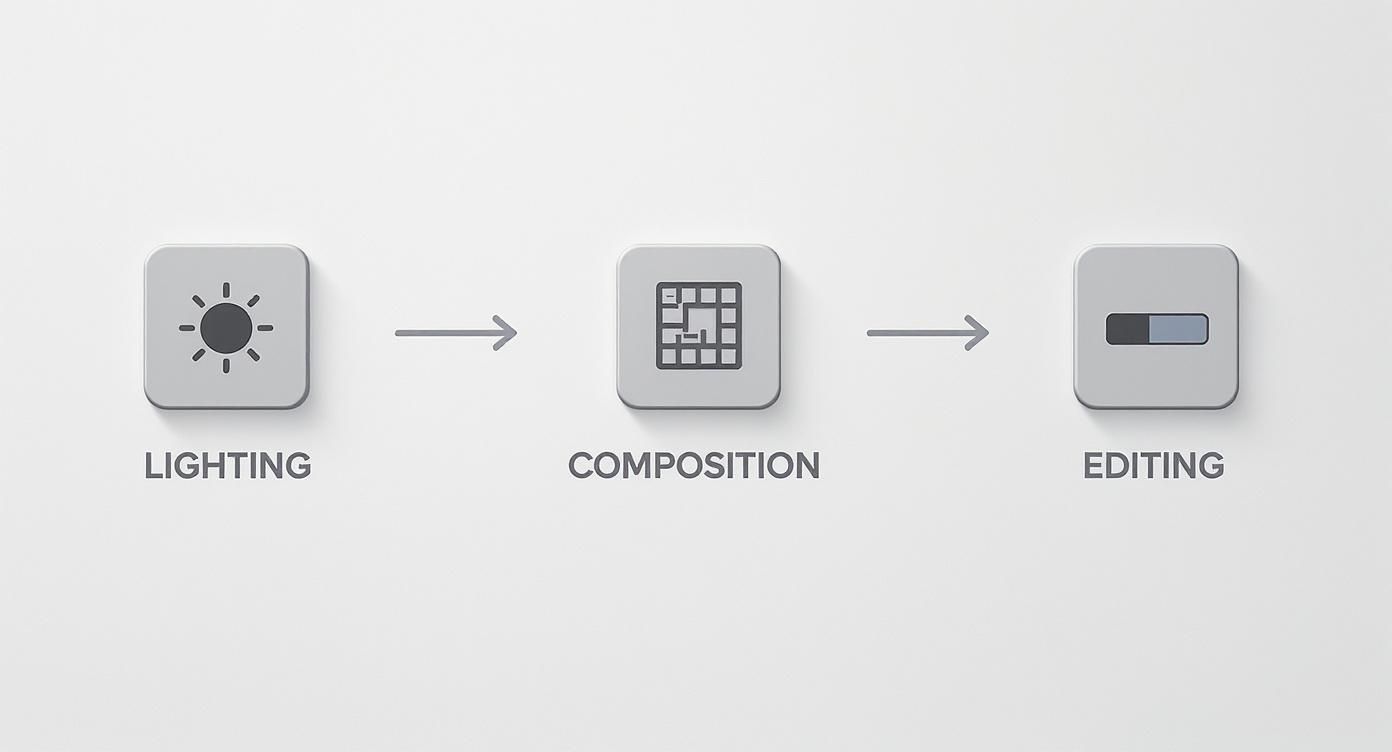
As you can see, a polished photo isn't an accident. It’s the result of a deliberate process where great light and thoughtful composition are the essential building blocks for any editing you do later.
Find and Use Great Light
You absolutely do not need expensive studio lights to find amazing light. The best kind is often free; you just need to know where to look. Natural light is your best friend—it's soft, flattering, and creates beautiful, gentle shadows that give your photos life.
Try positioning your subject near a window, but make sure they aren't in a harsh, direct sunbeam. That soft, diffused light coming in from the side will create a lovely gradient of light and shadow, which instantly adds depth to a person's face.
If you’re shooting outdoors, try to avoid the harsh midday sun. It casts awful, raccoon-like shadows under the eyes. Instead, shoot during the "golden hours"—that magical hour right after sunrise and the hour just before sunset. The light is warm, soft, and makes everything look better.
Stuck indoors with only artificial light? Turn off those overhead fixtures. They usually cast a gross, yellowish, uneven glow. A simple table lamp placed off to the side of your subject can work wonders, creating a much more intentional and professional-looking main light source.
Master Simple Composition Rules
Composition is just a fancy word for how you arrange everything in your photo. A strong composition can take a boring snapshot and turn it into a compelling image that pulls the viewer in. The easiest and most effective trick to start with is the Rule of Thirds.
Imagine your screen is divided by a tic-tac-toe grid. Instead of sticking your subject smack in the center, try placing them along one of the vertical lines or at one of the four spots where the lines intersect. This simple shift instantly makes the image feel more dynamic and balanced. Most phones and cameras have a grid overlay you can turn on to make this a no-brainer.
Here are a few other compositional tips to play with:
- Leading Lines: Use natural lines in the environment—like a road, a fence, or a hallway—to guide the viewer’s eye right to your subject.
- Framing: Look for natural frames within your scene. A doorway, an archway, or even an overhanging tree branch can add a sense of depth and context.
- Negative Space: Don't be afraid of empty space! Leaving some room around your subject can create a sense of scale and keeps the photo from feeling cluttered and chaotic.
Control Your Camera Beyond Auto Mode
Getting out of "auto" mode is where you really start to take creative control. Even if you're just using your smartphone, understanding a few key settings can make a world of difference.
- Aperture (f-stop): This controls how much of your photo is in focus. A low f-stop number (like f/1.8) creates that beautiful, blurry background (called bokeh) that makes portraits pop. A higher f-stop (like f/8 or f/11) keeps more of the scene sharp, which is perfect for landscapes.
- ISO: This setting is all about your camera's sensitivity to light. Your goal should be to keep it as low as possible (think 100-400) to avoid that ugly, grainy look called "noise." Only crank it up when you're shooting in a really dark place and have no other option.
- Focus Point: Don't let your camera guess what's important. On a phone, just tap the screen to tell it what to focus on. For portraits, that should almost always be your subject's eyes.
Applying these principles is especially critical for self-portraits or headshots. If you want a deeper dive, you'll find some great, practical tips in our guide on how to take your own headshot. By putting in a little effort on these pre-shot techniques, you set yourself up for a photo that already looks fantastic, making the final editing phase quick, easy, and fun.
A Simple Editing Workflow for a Polished Finish
The shot you take in-camera is just the starting point. The real magic, where a good photo transforms into a great one, happens during the edit. This isn't about creating a fake image; it's about enhancing the story you wanted to tell, giving it that final polish that screams "professional."
You don't need a high-end studio to do this. Powerful tools like Adobe Lightroom or even free mobile apps like Snapseed give you everything you need to follow along. Forget slapping on a generic filter. We’re going to build a repeatable workflow that gives you total creative control, one small adjustment at a time.

Think of this workflow as your foundation. Once you understand how each slider impacts your image, you can start breaking the rules and developing your own signature style.
Start with Exposure and Contrast
Before you even think about color, you have to get the light right. This is the bedrock of every solid edit.
First up is Exposure, which is just a fancy word for the overall brightness of your shot. If the photo feels a bit dark, gently push the exposure slider up. Too bright? Pull it back down. A classic pro move is to slightly underexpose when shooting in harsh sunlight—this saves the details in bright spots like clouds or a wedding dress. You can then easily lift the shadows back up when you're editing.
Next, you'll want to look at Contrast. This is what gives your photo its punch by deepening the darks and brightening the lights. A little bit of contrast can make an image pop, but it’s a powerful tool, so use a light touch. Pushing it too far can crush all the detail out of the shadows or blow out your highlights, leaving you with a harsh, amateurish look.
Pro Tip: Keep an eye on the histogram in your editing app. This little graph is your cheat sheet for a balanced photo. Ideally, you want to see the data spread across the entire chart without being crammed up against either end.
Correct and Enhance Your Colors
With your light levels looking good, it's time to play with color. Color is what sets the mood, so this step is absolutely critical for that professional finish. We'll focus on two main tools: White Balance and the HSL panel.
White Balance (WB) is all about making sure your colors are true-to-life. Ever take a picture inside that came out weirdly yellow or orange? That's a white balance problem. Most software has a handy eyedropper tool. Just click it on something in the photo that's supposed to be neutral gray or white, and voilà—instant color correction.
Now for the real secret weapon: the Hue, Saturation, and Luminance (HSL) sliders. Instead of just cranking up the saturation on the whole image (a common rookie mistake), HSL lets you fine-tune individual colors.
- Hue: This slider shifts the actual shade of a color. You could make the green grass look more like a lush, blue-green or a warmer, yellow-green.
- Saturation: This is the intensity of a color. It’s perfect for making a blue sky more vibrant without making your friend's skin tone look orange.
- Luminance: This controls the brightness of a specific color. Want to make the yellows and oranges in a sunset really glow? This is the tool for the job.
Sharpen and Remove Distractions
We're in the home stretch. These final tweaks are all about adding that last 10% of polish that separates a snapshot from a professional photograph.
Sharpening is what gives your photo that crisp, clean look by defining the edges. Be careful here—it's incredibly easy to go overboard and end up with a crunchy, over-processed mess. I always apply sharpening sparingly. Look for a masking feature in your tool; it lets you apply sharpening just to the edges (like eyelashes or the texture of a leaf) while protecting smooth areas like skin and skies.
Finally, it's time to clean up any little imperfections with Spot Removal. This could be anything from a speck of dust on your lens, a distracting piece of trash in the background, or a blemish on someone's skin. Using the spot healing or clone tool, you can simply paint over these spots, and the software will intelligently make them disappear.
Remember, the best retouching is invisible. The goal is to remove distractions, not to fundamentally change reality.
Think Outside the Box: Creative Alternatives for Professional Images

While a sharp, well-lit photo is the gold standard, it’s not the only way to present yourself professionally. Sometimes, the best way to cut through the noise online is to show a little personality.
This is especially true if you work in a creative, tech, or gaming-focused field. A stuffy corporate headshot might not connect with your audience or capture the innovative spirit of what you do. Opting for a more stylized image can help you build a visual identity that feels authentic and memorable.
Try a Stylized Look With Modern Tools
The goal is always to look polished, but today's tools give us new ways to achieve that. AI-powered platforms can create stunning avatars that merge your own features with a distinct artistic style, offering a fresh spin on the classic profile picture.
Take a tool like AnimePhoto.ai, for instance. It can turn a regular selfie into a whole range of high-quality anime styles. This isn't just a gimmick; it comes with some real advantages:
- Memorable Branding: An artistic avatar is instantly recognizable, helping you create a consistent look across all your platforms, from LinkedIn to Discord.
- Express Your Vibe: It lets you show off your personality in a way a traditional photo can't, matching your image to your interests or industry.
- A Layer of Privacy: You can have a professional and engaging online presence without putting a literal photo of yourself out there. It’s a great middle ground.
A stylized avatar can be a strategic move. It immediately signals creativity and tech-savviness, making an impression before anyone reads your bio. You're not just showing your face; you're crafting an identity.
When Does a Creative Avatar Make Sense?
Choosing an AI-generated avatar really comes down to your industry, your audience, and your personal brand. It’s a perfect fit for platforms and roles where a little originality goes a long way.
Think about a developer’s GitHub profile or a Discord server for a creative community. In those spaces, a unique anime-style avatar feels right at home and is often more engaging than a stiff, formal headshot. For more inspiration on how a stylized image can help you stand out, see our guide to the best Discord profile pictures. It's a modern way to make your photos look professional by perfectly aligning your visual brand with your world.
Your Smartphone is All You Need for Great Photos
Forget the idea that you need a bulky, expensive DSLR to get stunning images. The powerful camera sitting in your pocket is more than capable of producing professional-quality photos. The real secret isn't the gear; it's knowing a few simple tricks to get the most out of your phone's smarts and combining that with some quick, effective editing.
You don’t need to get bogged down in complicated software, either. Many of the best edits are surprisingly fast. In fact, most built-in phone photo apps have a one-tap “auto-enhance” feature that does a fantastic job. It intelligently analyzes your picture, adjusting brightness, contrast, and saturation in an instant, giving you a much better image right out of the gate.

It’s no surprise that mobile photography has completely taken over. Smartphones are now used for about 85% of all photos taken worldwide. Yet, professional photography is still growing, especially for commercial work where a high level of polish is non-negotiable. This just proves that while nearly everyone has a camera, it's the technique—both in shooting and editing—that truly makes a photo stand out.
Quick Fixes for a More Polished Look
Ready to take your phone pictures to the next level? Moving beyond the auto-enhance button and making a few targeted adjustments can make all the difference.
- Portrait Mode is Your Friend: Use this feature! It mimics the shallow depth of field you get from a pro camera, creating that beautiful, blurry background that makes your subject pop. It's a game-changer for headshots and product photos.
- Make Selective Edits: Is a face lost in shadow? Don't brighten the whole image. Instead, use a selective tool to brighten just that specific area. Apps like Snapseed are brilliant for this, letting you fix problem spots without messing up the rest of the shot.
- Use Filters Wisely: Stay away from those heavy, trendy filters that look obviously amateur. The goal is to enhance, not overwhelm. Look for subtle options that gently boost colors or add a bit of mood. A clean black-and-white filter, for instance, can give a photo an instantly classic, professional feel.
One of the biggest mistakes I see is over-editing on a tiny screen. After you’ve made your adjustments, put the phone down for a few minutes. When you look at it again with fresh eyes, you’ll immediately notice if you went too far with the saturation or sharpening.
Of course, your phone's hardware does matter. The raw quality you start with depends on the device itself. It's always a good idea to understand what your camera is capable of, and checking out detailed iPhone camera comparisons can give you a better sense of what's possible. By combining smart shooting techniques with a few simple, intentional edits, you can absolutely create photos that look like they came from a pro.
Common Questions About Professional Photography
Stepping into photography means you're going to have questions. A lot of them. Learning how to make photos look professional is a process, and getting clear answers to those nagging little problems can really speed things up. Let's tackle a few of the most common ones I hear.
How Can I Fix Grainy Photos?
Ah, the dreaded grain. That gritty, "noisy" texture usually means your camera's ISO was cranked up too high, which is a common problem when shooting in low light. The camera is basically struggling to see and creates digital noise to compensate.
While you can't magically erase heavy grain, nearly every editing app has a Noise Reduction tool. My advice? Use it sparingly. A gentle touch can smooth things out, but if you go overboard, your photo will lose all its sharp detail and end up looking soft and artificial. The best fix is always to find better light before you take the shot.
Should I Shoot in RAW or JPEG?
If you have the option, always shoot in RAW. This is a big one.
Think of a JPEG as a pre-made cake. The camera has already baked it, adding its own recipe of color, contrast, and sharpening. You can't un-bake it.
A RAW file is like having all the raw ingredients on the counter. It contains all the unprocessed data from the camera's sensor, giving you total control in the editing room. You can rescue details from shadows that look pure black in a JPEG or pull back highlights from a sky that seems completely white. It’s a game-changer for editing.
For anyone serious about getting professional-looking photos, switching to RAW is the most impactful technical decision you can make. It unlocks a level of quality and flexibility that JPEGs simply can't offer.
What’s the Easiest Way to Get That Blurry Background Look?
That beautiful, out-of-focus background effect is called bokeh. It's what makes a subject pop and is a signature of professional portrait work. It's all about separating your subject from their surroundings.
Here’s how you can create it:
- Use a Wide Aperture: This is the key. Set your camera to the lowest f-stop number it has (e.g., f/1.8, f/2.8).
- Create Distance: The further your subject is from the background, the blurrier that background will become.
- Get Closer to Your Subject: Decreasing the distance between the camera and your subject enhances the effect.
- Use Portrait Mode: On any modern smartphone, this is your shortcut. It uses software to simulate a shallow depth of field.
Mastering this technique is one of the quickest ways to make your portraits feel more deliberate and high-end. And if you're looking for a stylized version of this effect for an online profile, you can learn more about using a free anime avatar maker to create a polished, unique look.
Ready to create a truly unique and polished profile picture? With AnimePhoto.ai, you can transform your photos into stunning anime-style art in just a few clicks. It's the perfect way to craft a memorable visual identity. Try it now!

See yourself in anime style in under a minute
Pick a style, upload a photo, and get a high-quality anime portrait ready for profiles, prints and gifts.
Create your anime photo